Potentially Dumb Idea #767: Packing Semantic Data Into 3D Models

There’s a very fine line between stupid and clever

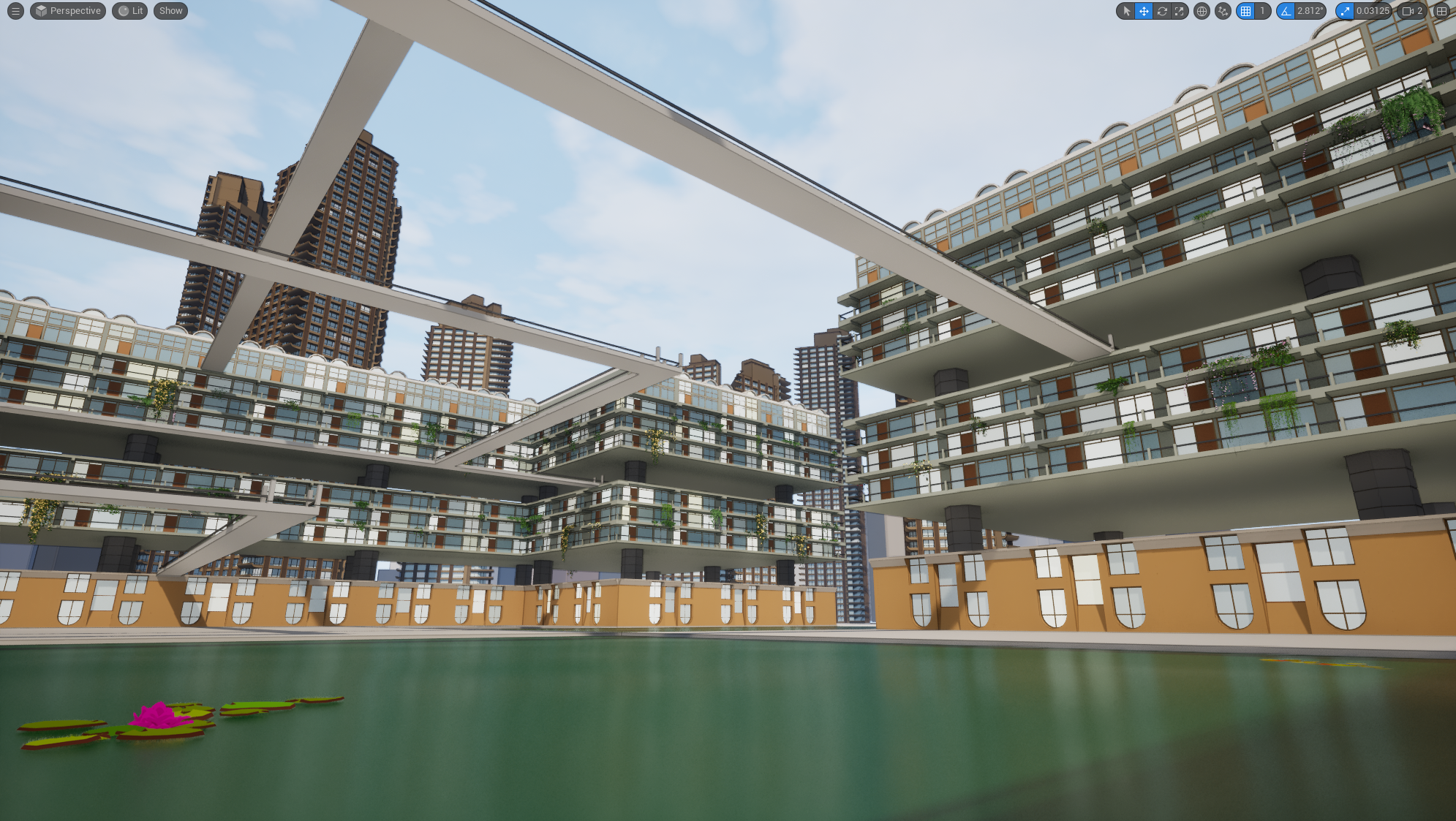
Bethnal Green's greatest landmark, rendered in UE5

So I have been getting back into gamedev after six months in the real world, and I decided to warm up with fixing one of the big pain points– matching materials between Blender and Unreal.

If you’re not familiar with the term, a ‘material’ is something used to give a 3D model a particular appearance when it is drawn on screen. The concept of a ‘material’ is an abstraction, combining a ‘shader‘– a piece of code run to determine the screen position and colour of the model being rendered– and the values of any parameters that shader has, which could be things like ‘colour’ or ‘shininess’.

If you’ve got one shader, and two different sets of values for the parameters, you would store that as two different ‘materials’.
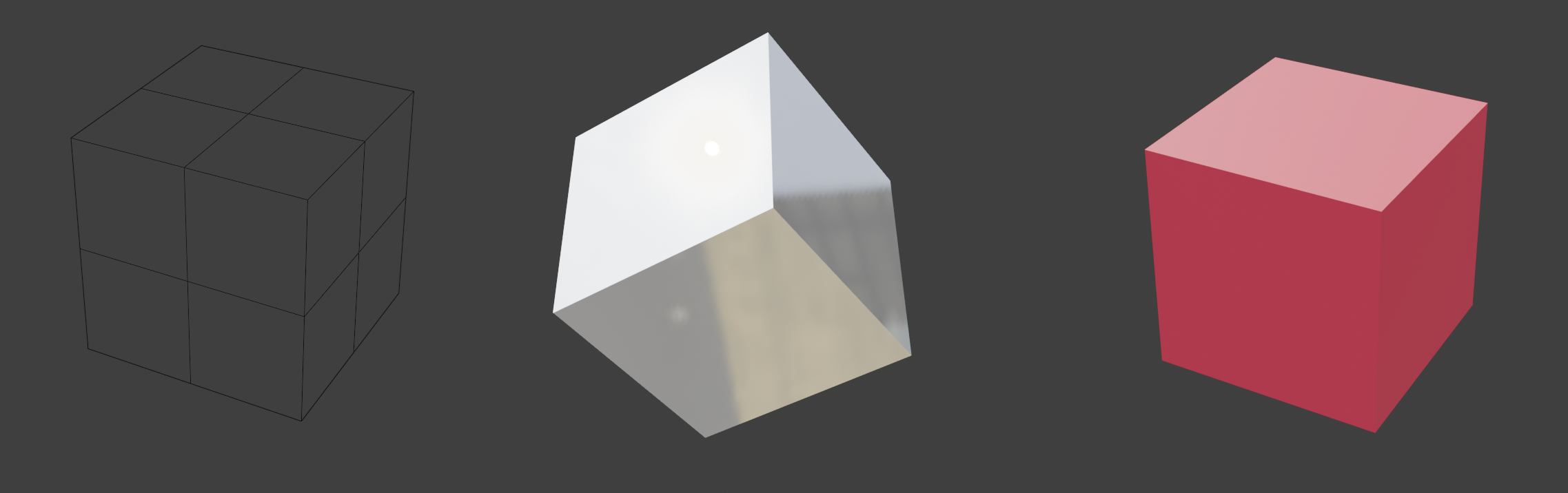
Some materials used to render a cube- wireframe, shiny, and red

Multiple materials can be placed on different parts of the same model, and when modelling things in an application like Blender, it’s fine to stick on as many materials as you want. 3D modelling is about making things look their best, so performance isn’t an issue.

In real-time applications like games though, performance starts to be a concern. When running things in Unreal, you want to have as few materials as possible. Each material needs it’s own ‘draw call’ for a particular model; the more draw calls you have to execute, the slower your game will run. And if performance drops below 60 frames per second, you will start getting death threats on Twitter.

Leaving performance aside for now though, ideally you want to have the thing you’ve built in Blender looking the same as it does in Unreal, and this leads to another problem: every material you create in Blender is one you have to somehow get into Unreal.

gLTF exists, and allows you to transfer the parameters you need from one to the other. You can also use texture maps, either baked from Blender, or created externally. But it’s all more stuff to manage, and it can get extremely tedious.

Behold! A Mann!

Consider the following (contrived) example: someone wants a model of a mirrored, decorative display case for the 1971 album ‘Push Push’ by Herbie Mann:
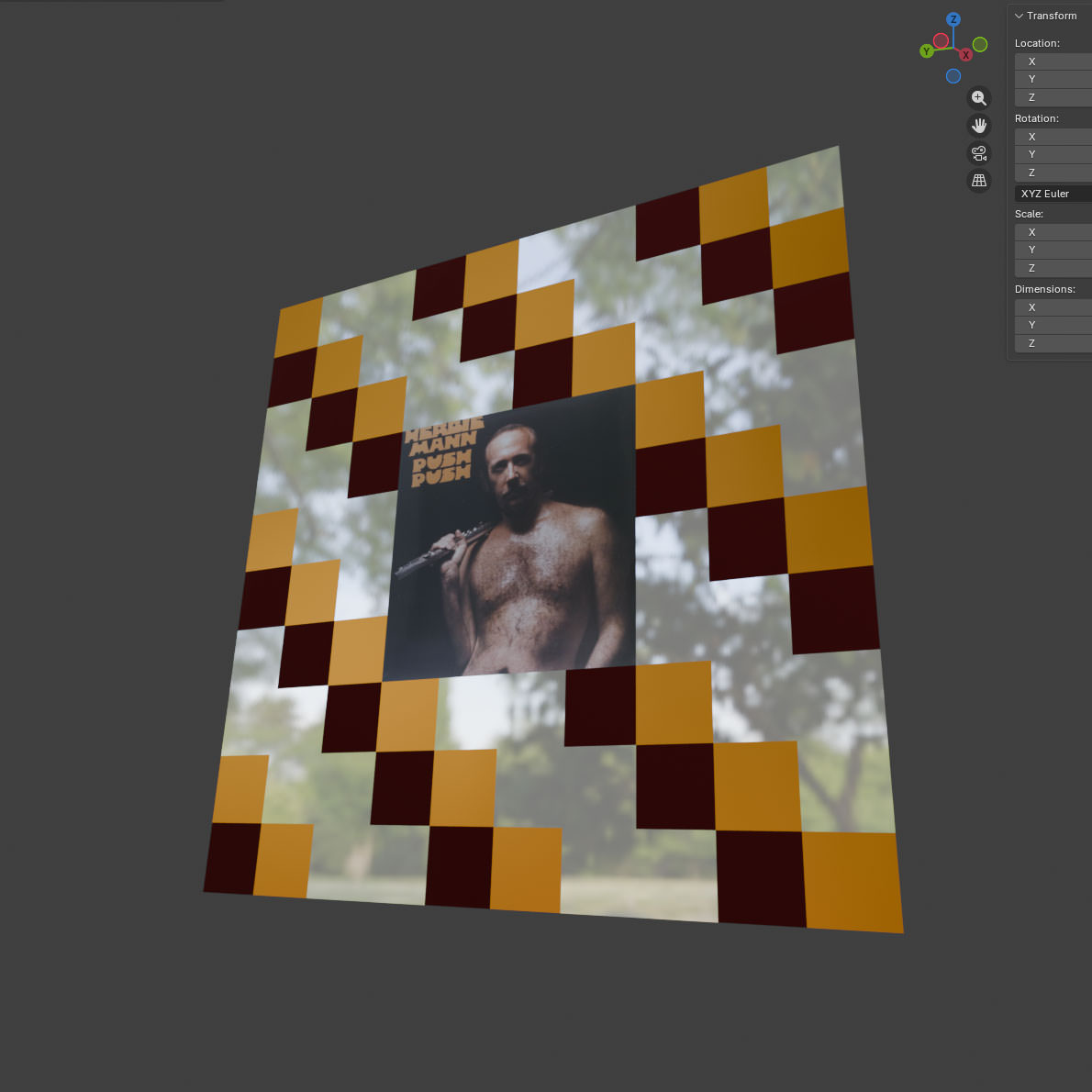
This has been called the worst album cover of all time, but I actually quite like it

There’s between one and four materials here, depending on how you slice it, with differing numbers of textures:

Option 1

Make textures in an external application such as Substance Designer that contain the different properties you need (colour, metallic, roughness etc), then apply those as a single material to your model.

Pros:

  • Only one material.
  • This is the industry standard way of doing it. If you happen to be a major game studio, you can probably stop reading here.
  • Geometry stays extremely simple- four vertices, one face.
  • Very flexible from an artist’s perspective. If someone wants a different pattern, you can crank it out quickly.

Cons:

  • Three different applications to manage (Unreal, Blender, Substance Designer), each with their own files.
  • Lots of textures (colour, normal, roughness, metallic, etc) going into fairly complicated material that combines them. You can reuse the shading code, but you still have to manage all the textures.
  • UV editing becomes required, and that can get messy. Well, not for this example, but if this were something more complicated it could turn into a proper trial.
  • Substance Designer is £50 a month. Textures can also be made in GIMP or Paint or whatever, but that’s even more time consuming.

Option 2

Do the whole thing in Blender- take a grid, carve it up, make the materials, and place them match the pattern.
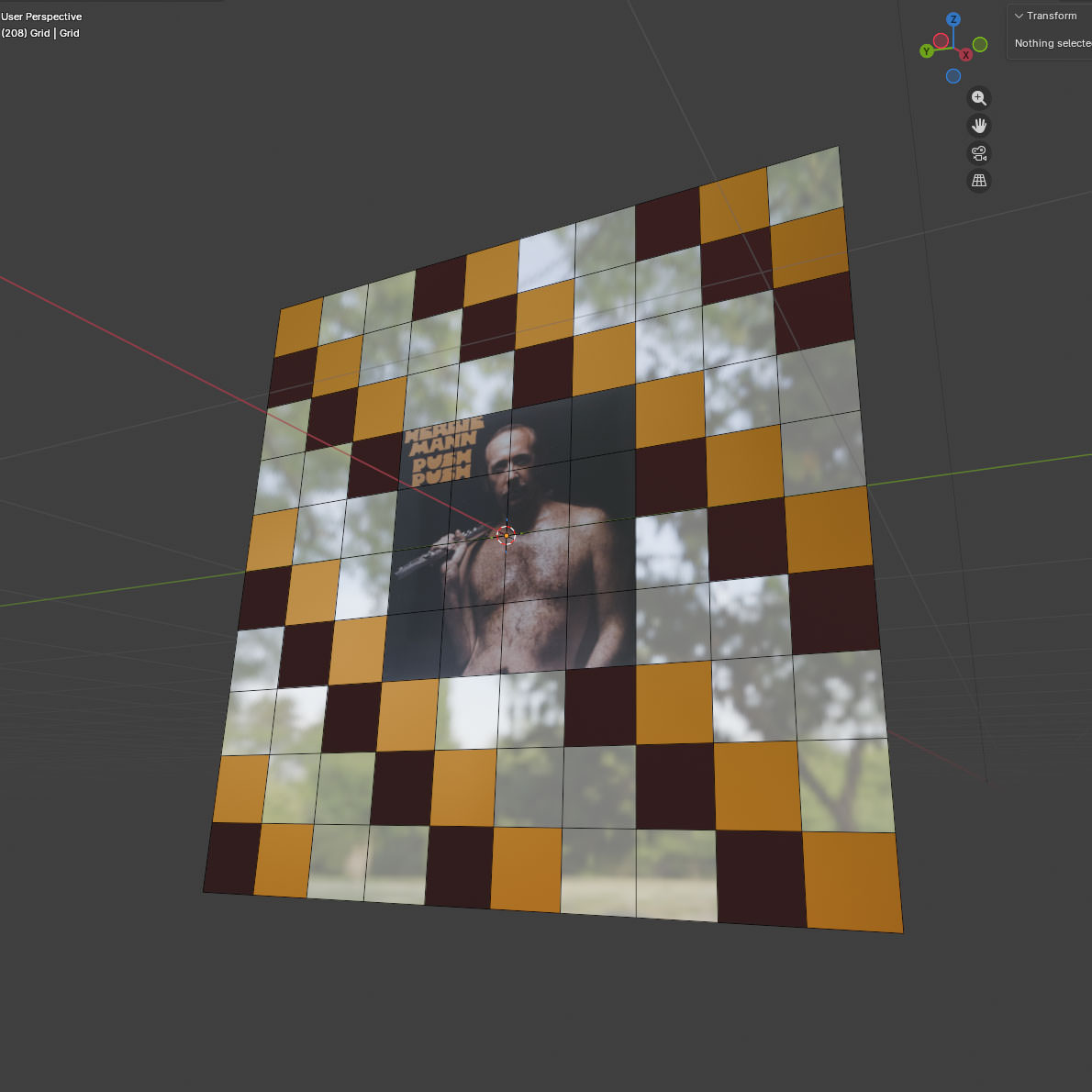
All I am saying right now is: it's an option

Pros:

  • Actually very quick to do, with instant feedback: everything apart from Herbie is just straight BSDF values, and took about 20 seconds each to make. Herbie’s material took slightly longer, but that’s because I had to plug an extra node in.
  • I can stick those materials on as many objects as I like. If I wanted a house covered in Herbie Mann- and who wouldn’t- I could reuse the Mann Material directly.
  • There’s still just two applications (Blender, Unreal)
  • Only one actual, texture (Herbie himself)- no messing around with different maps.
  • Very limited UV editing required. The squares for Herbie required some scaling, everything else is just left as-is.
  • I haven’t had to give Adobe any money.

Cons

  • Four materials to be exported or recreated.
  • The number of vertices in the model has been multiplied by 100. That can be reduced (given the pattern), it’s still a big increase over ‘4’.
  • This is not really the standard way of doing things. If anyone else comes on board, expect to spend some time being quizzed over why anyone would do this.
  • Big changes to that pattern are going to be time-consuming.

Which of those methods is ‘easier’ depends on your level of artistic ability and the complexity of the model. Sticking a material on a few faces in Blender is pretty trivial, but sticking it on hundreds gets old fast– but if you’re not a natural artist, it’s probably still easier than painting a texture.

There’d be no point to this post if I wasn’t going to explore Option 2 further.

Here’s the thing about Option 2– if you’re prepared to accept some limitations on the look and feel of what you’re building, you can actually save yourself a lot of time by having one or two materials for absolutely everything.

When I first started mucking around with Unreal, I was using a bunch of assets that I’d got as part of some Humble Bundle deal or other, made by a company called Synty

Synty’s assets are all very low-poly, and almost entirely use flat colours. Here’s an example of something from their Polygon City pack:
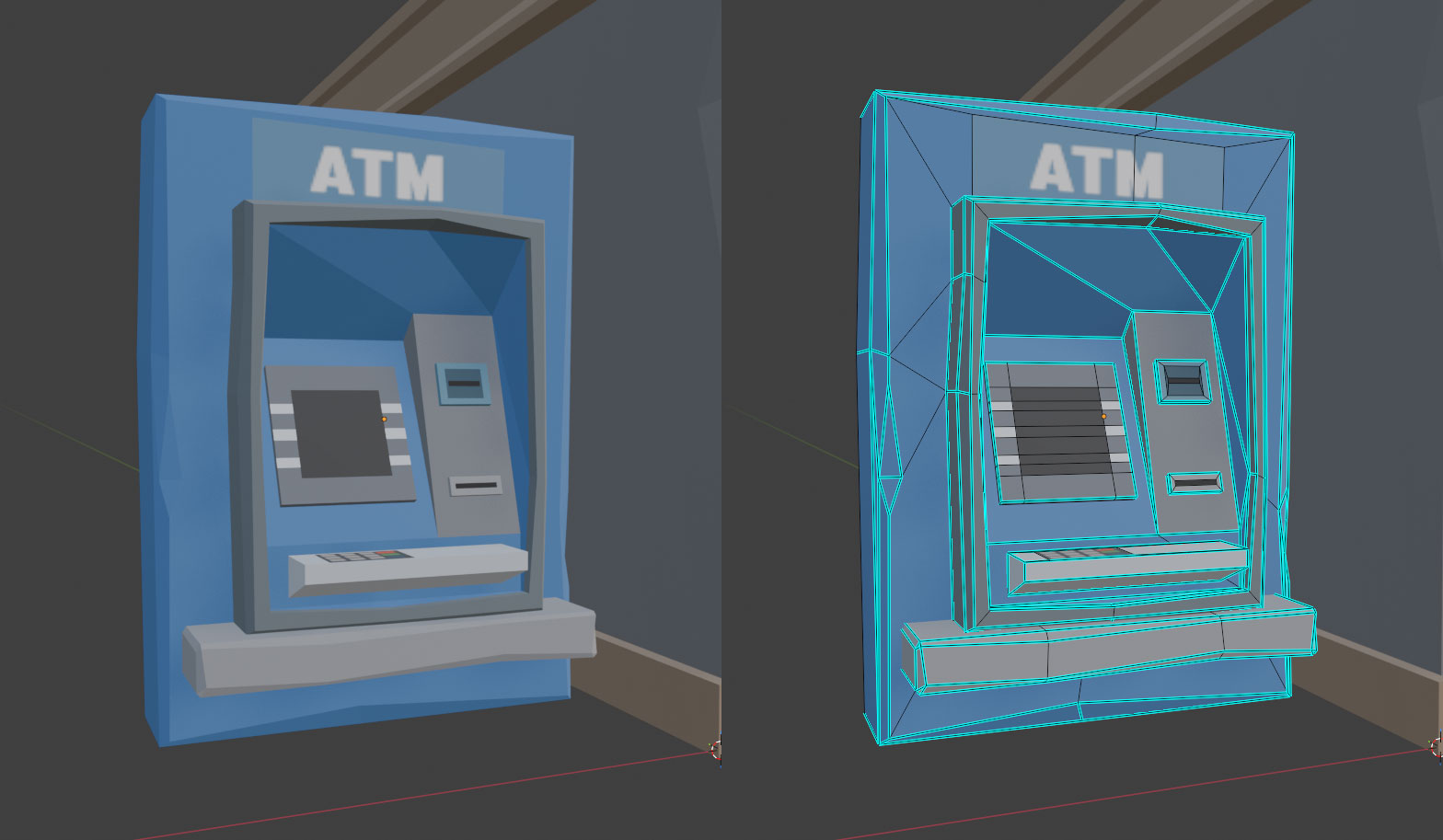
I don't think I've used an ATM in about 18 months

Rather than a complicated UV-unwrapping scheme, most of that model just maps onto a single texture containing colours and a few choice images:
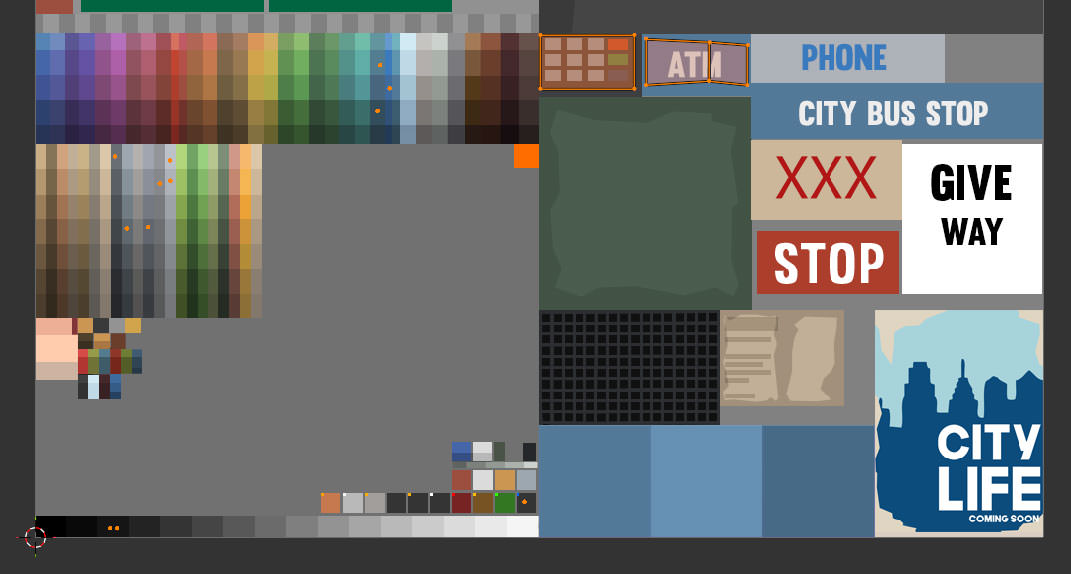
Each orange dot / area is a face on the model above, indicating where the face should get its texture from. You can see the only bit that hasn't been forced onto a single colour is the bit that says 'ATM'

This is quite a neat solution- everything in the pack can use the same material, so the people who made them can just focus on the geometry, and the people using them can focus on building Lowestoft Fly-Tipping Simulator 2027.

UV mapping, if you’re not familiar with it, is a way of mapping the faces of a 3D model to a 2D image. Models can have multiple UV maps, used in different ways. The ATM above, for example, comes with two UV maps- the one above which is used for surface colour, and then a more traditionally ‘unwrapped’ one that looks like this:
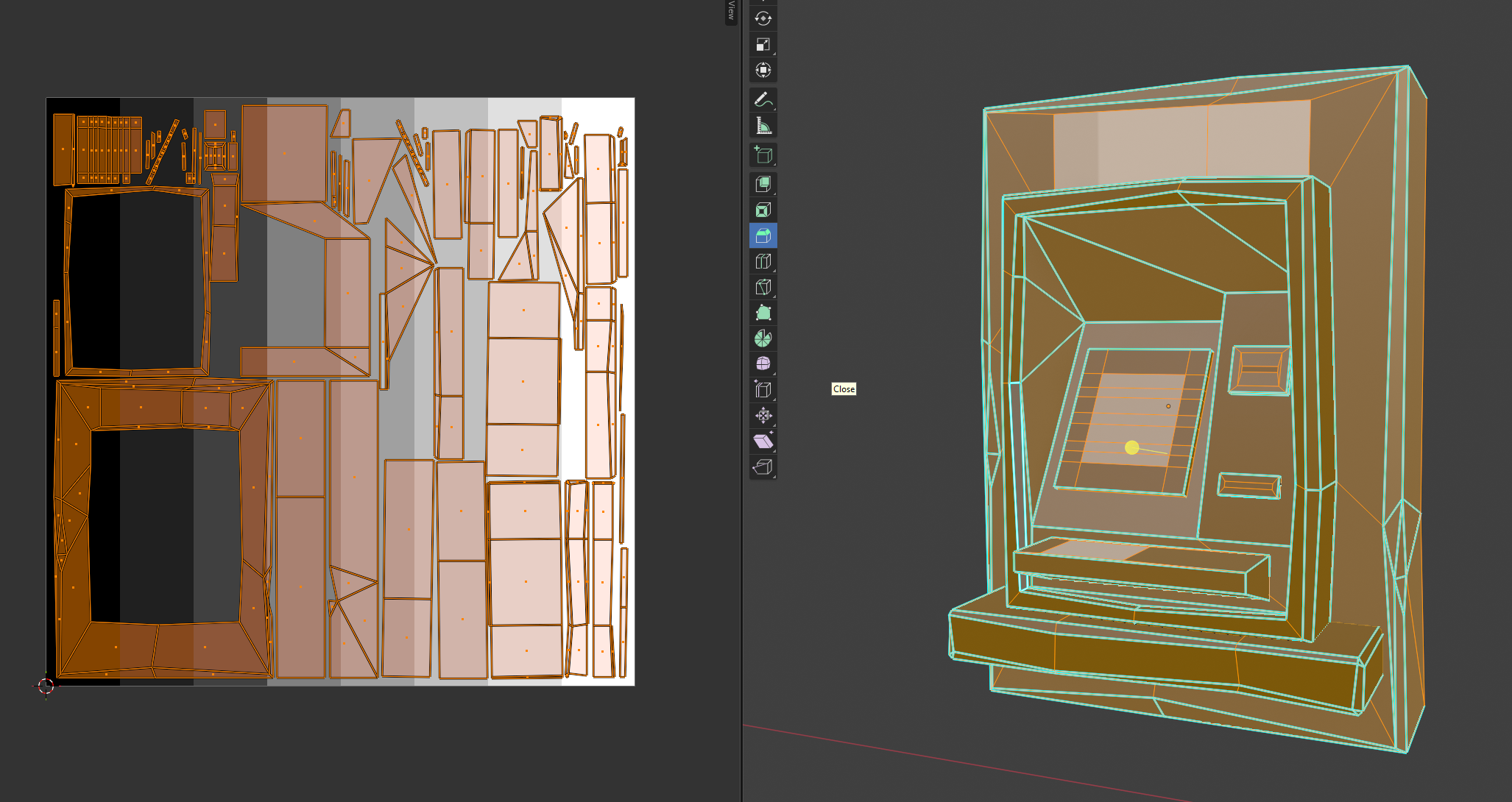
Again, each orange area on the left represents a face on the 3D model on the right

It’s a lot easier to see on the second one which areas of the 2D image correspond to the 3D model, but using that map for colour would require a unique texture to get the same results as using the first. The trade-off here is one between texture reuse, and texture detail. Since the model isn’t particularly detailed, and they only want flat colours, it’s fine to use the first one for colour.

Now I could just use Synty assets, but there are some drawbacks:

  1. I don’t like the way everything looks like it’s been hit by a sledgehammer.
  2. They’re very recognisable- once you’ve seen the style, you’ll start seeing it in every indie game that uses them.
  3. They don’t make everything I need, and even if they did, I’m not going to buy all of it.
  4. I could just use the textures, but it’s very painful scaling down UVs and dragging them onto the colours compared to clicking on a face in Blender and setting a material.
  5. They don’t support all the stuff I want to do with materials.

Back in the BSDF

“Let me tell you about bidirectional scattering distribution functions” - the words every woman wants to hear. A bidirectional scattering distribution function, or BSDF (I am not typing that again), is used to model the scattering of light when it hits a surface. Blender and Unreal both use a (the?) ‘Principled BSDF’, parameterised by some values. Changing those values changes what the material looks like, because ‘how something looks’ basically means ‘how light scatters when it hits the surface’. Here’s how they’re set for the Synty models above in Blender:
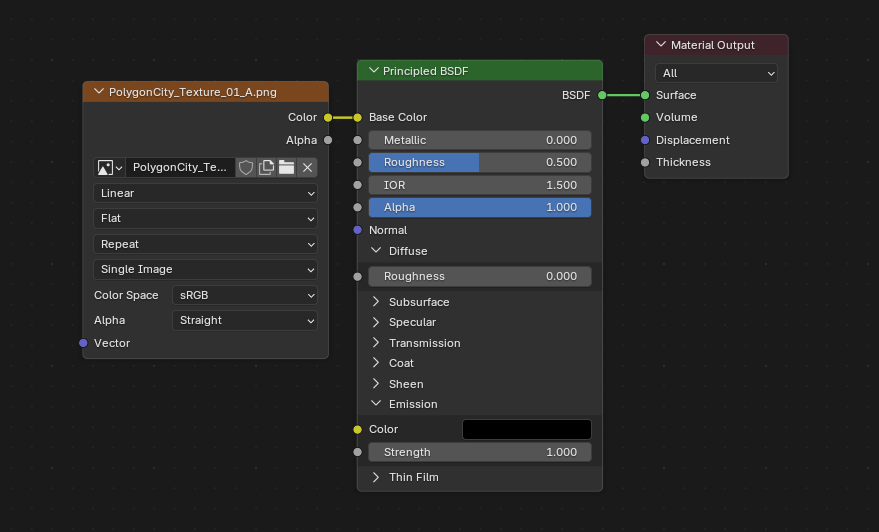
Shader graph for the above ATM, in Blender

There’s a lot of parameters there, but the main ones I use are colour, roughness, metallic and emission. The others do stuff as well, but if you’re OK not having things like fancy car paint, you can ignore them.

  • Colour is… the colour.
  • Roughness is how rough or smooth it is. Think of the difference between stainless and brushed steel.
  • Metallic is, amazingly, if it’s a metal or not. This value is (almost always) either 0 or 1.
  • Emission is the colour and intensity of any light emitted from the surface.

Synty’s technique is to put colour on one map, lock roughness to some value, ignore metallic and then put emission on a different map referenced by the same set of UVs. They’ve got one particular look, but lots of colours.

I’d like to take it in the other direction– fewer colours, but more options for the other parameters– and also avoid manually having to lay out any of the UV values. The workflow should be: make the model, stick some materials on it, press a button, and have something that I can use directly in Unreal.

So, I did that.

Atlas, My Love Has Come Along

The ‘pressing a button’ bit above means ‘writing a Blender plugin to do most of this’, with the outputs being a ‘Material Atlas’ and copies of our models with the UVs set accordingly. It’s the same idea as a Texture Atlas, but for surface properties.

Here’s the general idea:

  • Load a JSON file containing what materials we’ve encoded so far (or create one if we’re doing this for the first time)
  • Give the plugin a model, and have it read the materials that are on it
  • For each material:
    • If the material is in our JSON, move on to the next.
    • If it isn’t, extract the properties and append them to our JSON file
  • Use the populated JSON to produce an image containing a grid of all our materials, somehow encoded, as a ‘material atlas’.
  • Output a new model where the UVs have been placed so they reference the materials on the atlas
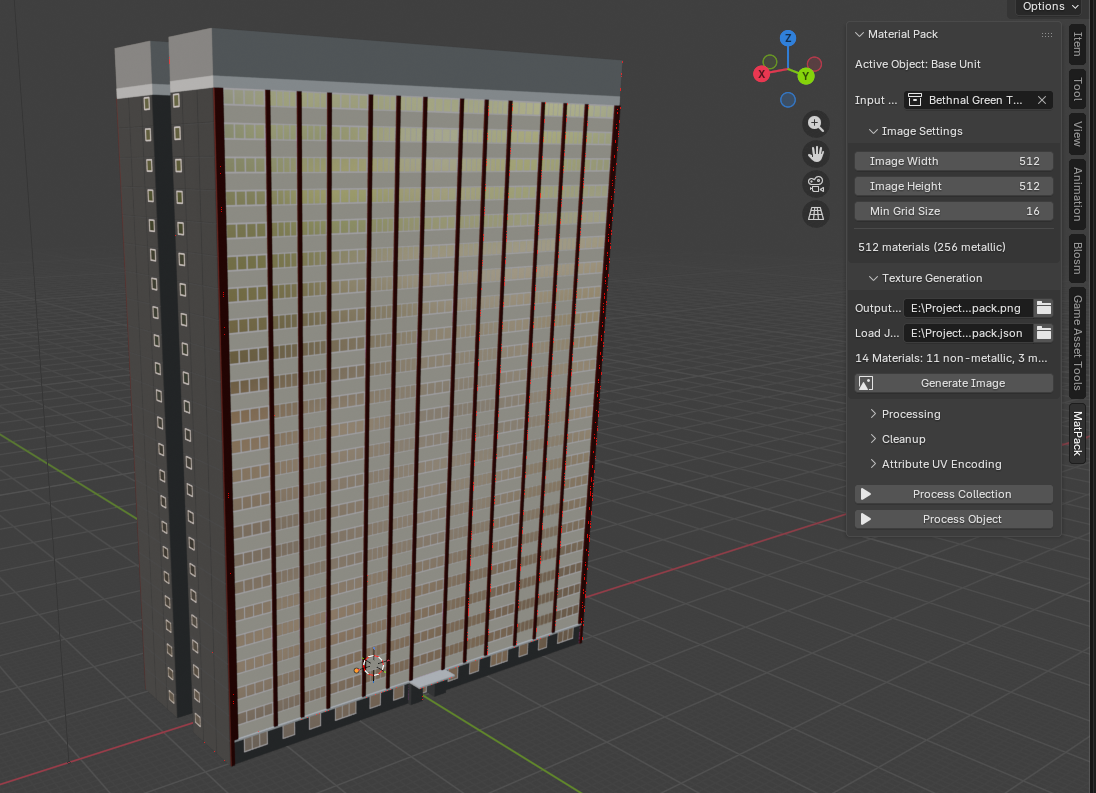
Note the foreshadowing under 'Attribute UV encoding'

The plugin isn’t really the interesting bit– the clever / stupid bit is the encoding itself.

To recap: we’ve got four different values to encode. Those are:

  • Colour
  • Roughness
  • Metallic
  • Emission

We’re going to be writing our atlas texture as a transparent PNG, which gives us four channels:

  • Red
  • Green
  • Blue
  • Alpha

The first problem is that Colour will take up three of those. I did try using two values for encoding Colour by writing it as HSL and then fixing the value of Saturation to 0.8, but it looked rubbish.

So, I chose to leave Red, Green and Blue for colour. Alpha is mapped to Roughness, as that’s value that varies the most across materials.

Unfortunately, we still have Metallic and Emission left.

Here’s the thing: Metallic is basically binary– effectively only ever 0 or 1– and binary partitions are easy to handle. So we can put the non-metals on the left and the metals on the right, then in our shader set Metallic as the output of uv.u > 0.5
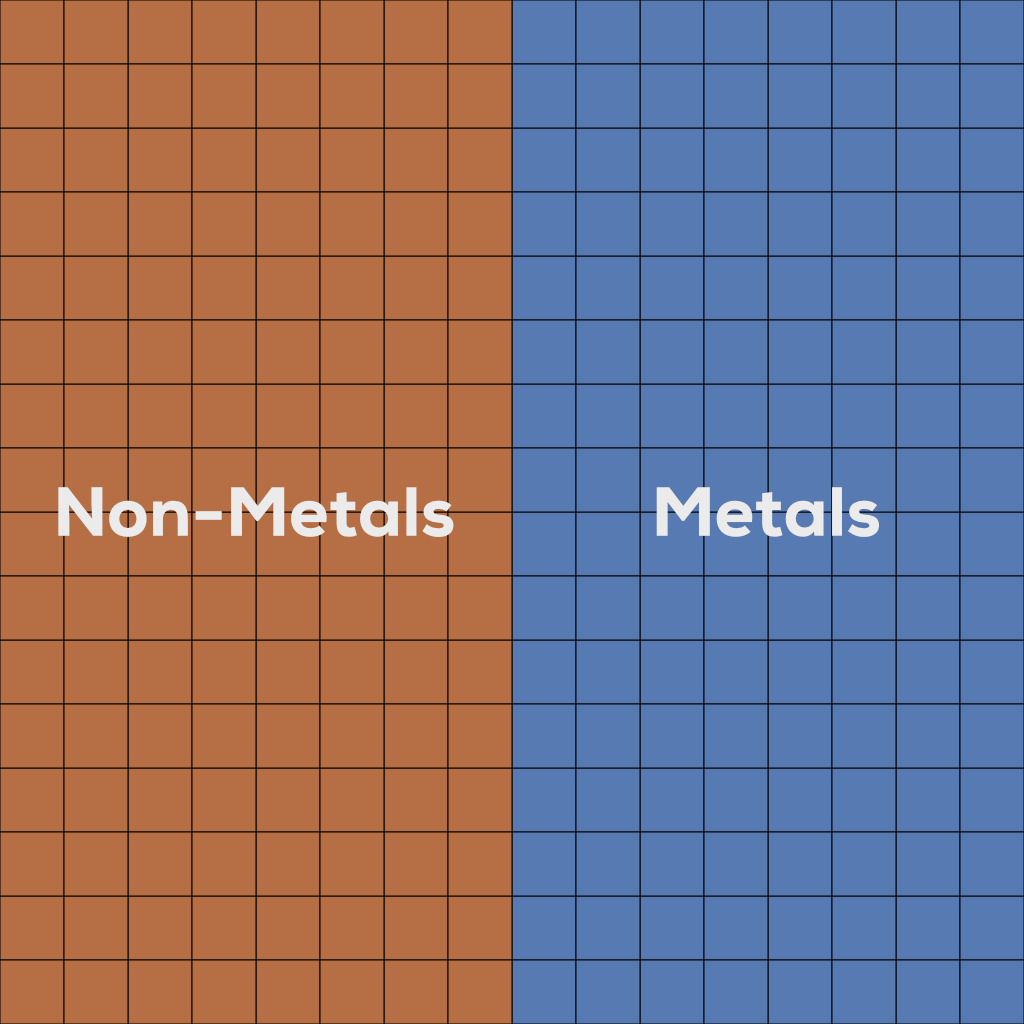
How the atlas is laid out. The fine line between stupid and clever is at 0.5 on the U axis

At this point, we could say that Emission is also binary value and declare ourselves done– things either light up or they don’t, meaning we can do the same as Metallic, but on the other axis.

To compensate for lights being comparatively rare, we could place emissive materials at the very top of our atlas, and then do a check of uv.v > 0.9 in our shader to see if something is emissive. And we can live without the colour of Emission value if we say it’s the same as the other Colour property.

When was the last time you saw a blue thing light up red?

Never.

Done.

Yet while I am no great artist citation needed, even I can see it’d be a shame to lose the information about brightness. You don’t want a scene where all the lights are either blinding or dim.

Fortunately, we’re not just limited to one UV map per model. We can have up to eight in Unreal. That’s great, but there’s a cost to using them- each additional UV map adds size to the model. More size is bad. As such, it’d be a shame to pay that cost just for the sake of one float value.

Still… if we did that, could we use the left-over values to encode… even more stuff?

Enter Geometry Nodes
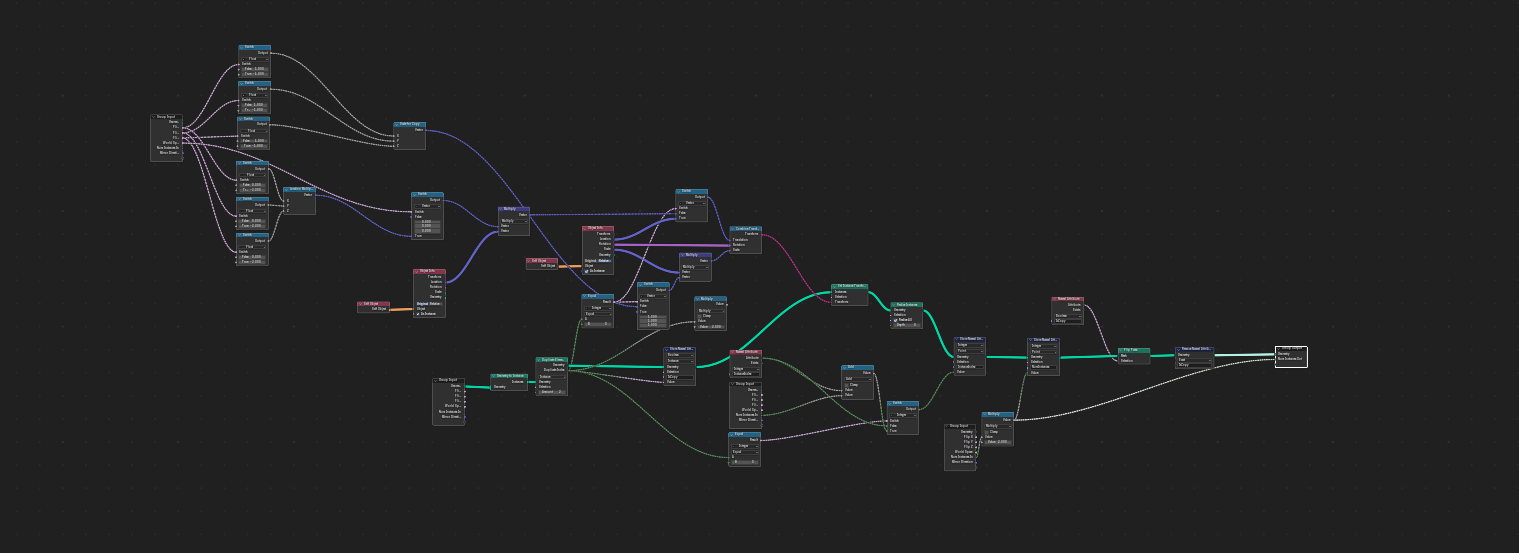
Can you guess what it is yet?

Geometry Nodes is Blender’s programmatic modelling framework. It’s a bit of a headache at first, but it’s also very powerful.

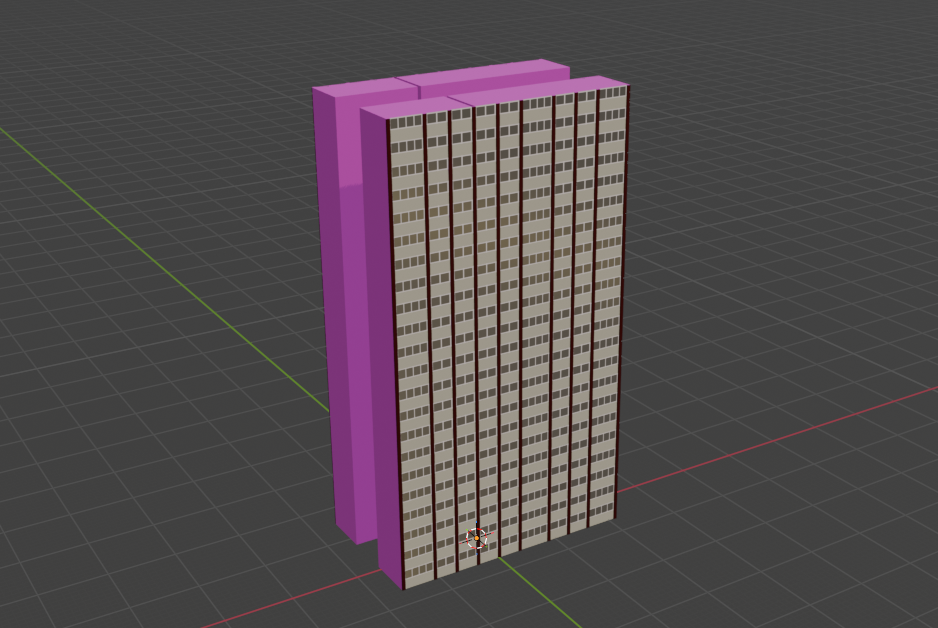
Recall the image at the top of this post. If you’re making a block of flats, you don’t want to have to model every single flat that’s there– you want to model one, and then have the computer copy it to the other locations. Before Geometry Nodes (and to be honest, even now) you’d do that with the ‘Array’ modifier. Changes to the original geometry reflect across all copies at once.

Geometry Nodes is a generalisation of that approach that lets you to build your own modifiers. You can go from this:
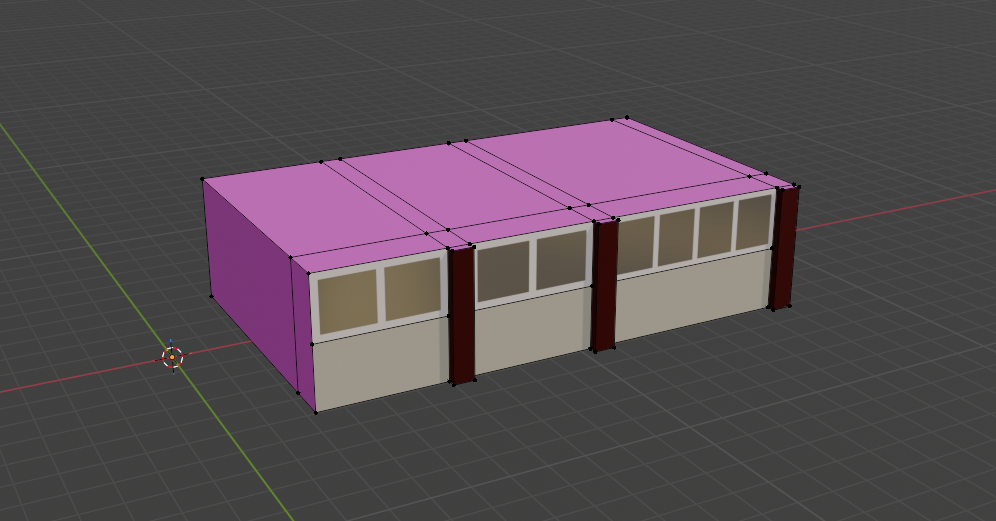
A homely, isolated cottage

…to this:

Call it urban hell if you want but at least we have regular bus services

…without having to place every bloody vertex yourself. That’s great. While you’re doing it, you can read and write attributes onto the geometry to influence later stages. Here I’m writing a random value onto each instance of the original unit:
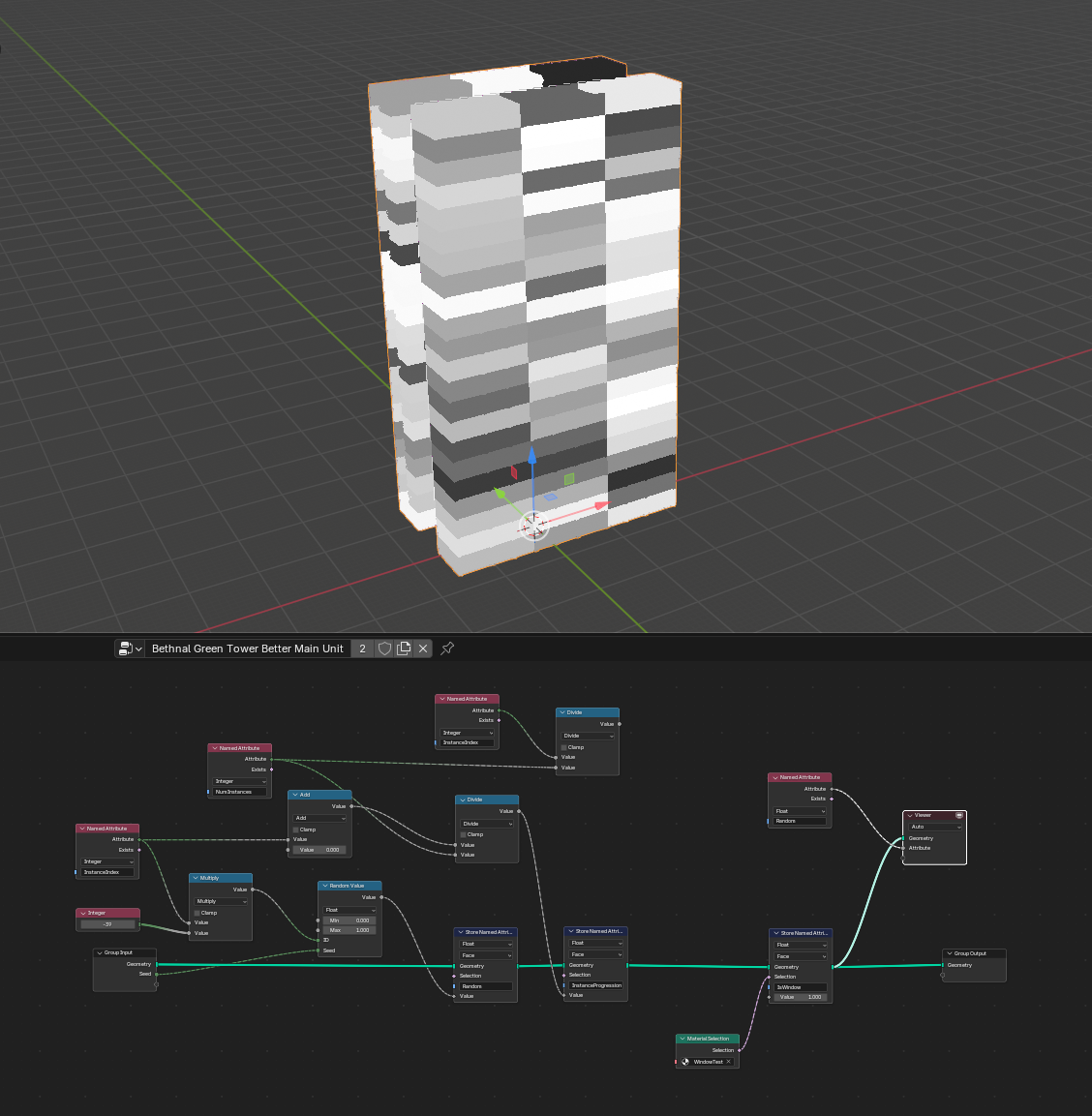
And if I combine that with another attribute saying where the windows are (which is worked out by asking “does this face have the window material”)…
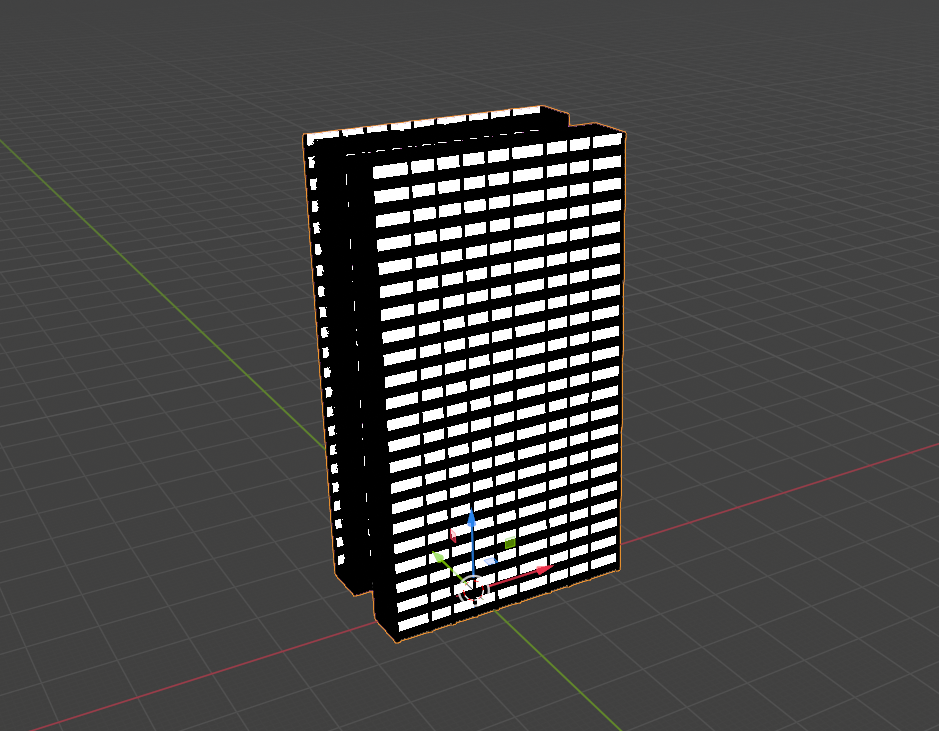
I can make it look like some flats have people in and some don’t when the final material is applied, by referencing those attributes:
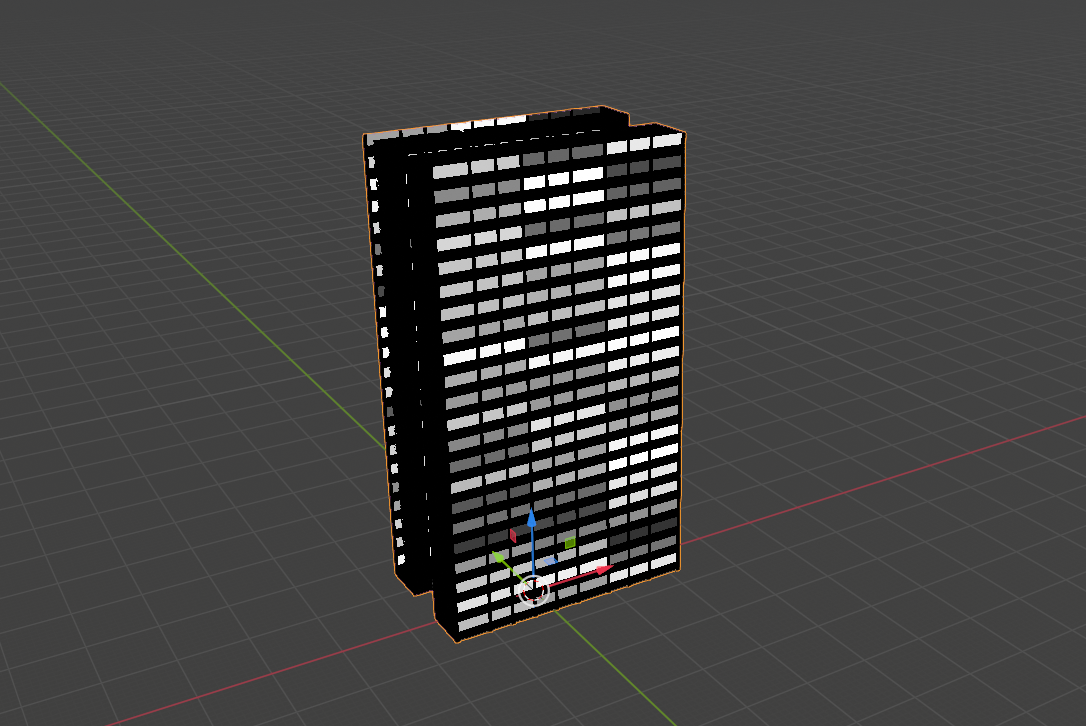
I should add a couple of extra window indicator materials for different rooms so it doesn't look like people either have all their lights on or none of their lights on, but you get the idea.

Remember the title of this post? Well, that’s another thing the plugin does- encodes arbitrary data to UV maps. I can take attributes stored on different parts of the geometry and write them to a separate UV map in order to access them in a shader. Here’s what the UV map looks like for the above:
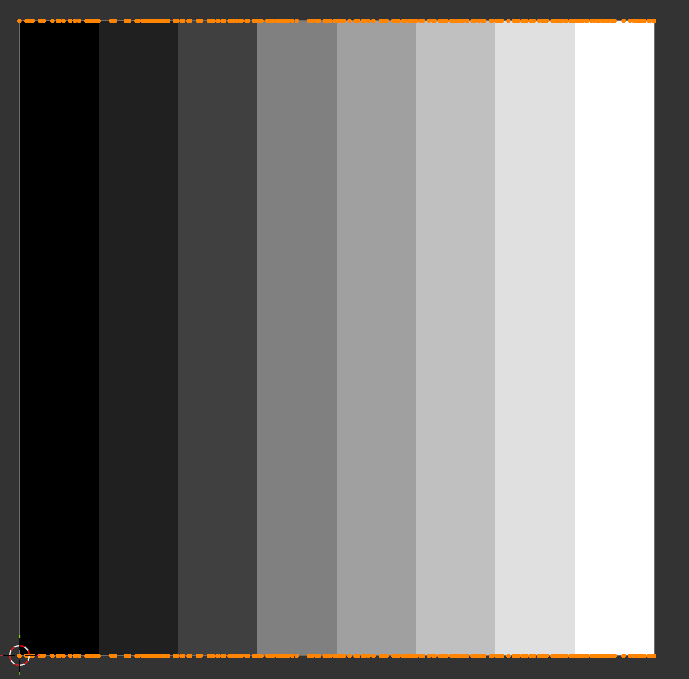
The random values are written along the U axis (or X axis if you’re more used to that) and the ‘Is Window’ flag is written on the V (or Y) axis. When shading this, I don’t even need to do any texture sampling– I’ve got two extra values to write, and there’s exactly two values in the UV map, so I can just check those directly.

If we do a texture lookup, we can use something like this:

Disco Computing- note that this image is actually upside down for UV mapping because the quickest way to make it was HTML5 Canvas and JavaScript, but you get the idea

That’s a 32x32 grid of cells. R runs along the X axis of the whole image, G down the Y axis; within each cell, B increases along X, alpha increases along Y. A simple bit of maths to place the UV and you now have four values which can be used to augment shading at the cost of a bit of extra memory per model, and I’m still only using one shader. And I’ve still got more UV maps I can use if I want to be even more perverse!
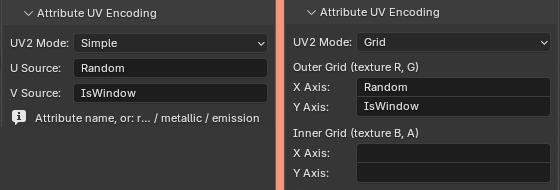
Encoding options

The plugin has options for both of these encodings: ‘simple’ encodes two values, and ‘grid’ encodes four. Enter the names of attributes that you want to pick up and they’ll be encoded to the second UV slot.

There’s a few extensions possible here. It’s currently locked to just outputting one UV map for surface properties in the UV1 slot, and attributes on the UV2 slot, but as noted before, we could add more UV maps if we wanted to.

Another possible extension comes from noting that UVs are written as standard floating point values, so they don’t have to stay in the 0 – 1 range. [9000, -69.67] and [3.142, 1.1618] are just as valid as [0.1, 0.1]. You can either use that to make the code easier to read by checking against integer values, or– if you’re feeling really spicy– encode one value as the integer component, and another value on the fractional component.

For example, say you have one value which is 5, and another which is 0.358. If you set the uv.u to 5.358, the first value can be retrieved in your shader with floor(uv.u), and the second value can be retrieved with fract(uv.u). The second value could even still be used as a regular UV coordinate to look up a different set of four values in the fancy rainbow map above.

What could possibly go wrong?

Obviously there’s drawbacks here:

  • This atlas limits me to an NxN grid of materials, which with current settings limits me to “just” 256 metallic and 256 non-metallic materials. If for some reason I decide that’s too few, or that I want to adjust the ratio of non-metallic to metallic, I’ll need to re-process all the models I’ve made or the materials will be wrong. And that will be shit.

  • It’s not particularly collaboration-friendly. If there were another an artist working using this at the same time on the same project, we’d need to keep things in sync. Storing definitions in the JSON mitigates that somewhat; that could also be changed to a folder of JSON files to make it more amenable to git.

  • Names and definitions need to be consistent for the Blender materials across files, as that’s what the atlas is indexing on. That probably means keeping them in a single Blender file and then linking data to new files. Again, not super-collaboration friendly, and possibly prone to screw up.

  • Additional UV maps make models bigger. Right now I’m using one “standard” one, unwrapped the regular way (more on that shortly); one for the material atlas; and one for the additional ‘is window’ ‘random value’ pair. An additional one is also required for the lightmap, which Unreal generates automatically.

  • Not a major issue, but if I want to apply one of the materials in the atlas to something that hasn’t gone through this pipeline, I’ll need an extra material in Unreal that has some parameters I can change to use as a pseudo-UV coordinate.

Nothing’s locking me into this for models that don’t need it though, so I can just say “this is for all unimportant static meshes” and then use the ‘proper’ method for anything that needs it.

Some other things the plugin does

Before we get to the big payoff, a quick aside on some other pain points I decided to kill while I was at it. This plugin doesn’t just work on single meshes– it can do whole collections, and then merge the output. There’s also some options for the more common clean-up operations, like merging duplicate vertices.
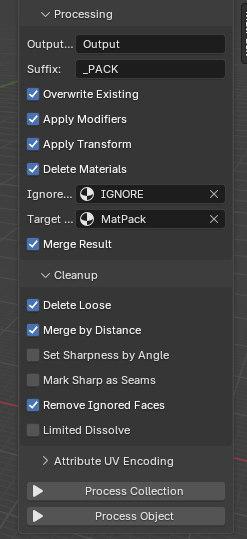
Options!

I can also specify a material which, when applied, will cause any face that has it to be deleted from the output. Since I’m usually building parts, running them through Geometry Nodes, and then combining them, I can wind up with a load of internal geometry that isn’t visible from any angle. If it’s not removed it means the models take up extra memory, which is bad.
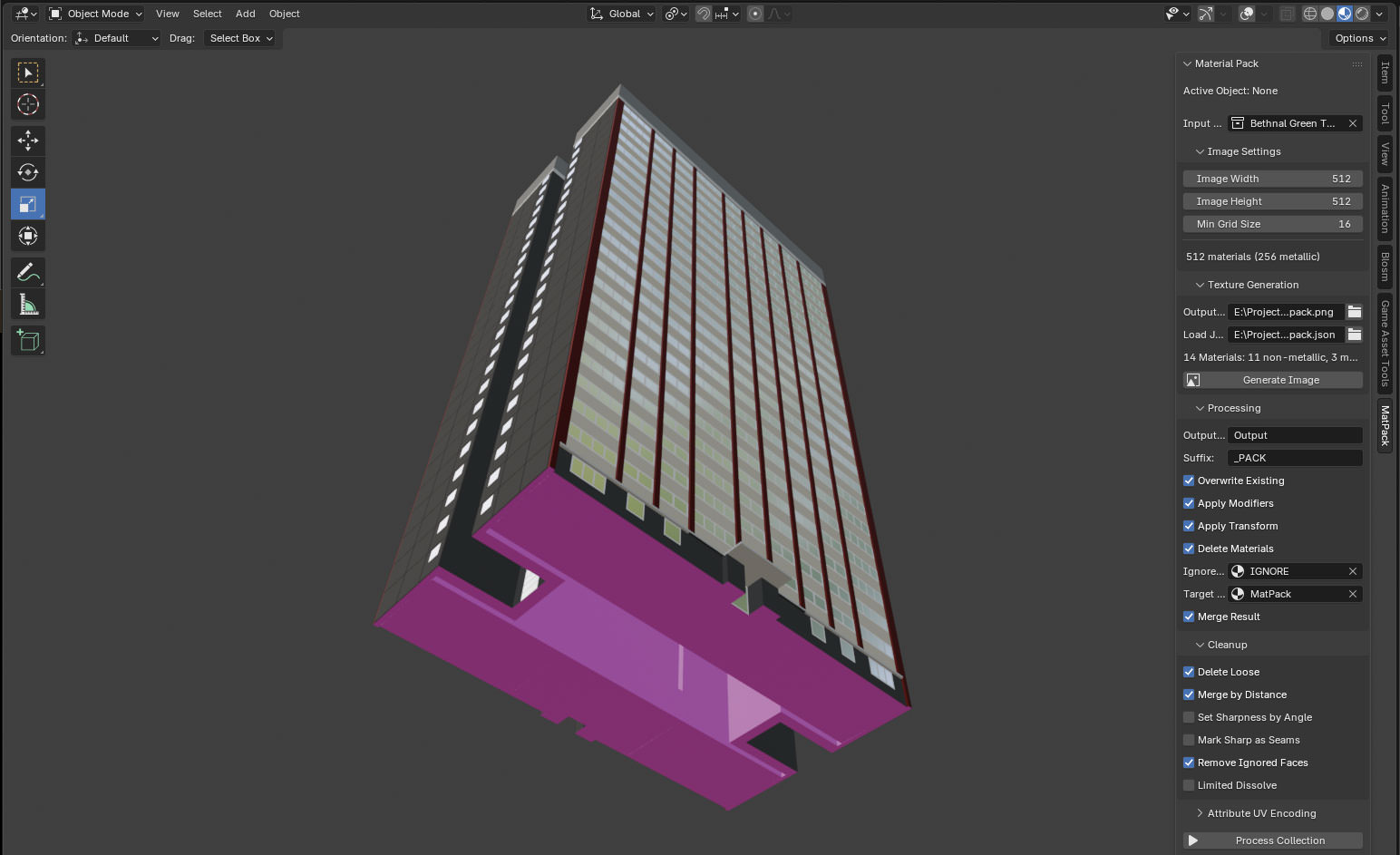
Before...

The pink material is the one that’s going to be removed. When processed, that gives us this, which is nicely hollow-
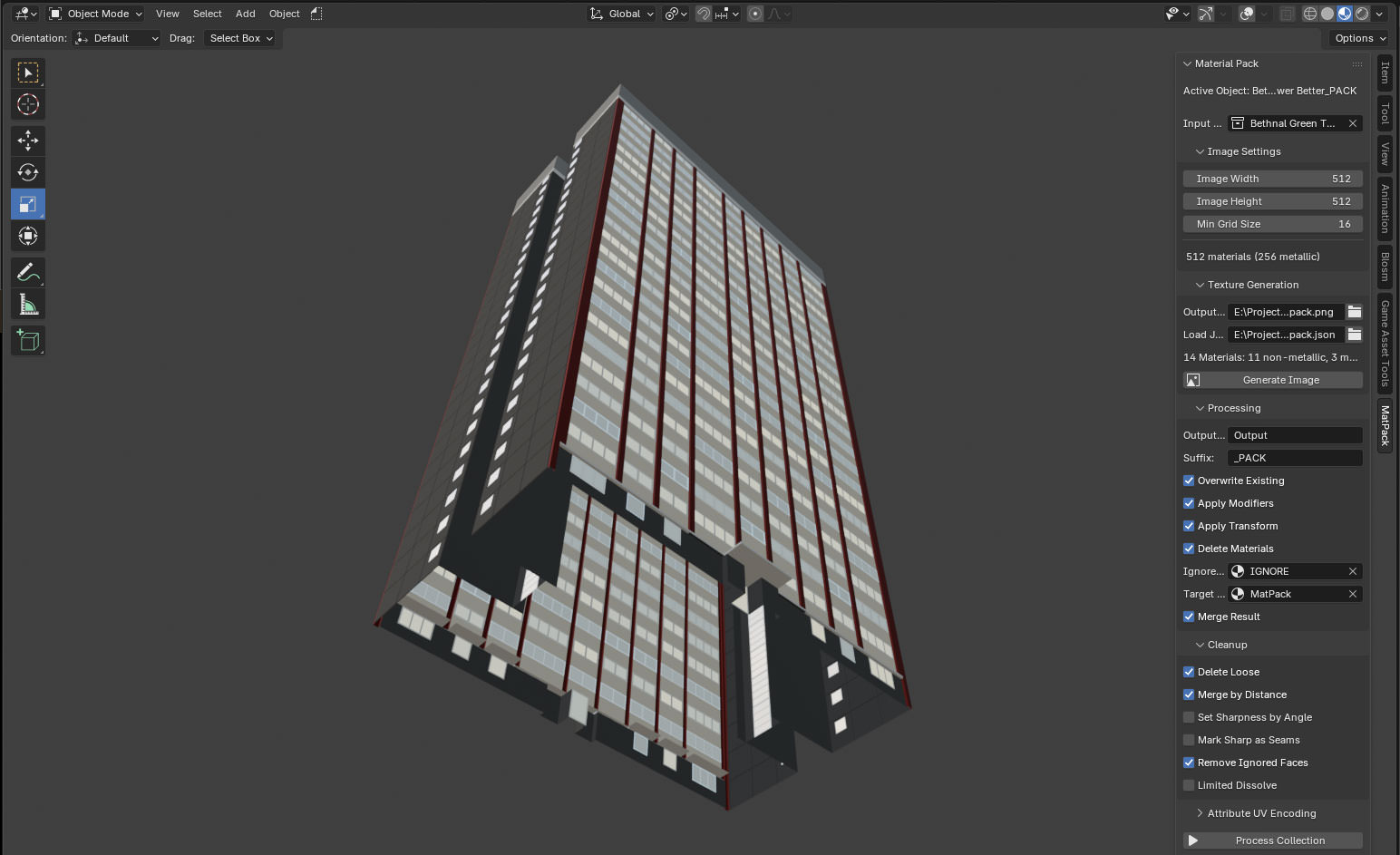
...and after

Now, I could just build everything as flat faces, but whilst modelling, it’s significantly nicer using solids. Being able to flag something for removal and then have it just gone after processing is very useful.

PCG Angle Dust

If you’re name is Tim (hi Tim) you’re probably wondering if it would make more sense to ditch the Geometry Nodes part entirely and do all this in PCG.

Well, I could, but some things are easier in Blender, and some things are easier in Unreal… and it doesn’t need to be one or the other! This whole thing gets significantly better if you use it with PCG. So let’s dig into that.

Let’s say we want a whole load of buildings that look like this, but have different numbers of floors. For that, we’d need to take a single floor and duplicate it upwards a random number of times (and then maybe put the roof at the top as well, but let’s leave that for the time being). If we do that straight in Blender with Geometry Nodes we’d get something like this:
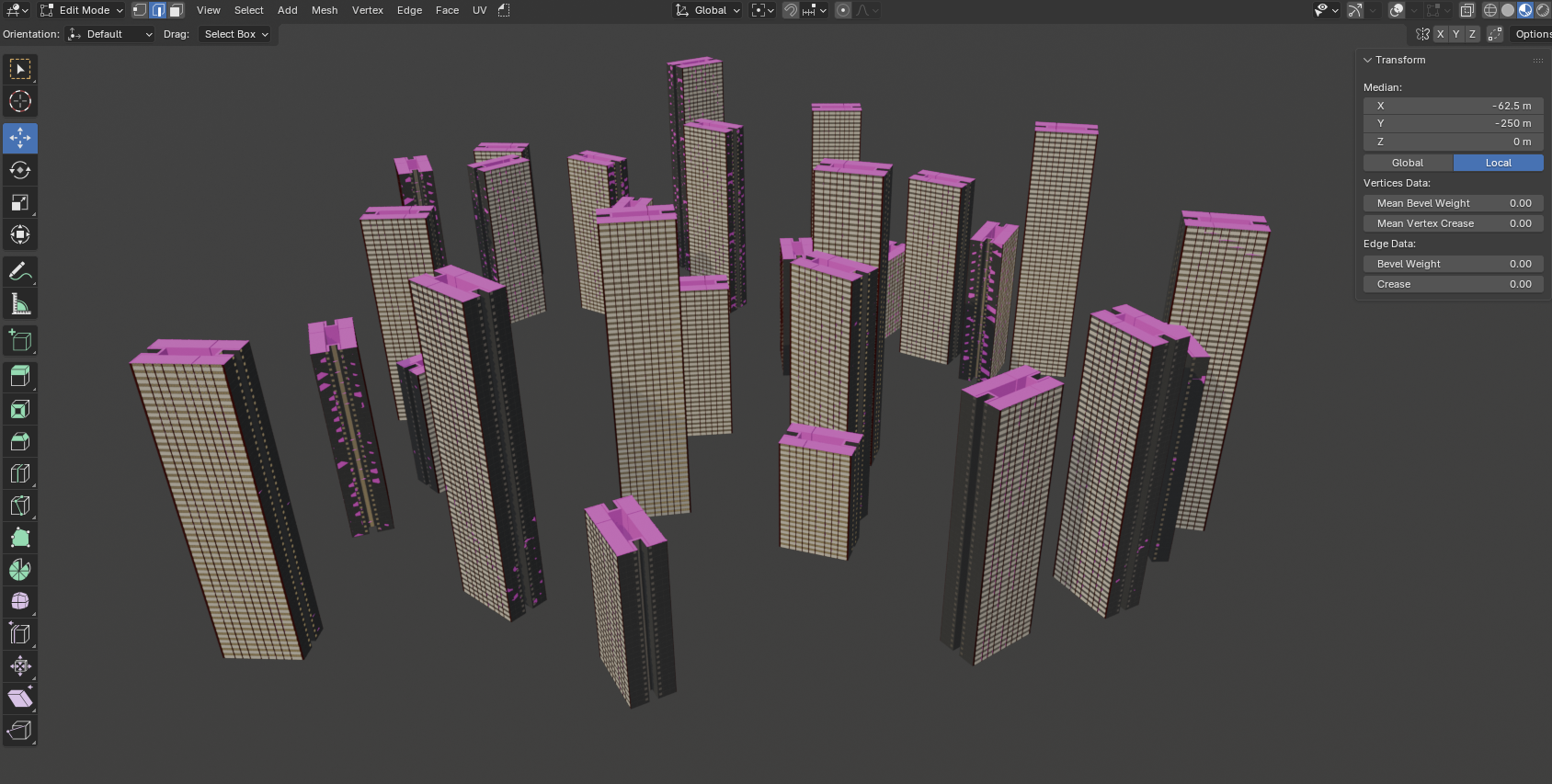
Again, the pink stuff is to be removed

Doing the same thing in UE5 PCG is pretty straightforward–
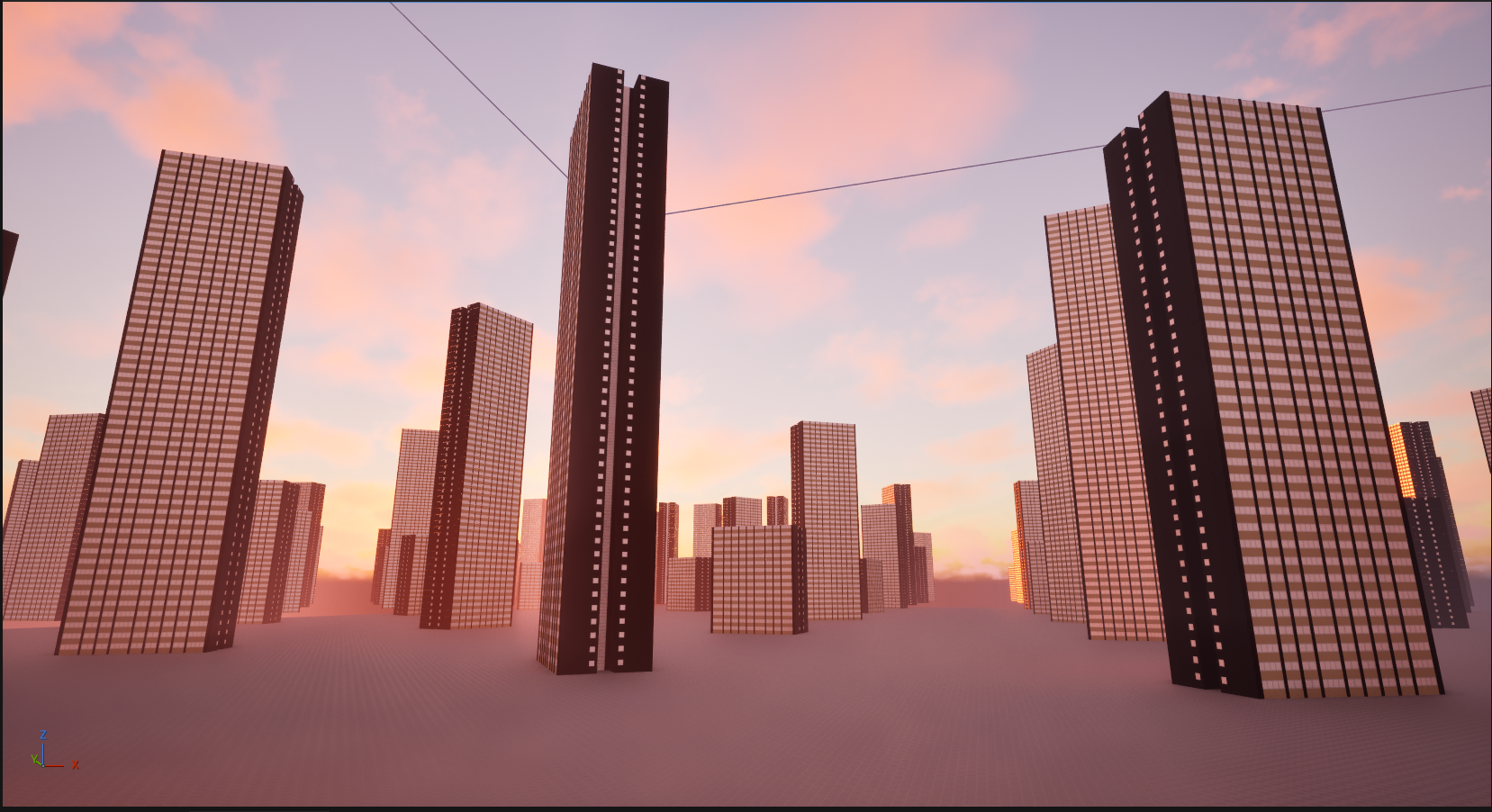
Without any lighting (yet)

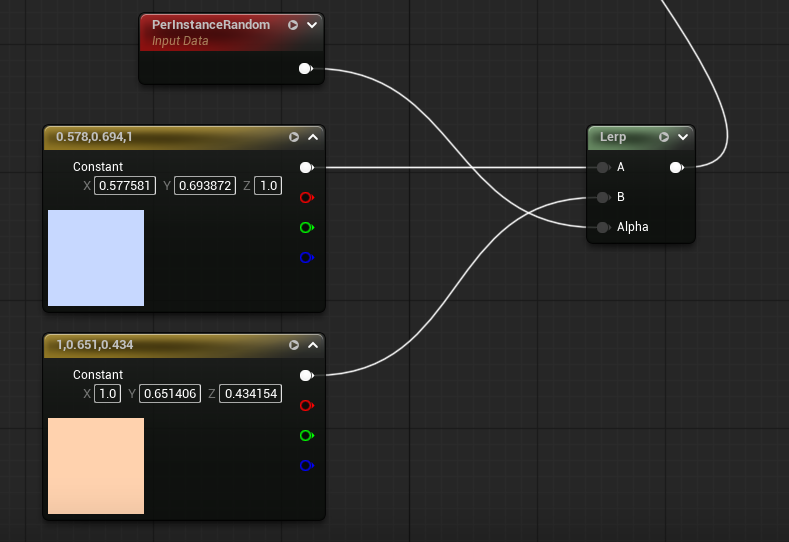
If we then use the ‘per-instance random’ node in the Unreal material, we can set the brightness of the lights. But we’ve exported the whole floor, so the brightness will be the same across all of it. And we still have the problem of flagging which bits are windows and which bits aren’t. Walls don’t typically glow.
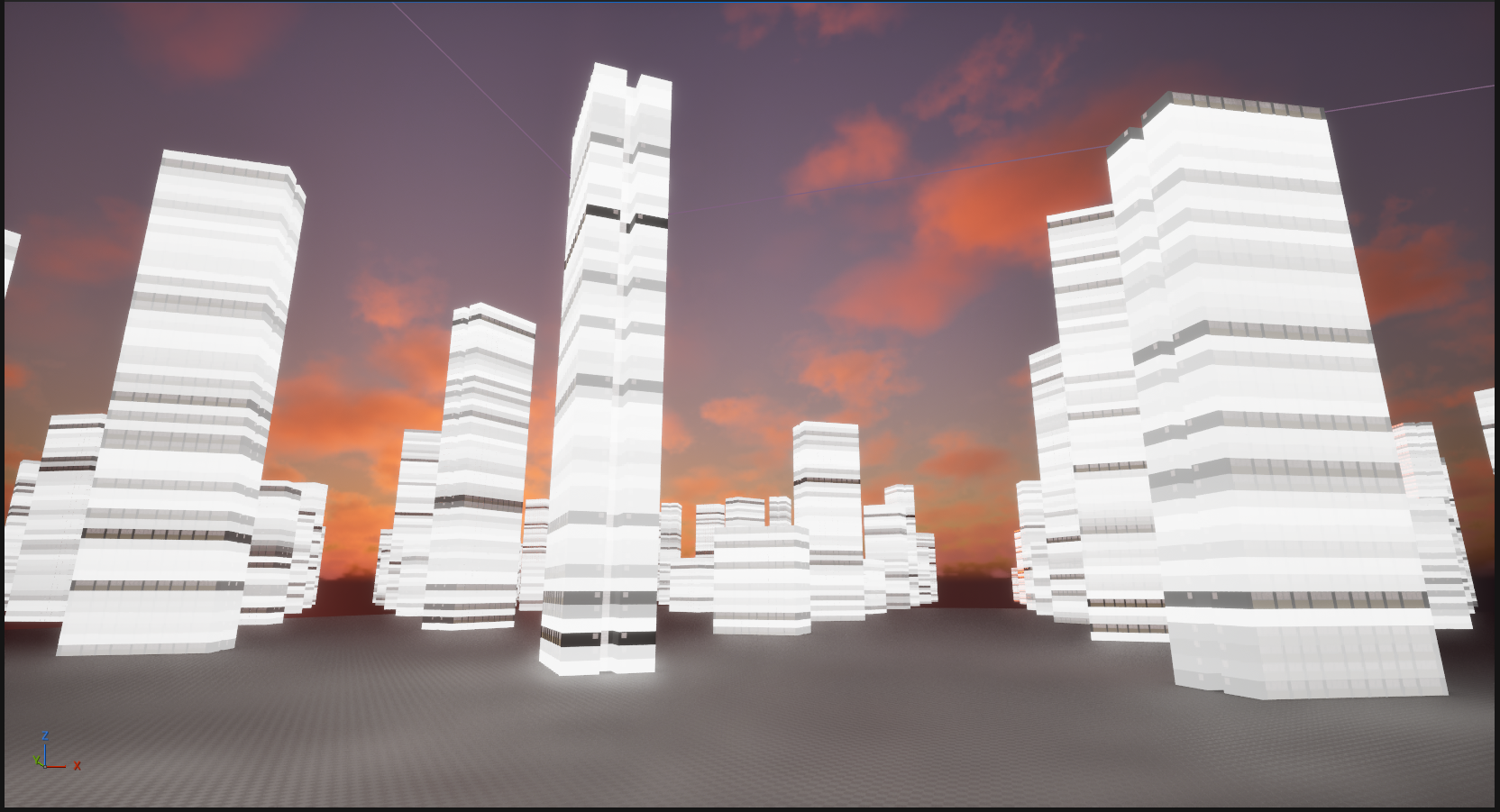
Per-instance random values for individual floors

If we wanted variance within the floor, we could drop Geometry Nodes entirely and use PCG to put the building together… but this building has a slightly annoying footprint that wouldn’t be portable to many others. Each floor is made of three different parts, duplicated in Geometry Nodes in three different ways:
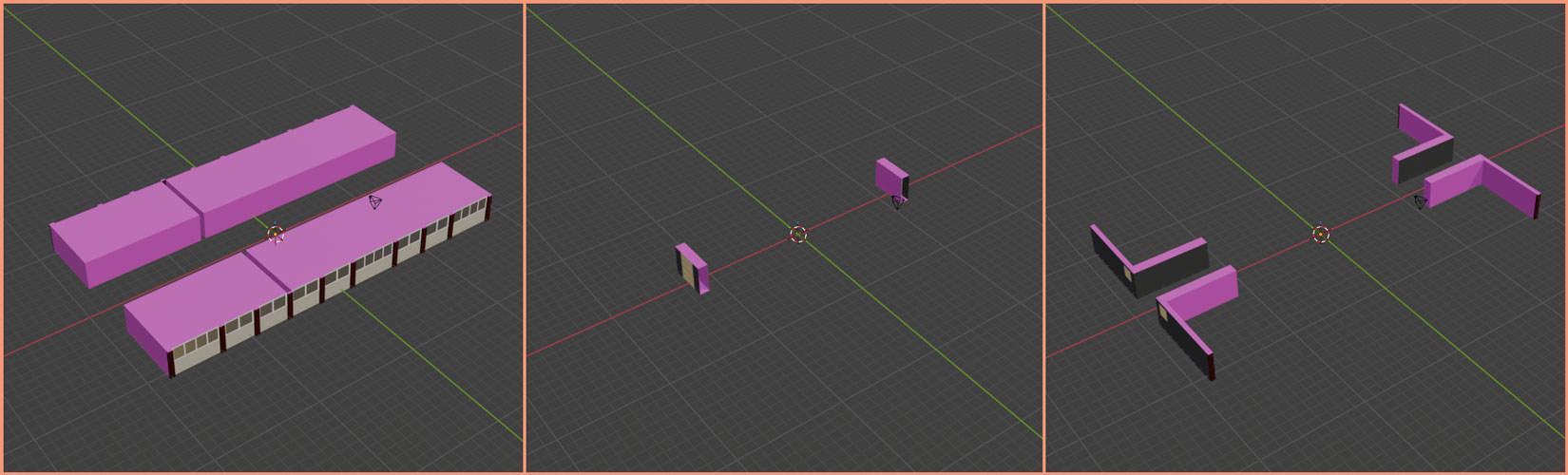
Left: the main unit. The first flat is mirrored compared to the other two, then the whole group is mirrored along the Y axis. Middle: the stairwell, mirrored along the X axis. Right: the corners, mirrored along both X and Y axes

Creating a PCG graph to put all the bits together of this wouldn’t be a great idea- you can’t use it for anything else, so it’d be better to export a whole floor. This was a problem I encountered when making the Infinite Barbican Centre - but I was on a deadline, so just did it all in PCG anyway.

However– with the UV attribute encoding, we can add a random value to each part of the floor that corresponds to a single apartment, combine that with the per-instance random value in the shader, and then use that as the lighting value.
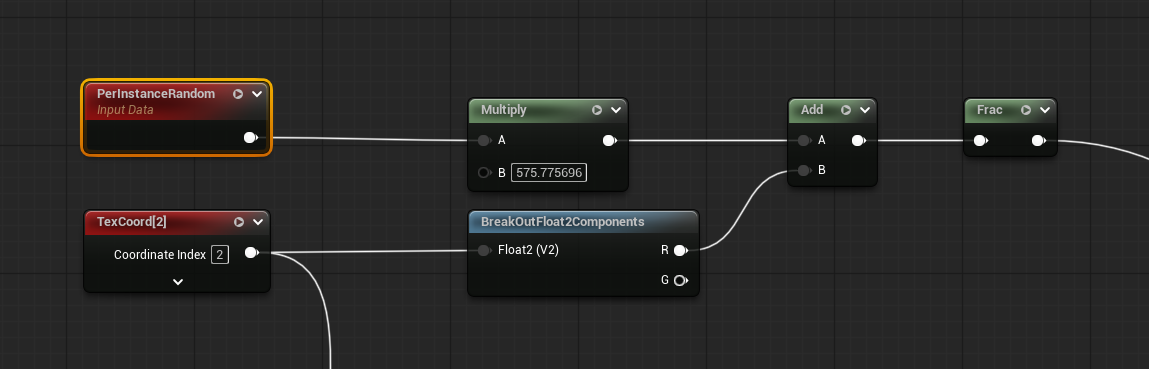
Combining the UE5 instance random with the encoded random

And we have the ‘Is Window’ attribute encoded as well, so we can mask the non-emissive bits. There might still be a bit of repetition, but it’ll be far harder to see. If we also use the per-instance random value to set the colour temperature of the light…
…we get a rather nice result.
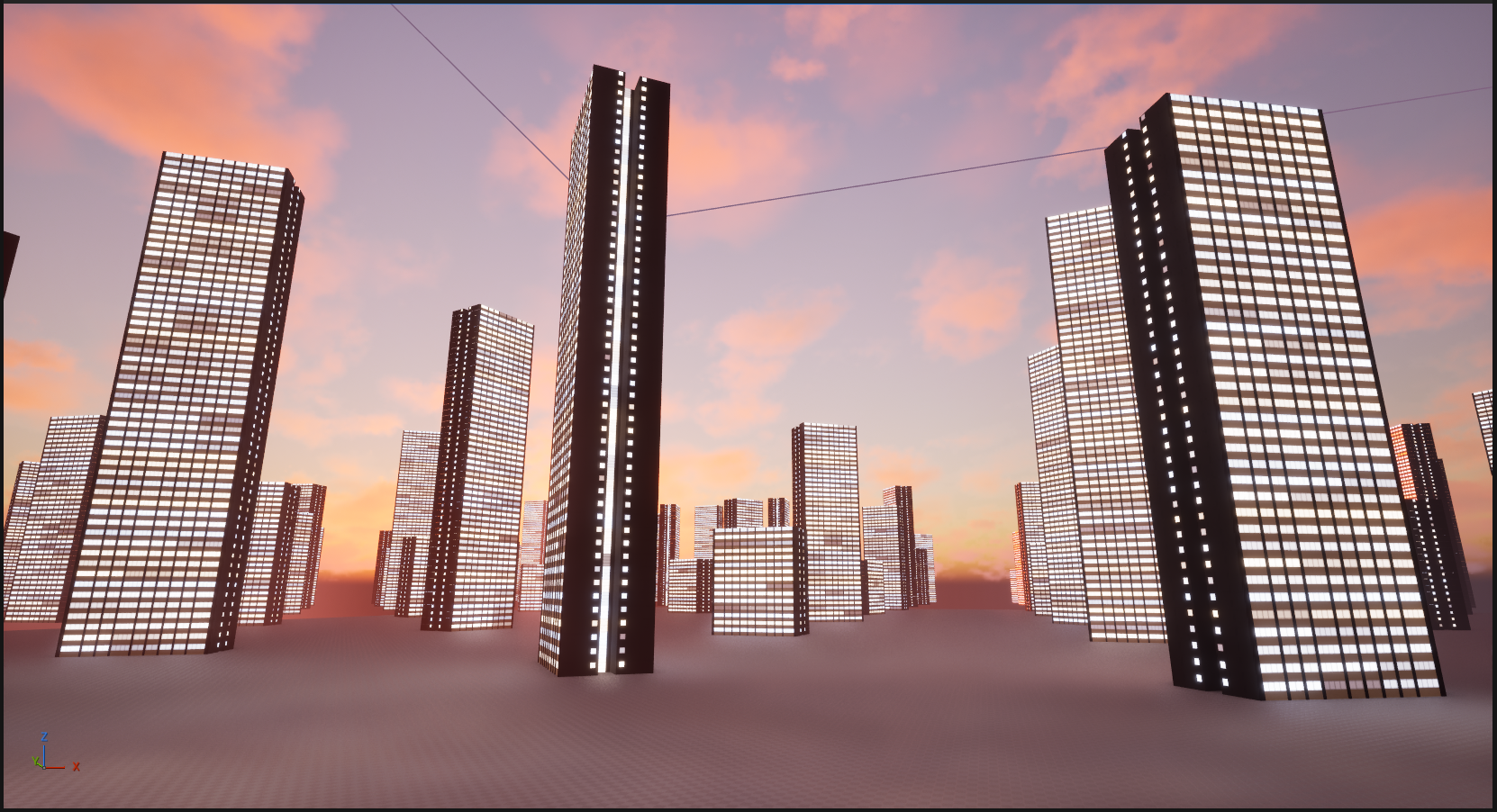
The best of both worlds

By encoding the semantic data, we get to use Blender for the bits that Blender is best at, and UE5 for the bits that UE5 is best at, whilst keeping everything pretty re-usable for other models. Any building could use that PCG graph; any model with the encoding can use that shader. There’s also only one texture to re-import when we’ve added more materials, and we’re only adding the materials in Blender, not in both Blender and Unreal.

There’s some limitations to the look, but personally I don’t mind them- and, importantly, in terms of quick iteration, it’s a big win.

So what about vertex colours?

What about vertex colours?
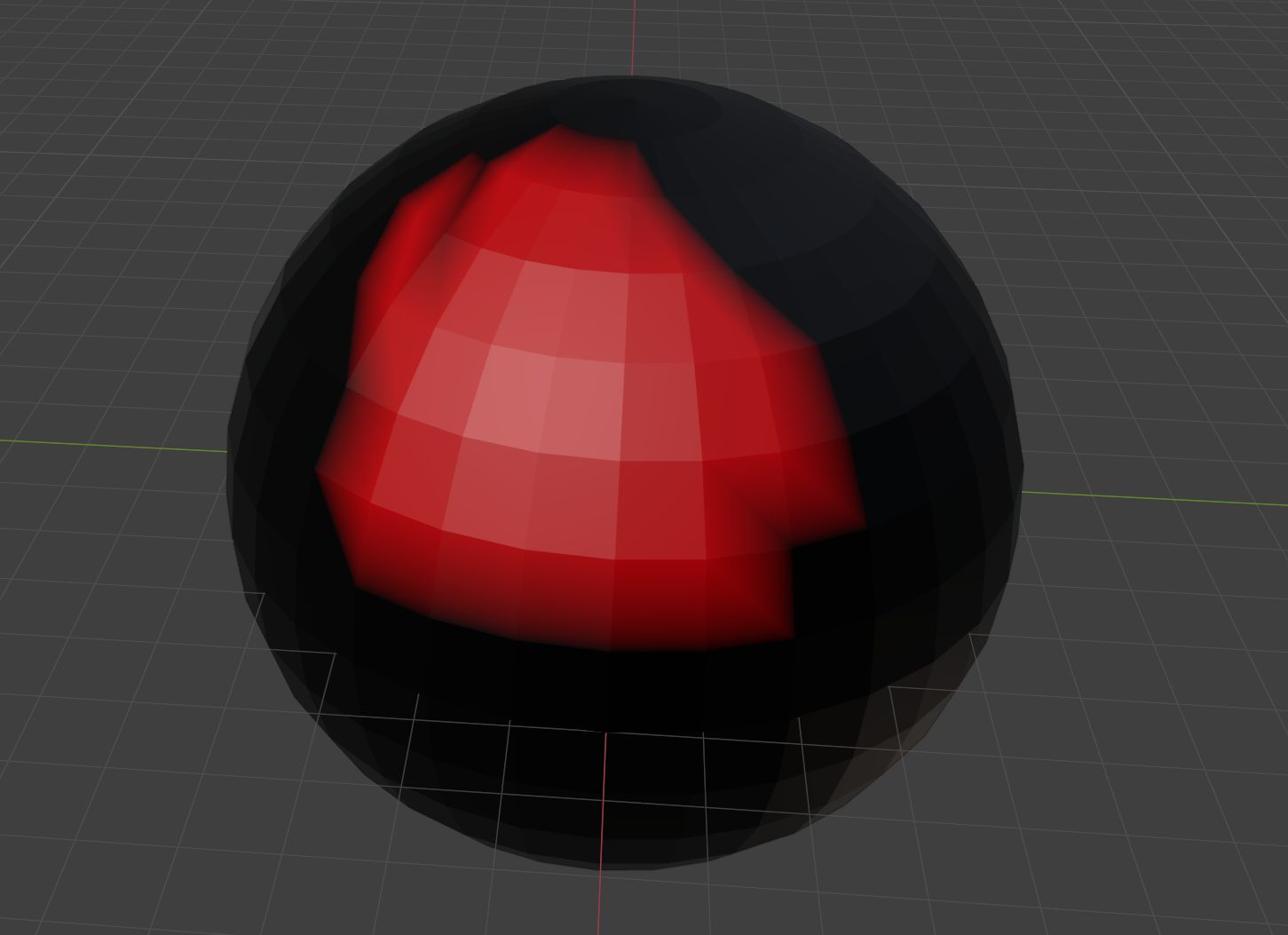
Some vertex colours painted onto a sphere. Yuck.

As the name suggests, vertex colours put… colours… on… the… vertices. You can use those colour values to store non-colour data in the same way as above. The difference is, they go on the vertices, rather than the faces. Blender allows you to paint them as a ‘face corner’ attribute, which makes them the same as UV maps, but I have no idea if UE5 can read them back in that way. Also, from what I can tell, UE5 only supports a single set of vertex colours per mesh.

Is this better? Well, it depends on what you’re doing, and for some things it might be essential. UE5s ‘World Position Offset’ is the only thing that comes to mind right now, as that needs to be done in the vertex shader. The vertex shader doesn’t have access to UVs; UVs are a property of faces, not vertices, and can only be accessed in the fragment shader stage.

‘Vertex painting’ to set vertex colours is also widely supported in a number of applications (including both Blender and UE5), whereas ‘face painting’ isn’t, at least not in this domain.

If you are a clown doing children's parties, a drag queen, or Arnold Schwarzenegger in Commando, then 'face painting' is how you get paid.

Bonus: Windows ‘26

Just to demonstrate that I have used this for more than one model, here’s another block, this time based on the ones around the shopping centre at Surrey Quays:
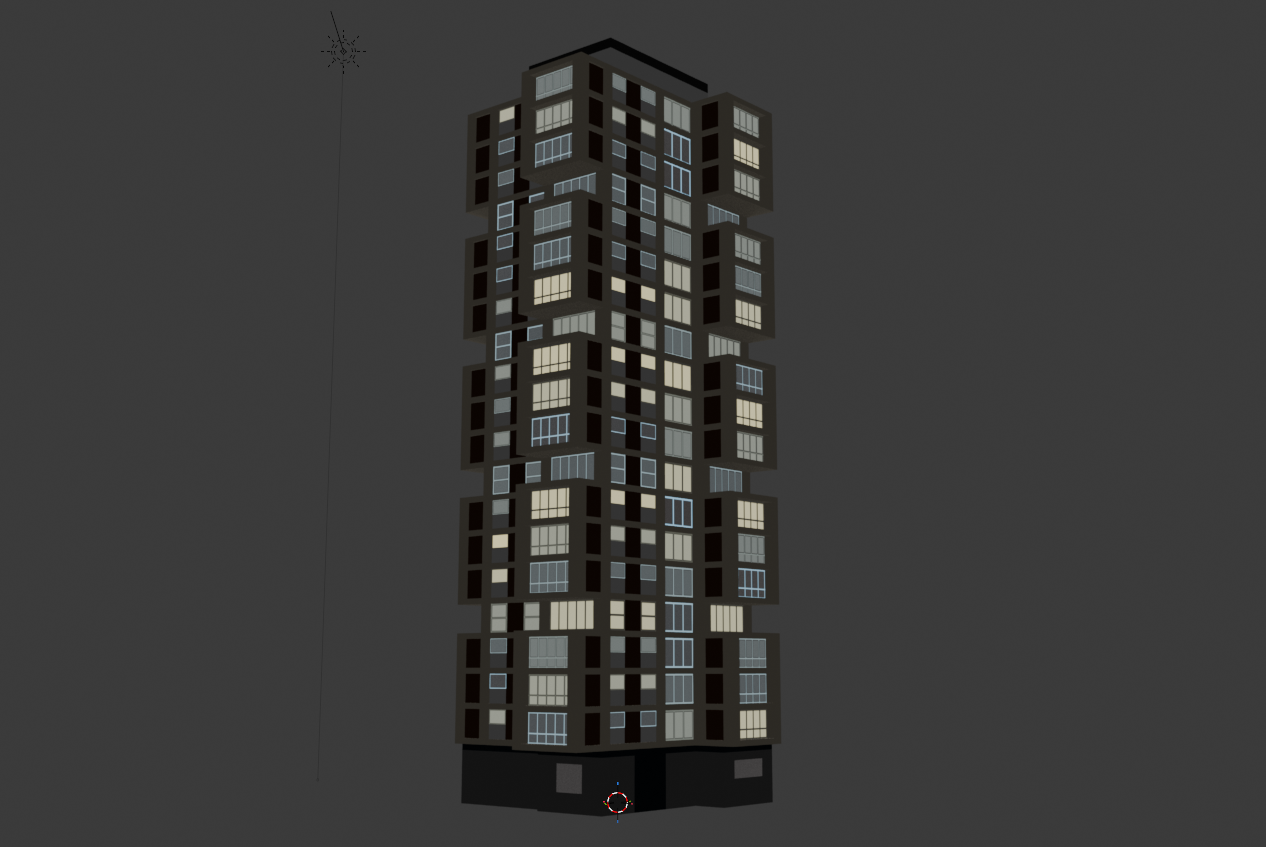
Brutal

This processed version is using exactly the same material as the one from Bethnal Green above, despite having different input materials, so the method does work.

Whilst I was modelling this one, it became apparent that I’d need a lot of windows, and I didn’t want to have to cut geometry for all of them. And so, another plugin! This one takes sets of faces and tweaks the UVs in the first map (i.e. the one that is being used properly for texturing, rather than to encode BSDF properties or other data), so that they appear to have a window frame repeating over them.
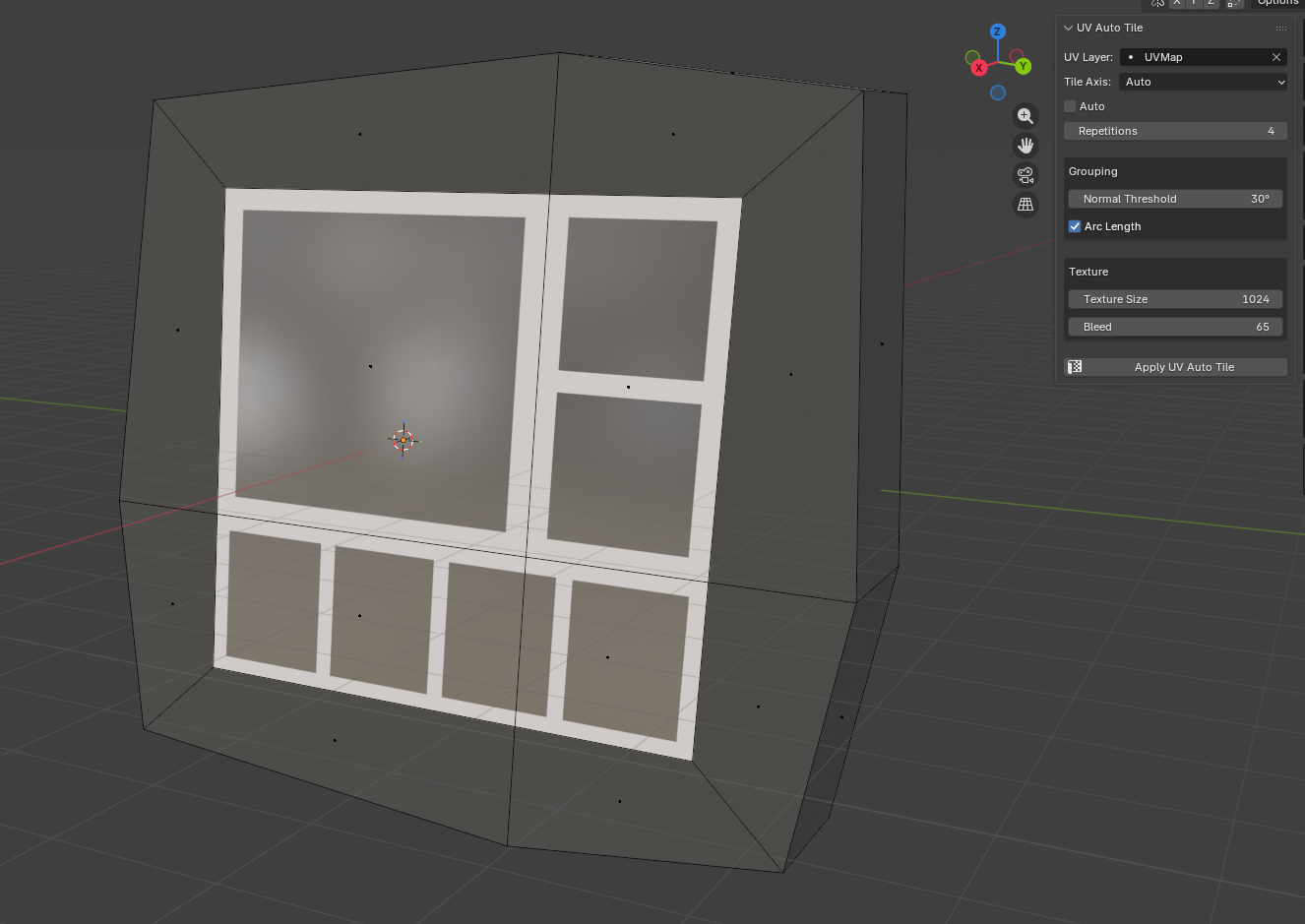
Windows

The texture for that is just a square box with a transparent centre. I set the number of repetitions, it repeats the UVs in the axis I want, and it gives the impression of multiple window panes. I then assign a ‘window’ material to those, which is what gets checked in Geometry Nodes to determine the value of the ‘is window’ attribute to be written out:
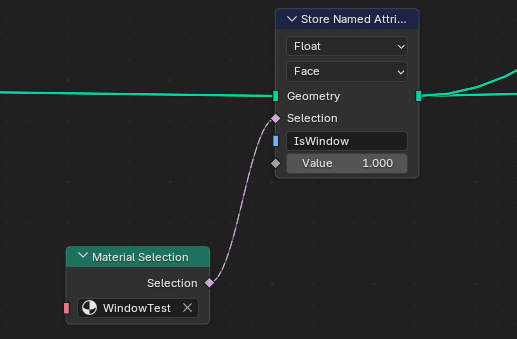
It does make this set-up a bit more specific to rendering buildings, but there’s almost certainly a way (I’m thinking 2D texture array) to generalise this for other objects. Plus, a lot of objects won’t need the extra encoded data, just the surface properties, so it all still works.

Anyway, that’s where it is now. I’m going to extend it to also do aspect-correct UV projection so I can use it for signs because for some reason that’s needlessly difficult in Blender.

Fin

I doubt I’m the first person to have thought of this, so if you’ve got any other ideas I’d love to know. There’s potential here for lots of other things– flagging which parts of a model should have a random colour, for example.

At some point I’ll stick the code for this on GitHub, as I’m not super-precious about it, and either way, after I’d figured out how I wanted to do this, all the boring UI stuff was done by Claude Code (!).

“But Ed, you hate AI”

I hate AI “art”, I hate AI music, and I really hate AI writing. I will never let an AI write or say anything for me, because that’s surrendering too much.

I have changed my mind about AI coding because so much of coding is busywork– lining up values with functions, working out which part of an API you’ve never seen before you need to call to make a button change colour, writing six versions of the same function so it works on different data types, and so on.

After seeing AI agents used for coding properly, I think it’d be daft not to use it– but the key word there is properly.

I have another blog post planned this, but in short: if you know how to solve the problem already, and could in principle write it yourself, Claude Code saves you days. You can tell it exactly what you want and it will do it, and provided you’re checking the output – and you really do have to do that – you can keep it on a tight leash when it goes off track.

If you don’t know what you’re doing or what you want before you ask Claude to build it, you have a 50% - 80% chance of winding up with vibe-coded garbage.

Still, that’s for a future post, assuming the singularity doesn’t occur while I’m painfully typing it out.

===

Special thanks to Tim (creator of the incredible PCGEx) for the technical feedback on this piece, and Kayleigh for the nitpicking over syntax

Making an Infinite Barbican Centre, Live on Twitch

Video is now up on YouTube:

Plus, wishlist The Last Gig today on Steam!

Original post

Somewhat unbelievably I will be giving a talk on procedural generation in Unreal Engine 5 on the 1st of May, live on Twitch, as part of Epic’s ‘Inside Unreal’ series- more details here:

https://forums.unrealengine.com/t/inside-unreal-taking-pcg-to-the-extreme-with-the-pcgex-plugin/2479952

I’ll be going through making a procedural version of London’s Barbican Centre. I wanted the Barbican for the game anyway, I was in the process of making a test level for the AI and different movement mechanics, so I thought: why not do presentation, test level, and Barbican environment all at once?

You may notice that there's more than 3 towers

The game is called The Last Gig, it’s about putting on humanity’s last ever rock show during an AI apocalypse, and it’s going to be great:

THE LAST GIG

Wishlist it today on Steam here!

First We Make Manhattan, Then We Make Berlin (Part 1)

How to think about PCG in Unreal Engine 5

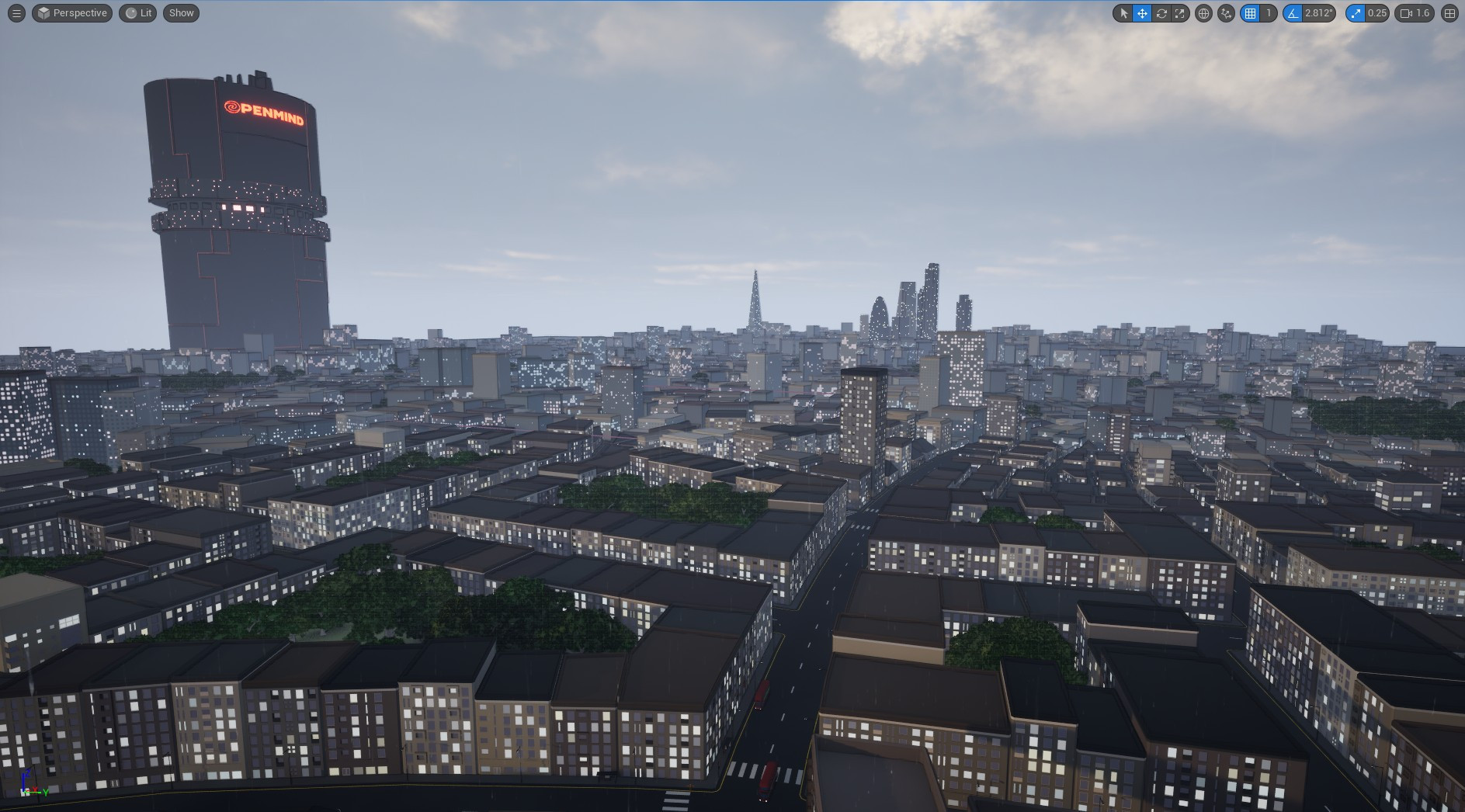
London: the very near future; made entirely in Unreal Engine 5

One of the aims for the game I’m writing is that it’s set in the here and now- or at least, the here soon-to-be-now. I find it odd that in contrast to other media, there’s not a lot of games that go down that route.

Call of Duty sets itself in the ‘now’ but rarely in the ‘here’, except when it’s trying to shock people; FIFA is very much in the here and now, but it’s football, and the gaming equivalent of Now That’s What I Call Music. Beyond those, and the occasional spin on A Connecticut Yankee In The Court of King Arthur But With More Wizards and a Skill Tree, it’s nearly all spaceships and dungeons and “cosy” farming and floating islands and furry-adjacent nerd bait and so on.

Thing is, I live in London, meaning that if I want a game that is ‘here and now’, I’ve got to build something that looks like London. So, I’ve been working out how to do that, and the main tool I’ve been using is Unreal Engine 5’s PCG framework.

This is the first of a series of posts I intend to write about how I approached the problem of building a city without spending six years in Blender, and the things I found out (and friends I made!) along the way. Future posts are going into some of the detail of the approach, what worked, and what didn’t; and in particular the amazing plugin PCGEx that made a lot of it possible.

What this post isn’t, and what it is

This post isn’t intended as a tutorial- there’s lots of those, and they’re mostly great. They’ll show you how to do things.

But the ones I’ve seen don’t really explain the what or why of the system, and I find that to be just as important as finding out where all the buttons are. A lot of stuff in the PCG framework isn’t obvious, and I had some pretty confusing moments before I finally got the architecture straight in my head.

The aim of this post is really to save others that confusion, and hopefully get them up to speed quicker.

I’m going to assume you know how to enable the plugin, how to create PCG graph, and how to create a PCG volume to run it in, as well as other things like creating an actor with a spline component and so on.

If you don’t know any of that, start with this and then come back.

Procedural Content Generation

PCG stands for Procedural Content Generation, and it’s important to note that this is not the same thing as generative artificial intelligence. With generative AI you get a neural network to chew over StackOverflow for six months in the hope that you can fire half your workforce, or ask MidJourney to rip off DeviantArt so you can sell the miserable results as “concept art” on Fab.com.

Open the pod bay doors Hal

By contrast, with procedural generation, you’re creating a procedure - a set of rules, an algorithm - and feeding it some input. The rules transform the input, and generate an output. (The word content is either vestigial or killer copy depending on whether you’re on the marketing team or not). More often than not there is also a big component of constrained randomness to it- you want the same inputs to produce the same outputs each time, but- usually- having a big range of variance in output from a small range of variance in input is considered a good quality.

On a macro scale you could argue that there’s not a great deal of difference between generative AI and rule-based generation, but if you zoom out to that distance you can also claim that Microsoft Excel is a tool for cataloguing smoothie recipes. In terms of implementation there’s a massive difference, not least because procedural generation can be done on virtually any computer, but anything to do with AI these days requires data centre, a spare £1bn, and a total disregard for your fellow man.

Some examples of procedural generation:

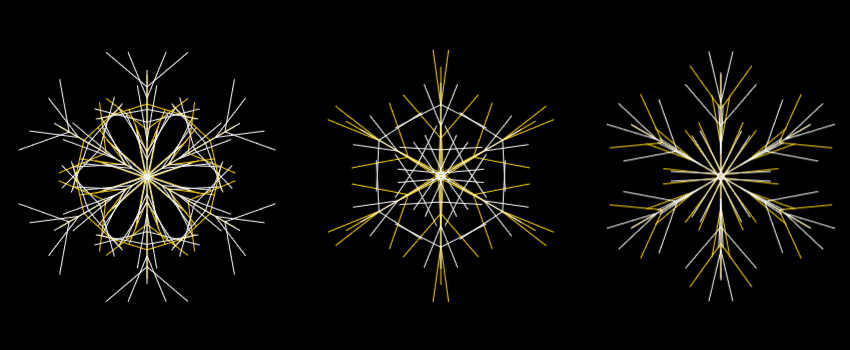
  • A few years ago I made some Christmas cards by randomly generating snowflakes in JavaScript and then feeding the resulting SVGs into my pen plotter. Everyone got a different Christmas card, but I only had to write the code once. Have a play in the browser here.

Snowflakes!

  • When I made the April Fools joke/cry of despair that was brexfest.eu, the horrible noise that creeps on you as you scroll down is generated procedurally in real-time using the Web Audio API. It’s supposed to sound like the national conversation in Britain at the time, and I think it’s right on the money.

  • Most of the screensavers in the Jean-Paul Software Screen Explosion (which you should definitely buy) have some level of randomness driving them to keep things interesting over time.

  • And more historical examples- Conway’s Game of Life, Perlin Noise, not to mention any card game you can think of.

All these things use randomness and a set of rules to produce a result, and that’s also what Unreal’s PCG does.

But Unreal’s PCG isn’t an all-in-one procedural generation thing. It doesn’t produce audio, it can’t write words; it doesn’t make textures or meshes on its own either, although there’s some really fantastic interop with the bits that do.

What it does do, and does really well, is handle the placement of ‘stuff’ in an Unreal level according to rules that you create using the PCG graph. And despite the impression that you might get from YouTube tutorials and the official documentation say, this stuff doesn’t have to be trees

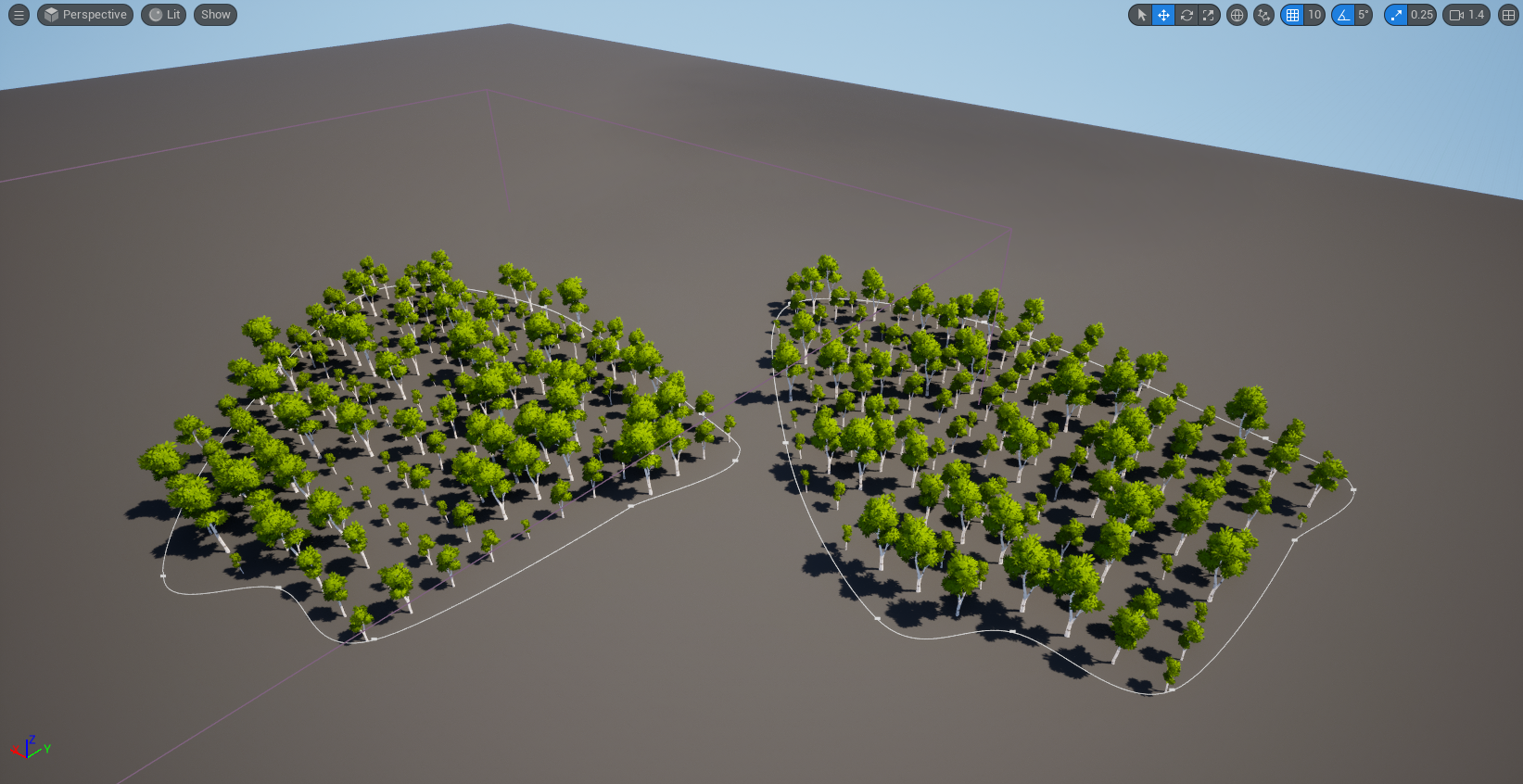
PCG is not a forest tool (but it is really good at forests)

Woodlands! Marshes! Jungles! But *never ever a garden centre*

There’s definitely too many trees associated with PCG, and we’ll get past that soon. But it is worth considering what you would need to do if you wanted to create a virtual forest.

Trees don’t float, they’re always on the ground, so you’d need to be able to work out where the ground was. Trees aren’t placed neatly in a grid, they’re spread around randomly- so you’d need some way of generating a set of random positions. And trees aren’t all the same size, so you’d want to be able to have a lot of variety of size and shape and orientation.

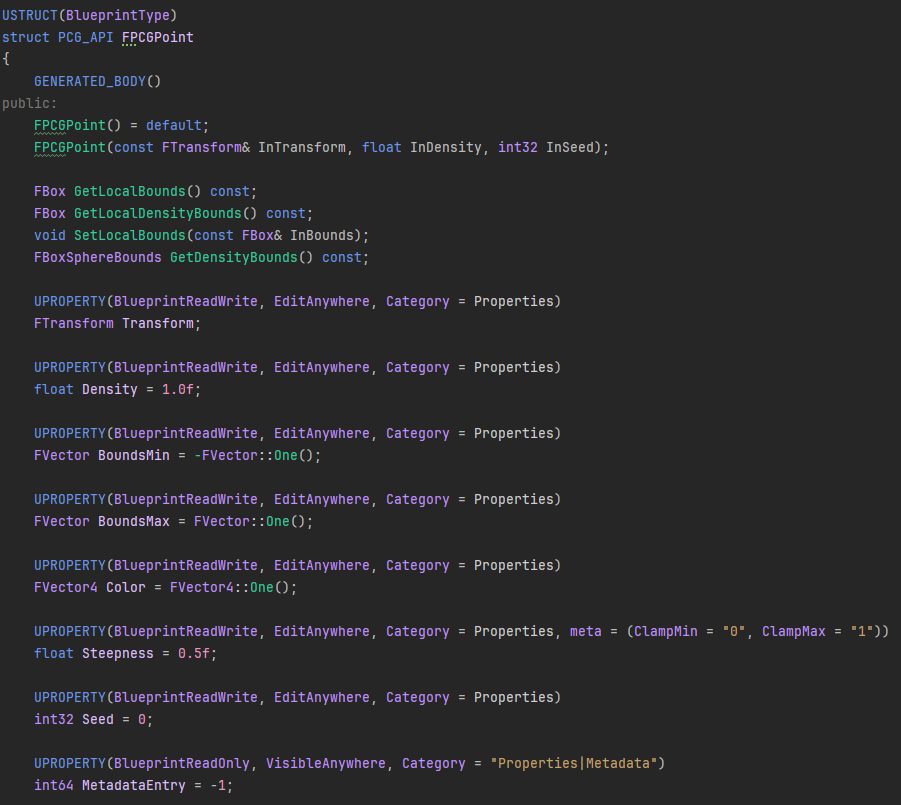
So, you need a data structure that can capture all that, and potentially more. In UE5 PCG that structure is called a point, and that’s the main thing you’ll be playing with in PCG. The most important properties it has are these:

  • A Transform- your standard Unreal transform property, saying where something is and how it’s oriented
  • Bounds- how big the point is. Points are usually represented by an oriented box, though there are options to treat them as a sphere instead. There’s two vector properties - BoundsMin and BoundsMax - that indicate where this box starts and finishes.
  • Density and Steepness - single number values representing how ‘there’ the point is. Density can be thought of as a score or weight, and ‘steepness’ the fall-off rate of a radial gradient. Steepness is used by some nodes in conjunction with the bounds, for things like intersection tests between points. Both Density and Steepness are in the range of 0 - 1, but only steepness is actually locked to that.

So how do we place these points? Well, there’s two ways- you can either create them directly, or you can sample them from things in the world- splines, the landscape, other points, actors, components. So let’s do that.

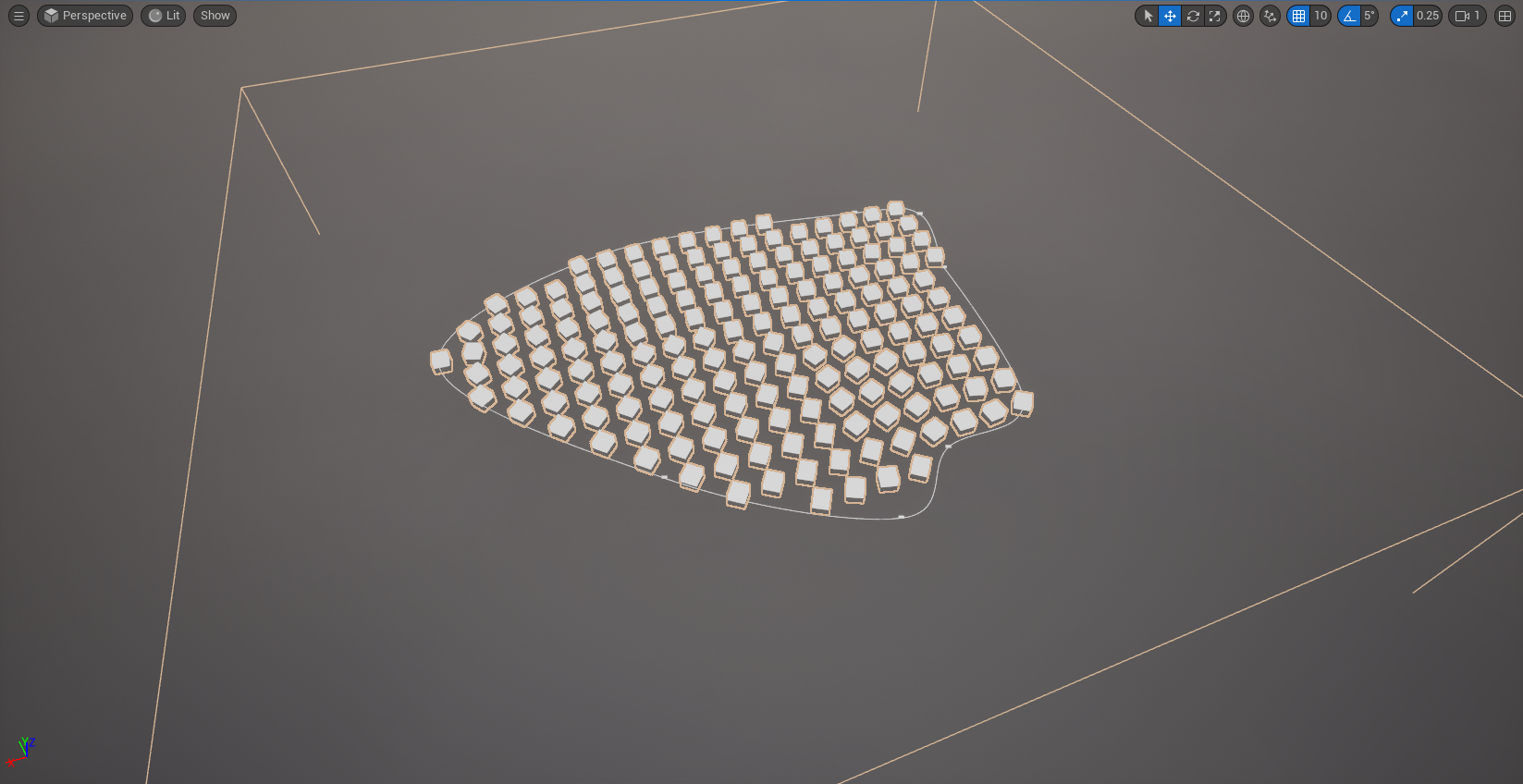
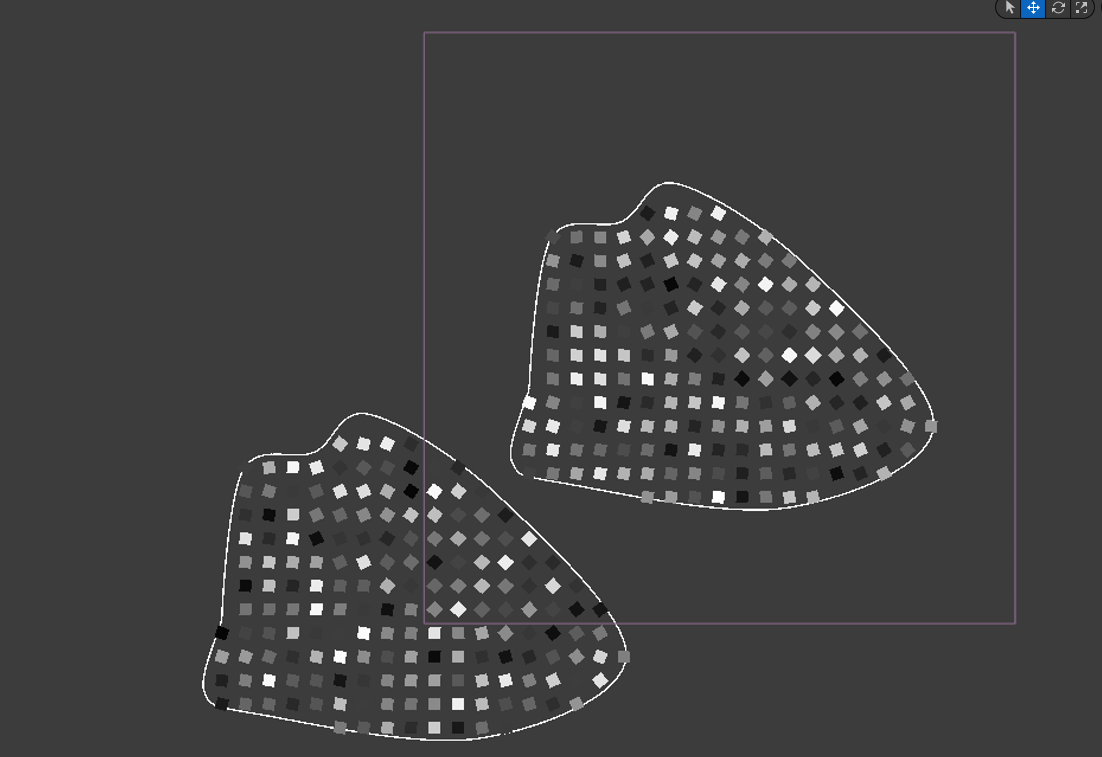
Here I’ve got a spline, and I’m sampling points on the interior of it.

Points in a spline

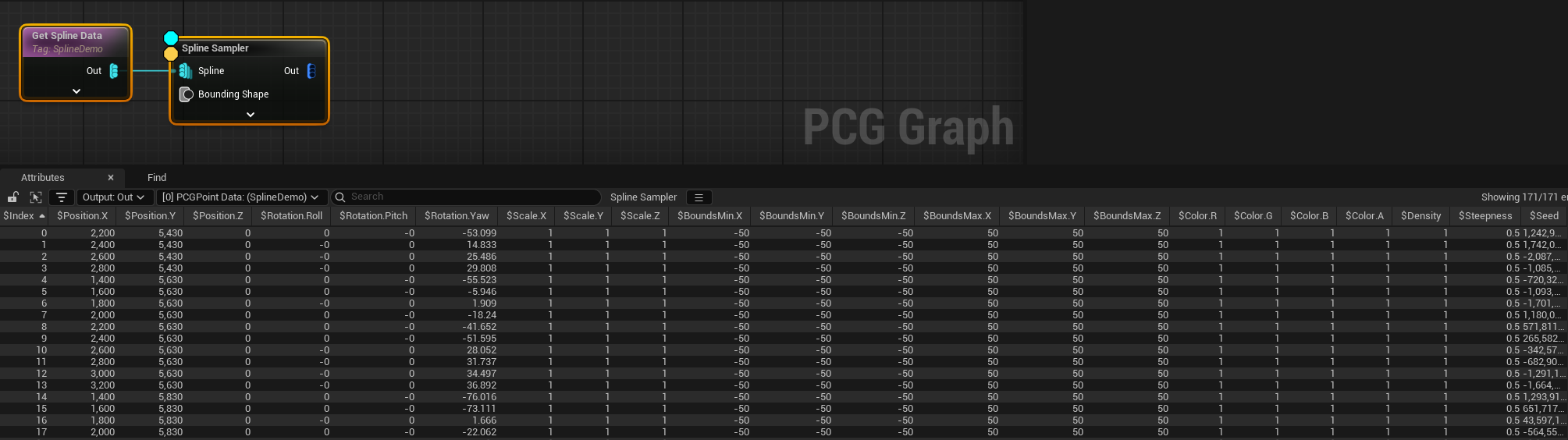
Before we turn them into trees, let’s inspect the output in the spreadsheet view:

The data

So far, so good- we can see the points, and we can see what values have been given to their different properties.

But! There’s a couple of non-obvious things here that are really important!

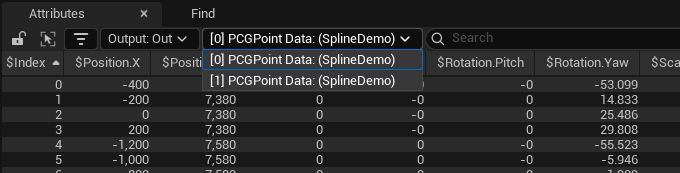
Attributes? [0] PCGPointData? $Position.X? (SplineDemo)?

  1. The title of this view is not spreadsheet, it’s Attributes.
  2. Each variable you can see is prefixed with a $.
  3. There is property there called $Seed, which doesn’t seem to have anything at all to do with the other numbers.
  4. There’s box with [0] PCGPointData (SplineDemo) written in it.

Let’s go through these:

  1. Attributes are variables that include both the properties of the points themselves, and metadata that you can freely create and manipulate. Metadata doesn’t have to be connected to a point at all- it exists on its own- but each point has a hidden MetadataEntry field that allows it to be tied to specific attribute values. There are also some computed properties that are read-only; more on those in a bit.

The nodes in PCG rarely make any distinction between point properties and metadata- you can manipulate them both in largely the same way, and they’re always referred to as ‘attributes’. But there is a small indication that something is a property rather than metadata, which is…

  1. …the $ prefix. If an attribute has that, it’s a property rather than a metadata attribute. It should also be mentioned that this view is also doing a bit of data massaging for us- we can see $Position and $Rotation and $Scale… but no $Transform. However if we look at how a Point is defined in C++, we get this:

PCGPoint.h

$Position and $Rotation and $Scale are being extracted from the transform and displayed separately. But when you’re doing operations on these, you can address them in the same way- there’s no need to type $Transform.Position.X, you can just use $Position.X. The same goes for $Rotation, except there we can also access the local components of the transform with $Rotation.Forward, $Rotation.Up and Rotation.Right and so on. These are computed properties, not ones we’re storing, but for most purposes we can treat them as if they are just regular attributes.

  1. $Seed is something we’re going to use whenever we want to do something random. Recall that previously I mentioned the idea of constrained randomness; it is important to remember that we’re using this for creating game worlds, and we want anything we generate to look the same each time we visit it. This means that we can’t completely randomise properties- they have to have some marker that will allow us to place them in the same way each time, but perceptually they should still with all the properties of a fully random draw.

Nearly all random operations in computing are in fact pseudo-random operations- mathematical functions that have very unpredictable output for any given input, but if given the same input will always produce the same result. The $Seed property is that input. It allows random-seeming behaviour whilst giving fully deterministic results.

  1. [0] PCGPointData (SplineDemo) tells us a whole lot of very important things:

    • Points don’t exist on their own! They’re inside a data collection which itself can have a number of properties.
    • The [0] indicates that this is the first in the list of collections that our node has produced. PCGPoint Data indicates that this is a collection of type UPCGPointData, and so a collection containing points. There are other types of collection for the other types of object that you can manipulate- attributes, splines, and so on.
    • SplineDemo is a tag. Tags are everywhere in Unreal now, and PCG is no exception. Tags are short strings of text that can be used as an identifier. Tags in PCG are attached to data collections. This collection has the tag ‘SplineDemo’ because that was the tag I put on the actor that contained the spline.

Tags are incredibly useful- some get generated automatically, but for the most part you add them yourself, and they allow you to categorise and filter data much more cheaply than filters that operate on attributes.

Let’s add a second spline and inspect the result:

Two Splines...
...two collections!

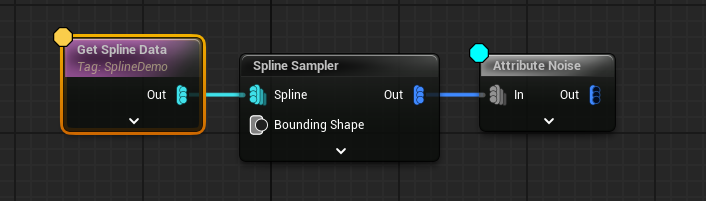
If you’re wondering why they’re now different colours, that’s because I’ve used an Attribute Noise node to modify the density of the different points according to their seed.

Attribute noise

As you can see, although the splines are the same shape, and one is just copied and pasted from the other, the points within have different density values. Why? Well if I’d used the Spatial Noise node it would be because they’re in different places, but here it’s because they’ve got different $Seed values. That’s pseudo-randomness in action.

Some more on attributes

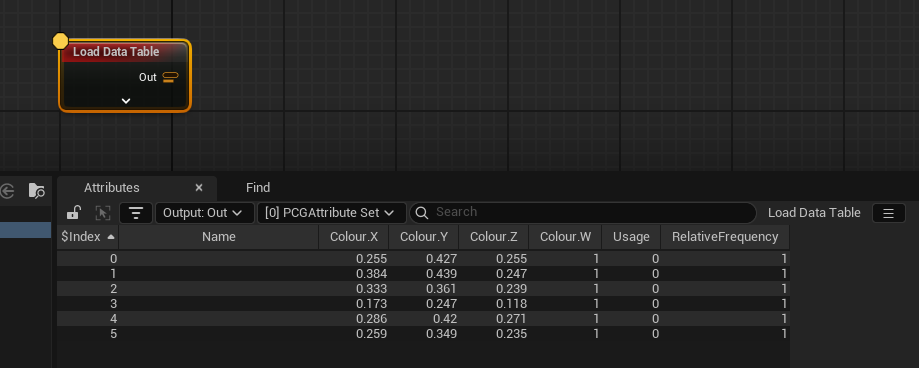
To demonstrate all of the above, here’s the Load Data Table node. It’s got two options for output- either you can output just the attributes, or you can output a set of points with the attributes attached to them. If we pick the latter, we get this:

Attributes on their own

  • As you can see, nothing has a $ attached to it, except the $Index field. $Index is another computed property, and is the position of the corresponding element in the collection.
  • The type has changed to PCGAttribute Set, so we’re dealing with a collection of metadata rather than a collection of points.
  • There’s no tags- before we had SplineDemo in brackets, here we don’t.
  • The output icon on the node is a sort of stacked orange USB-C port, indicating metadata, whereas before we had blue dots, which indicate points

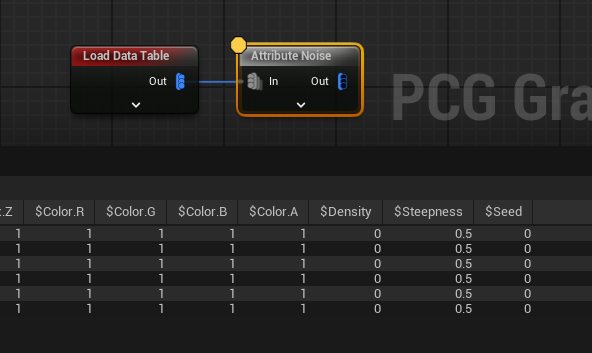
If we pick the other option for this node, and load the data table as points, we get this:

Points, but with attributes

APoints, with the attributes assigned, but with default values for everything else- including the seed. The seed usually gets computed when a point is created or copied, usually from the position it has. But these points are all at the same position, so even if the seed had been computed, they’d all get the same seed. If we do the Attribute Noise we did before with this, we’ll get the same output for the $Density field of each.

Same seed, same result

Start thinking in collections

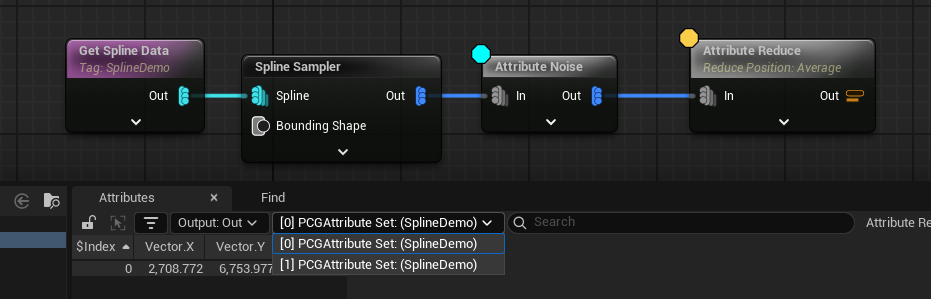
Whilst they’re not exactly glam to think about, collections are extremely important. Most PCG operations are done on the contents of a collection, but it is collections themselves that are passed between the different nodes. As an example, let’s get the average position of the points we’ve just made.

This may or may not be what you wanted

The Attribute Reduce node iterates over the data within a collection and computes a value - here I’ve used the Average operation on the $Position property, but there’s also Min and Max and so forth.

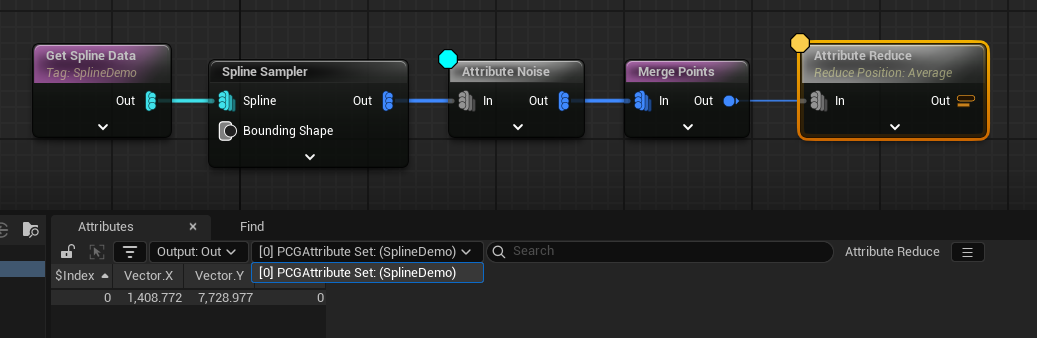
But we don’t get the average position of all the points, we get the average position of the points within each collection, with a separate PCGAttribute Set collection being output for each. If we wanted to get the average of all the points in this way, we need to merge them into a single collection first, like this:

Merge and reduce, and you'll get a different value

…and that gives us one value rather than two. The icons on the nodes hint at this behaviour. If you look at the Merge Points node in the screenshot above, you’ll see there’s three blue dots on the left, and one on the right- that indicates whether the input or output is multiple collections, or a single collection.

Always looping, all the time

This brings us to another thing to know about, which is how data gets processed. The PCG framework is designed to be able to shunt around a lot of data, and pretty much expects that it’s going to be used in that way. It’s very heavily multi-threaded, so processing a few thousand points has a similar perceived performance cost to processing twenty.

So, you don’t need to worry about the individual points. Nearly every node you see is some sort of loop- points and attributes given as input will all be batch processed within the collection they’re in, and in fact you have to do extra work when you want that not to happen.

They’ll also loop over the collections as well- no need to specifically separate them out. But that itself can lead to some problems.

A (rather synthetic) example- there’s a node called Match and Set Attributes that either randomly assigns attributes from one input to another, or looks for a ‘match’ attribute, and copies it over the other attributes when it finds it.

Oh dear, there's a warning

Let’s say we want to record the average position of each collection to the points themselves as an attribute so we can calculate how far away they are from their centroids. Turns out, we can’t do that with Match and Set- we get a warning, because that node expects a single collection of attributes on the ‘Match Data’ pin. Recall that the Attribute Reduce node gave us a different average for each collection, and so also gave us two collections.

How do we resolve this?

We can’t merge the attribute sets, because that would mean we’d get a random pick of the two possible values recorded next to each point. And we don’t want to merge the points, because then we’d lose the separation we’re trying to have.

(I should point out that the actual answer is “use the Copy Attributes node because that’s actually designed to do this”, but this type of problem does crop up quite a lot, and it’s the most basic example I can come up with, so just run with it for now)

In situations like this we need a Loop node so we can separate them out. The Loop node takes another PCG graph that you specify, and passes collections to it one at a time, rather than all at once. Each pin you specify as being a ‘loop’ pin needs to have the same number of collections passed to it, but assuming that’s true, you can now process them each in isolation from the others.

Setting up the loop

Here I’m also getting the average position of the average positions, so we can compare the collection as a whole against the middle of all the collections.

In the loop, we’re able to use our ‘match and set’ correctly, because we’ve now only got one set of match data at a time.

The loop itself. No errors!

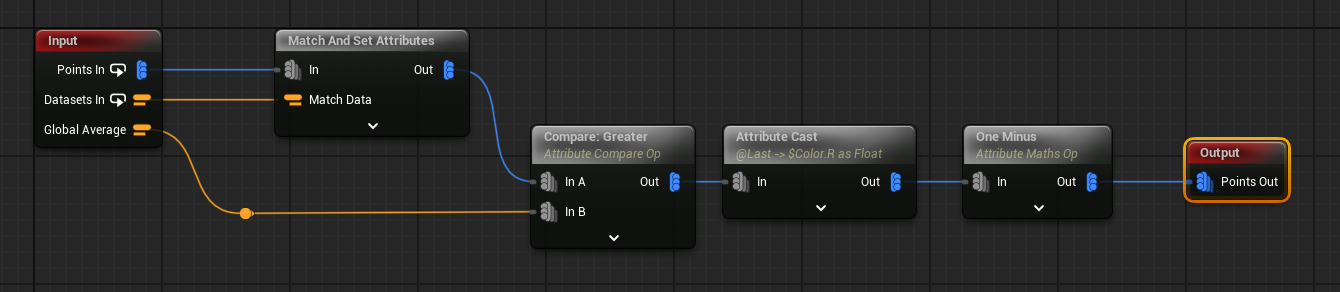
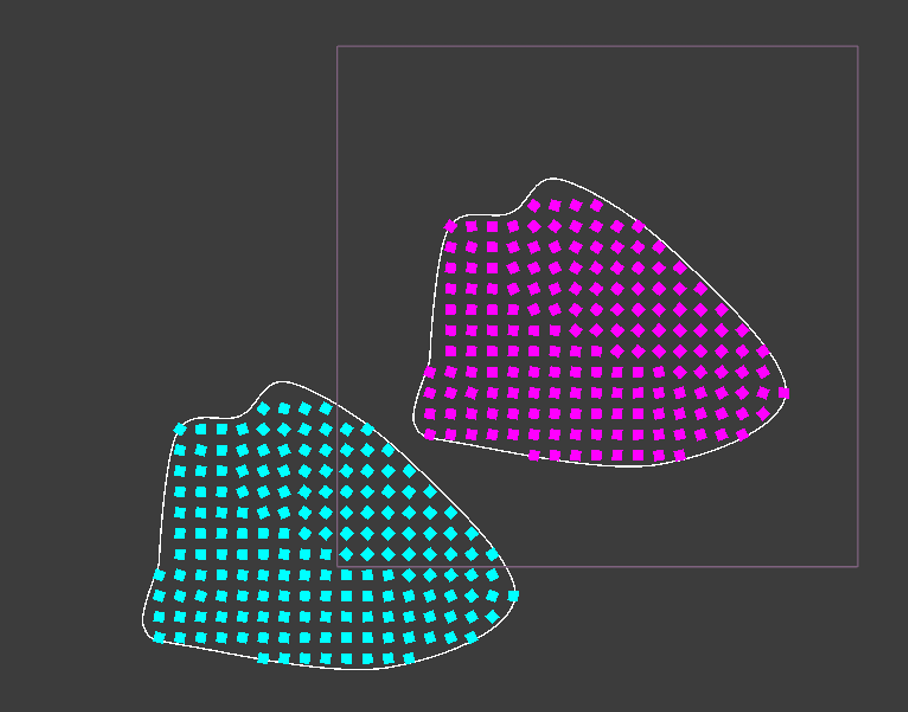
For fun, I’m also modifying the $Color property (note the horrible US spelling) by using a Compare node to check the average position for the collection against the global average. This produces a boolean result, so I cast that to a float, and output the result of that to the Red channel of $Color. I then set the Green channel to 1.0 - Red.

Which gives us this:

Colours!

That’s it for now

All this is just scratching the surface of PCG, but it’s the stuff I felt most important to get written down somewhere. There’s other things I could go into- other things you can manipulate apart from points and attributes, how splines are look like points but are at the same time not at all like points, what ‘spatial data’ and ‘concrete data’ are and so on- but I’ll try and cover those in future posts as they pop up.

In the next post, whenever that is, I’ll go into some of the detail why I started using the amazing PCGEx plugin, and how it opens up all sorts of options for non-forest settings. So less of this…

TREES TREES TREES

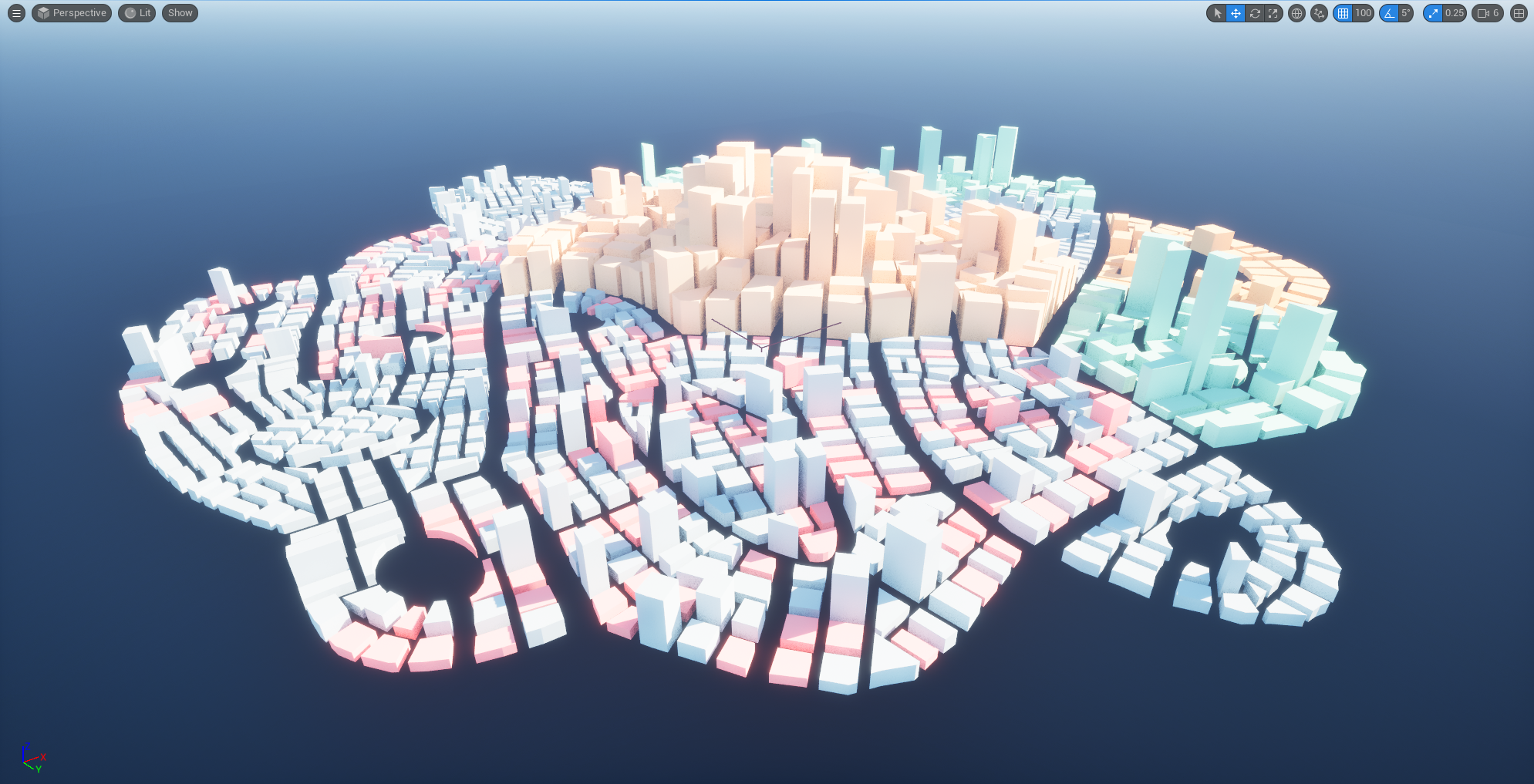
… and more of this:

However please bear in mind that a city is a concrete jungle, and a jungle is a type of forest, and therefore this is also a picture of a forest

I’m also on Bluesky now- give me a follow here for more updates on what I’m actually working on, and do let me know if you found this helpful.

Big thanks to Tim and Mike on the PCGEx Discord for proof-reading and corrections! Tim also suggested some sort of joke about ‘forests’ and ‘seeds’- please feel free to fill that in for yourself

Some Of The Things You Didn't Want To Know About State Tree In UE5 And Weren't Afraid To Ask

UPDATE 02/10/2024 - the Unreal 5.5 preview has updated the State Tree system a lot, which means some of the bugs / headaches / perceived miseries listed below may not be there any more- but if you’re not ready to make the jump to 5.5, the solutions and tips will still work.

The interface is also much clearer, and there are some new features. Particularly nice is the option to select states by evaluating a utility function - that is, rather than having to say explicitly where you’d like execution to go after a particular state completes, you can assign and modify weights that can be used to determine which state is currently most important, and then go to that. So, for example, you can assign a weight to a ‘fight’ task that scales with character health, and a weight to the ‘flee’ task that is inversely proportional to it.

This was something I’d implemented myself separately, but it’s now available right out of the box.

Handy!

But also slightly annoying given I’d spent a day writing a small, nicely templated library for selecting items probability distributions. That’s life.

ORIGINAL POST BELOW

I’ve been working with Unreal Engine 5 for a little while now, in between various contracts that pay actual money. The previous game idea is on the back-burner for now, partly because it’d require too much content to actually be good, and partly because VR is a tiny market. So, now I’m working on something more conventional, provisionally entitled The Last Gig.

Whilst UE5 is mostly a superb piece of software, it does have some niggles. The C++ macros, for example- these mostly let you forget about memory management and write things to interact nicely with the editor, but also hide a ton of complexity. That complexity is definitely better off hidden, but occasionally it will poke through and hit you with an error message even less comprehensible than the usual C++ error messages are.

In general though, that side is fine once you get used to it. But I don’t want to talk about that, I want to talk about the fancy new AI framework - State Tree - and some of the headaches I’ve had when using it. Some of these pain-points are simply due to how they work, but some are genuine bugs that I’ve had to work around.

It’s not all bad though! On balance I like State Trees, and so I’ve included some handy tips at the end.

But first:

What is a State Tree?

Wikipedia lists these as the official trees of the US States.

The State Tree of Idaho is the Western White Pine. Nevada has a couple of stumps, whilst New Jersey has the most basic tree ever. I find this very appropriate for a place that is basically Ultra Essex.

BUT IN THE CONTEXT OF AI, a State Tree is a hybrid of a Behaviour Tree and a State Machine, notionally giving you the best of both worlds. From Behaviour Trees they take the hierarchical structure, from State Machines they take the concept of states and easy transitions.

State Trees let you see at glance what your AI is (or should) be doing at a particular point, and allow you to jump to different behaviours as you wish without having to stick rigidly to the structure of a Behaviour Tree. This makes them very flexible. There’s also fewer concepts involved - no blackboards, no decorators, although there are things that perform similar roles.

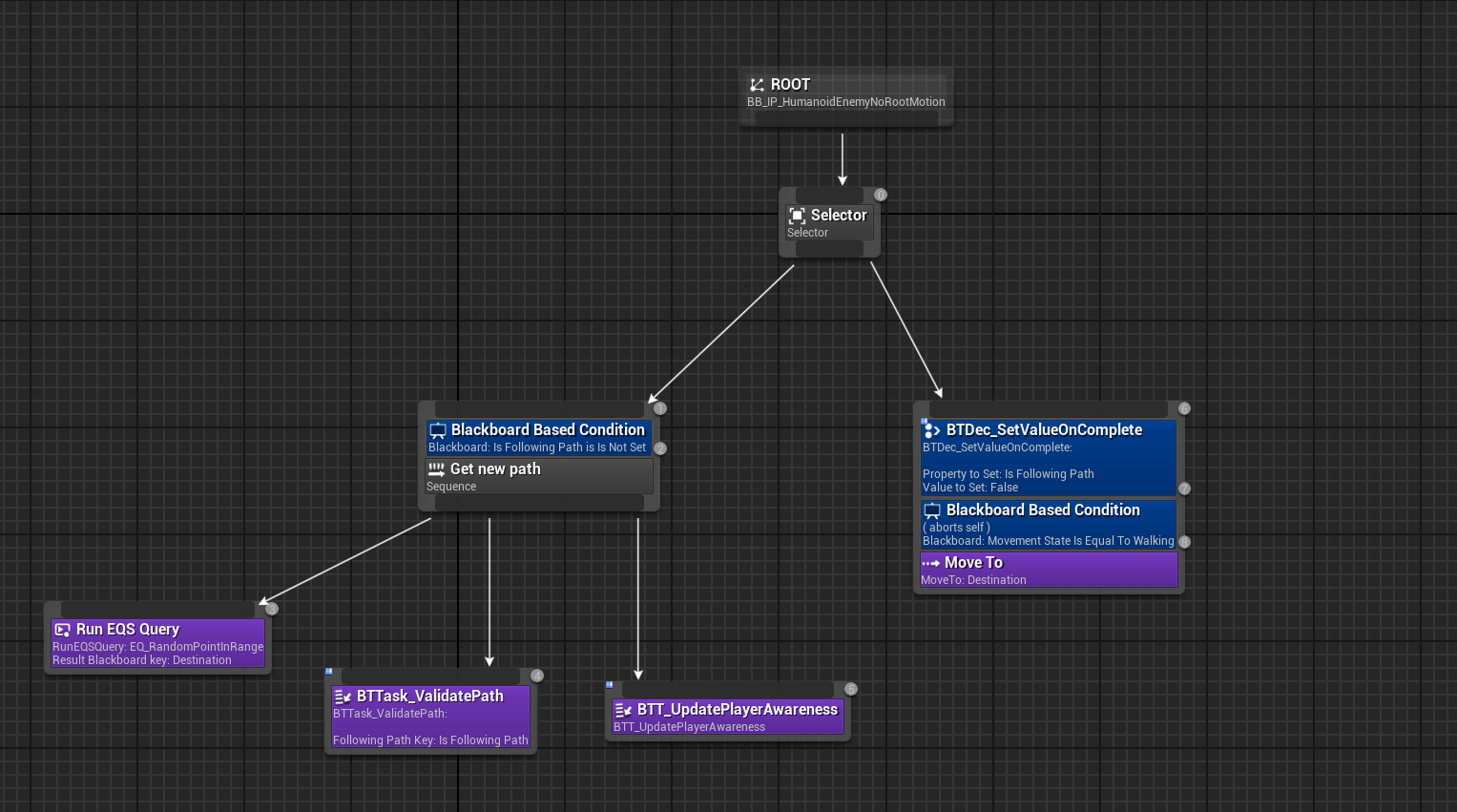
This is what a (simple, incomplete) Behaviour Tree looks like:

A Behaviour Tree that I abandoned when State Trees came out

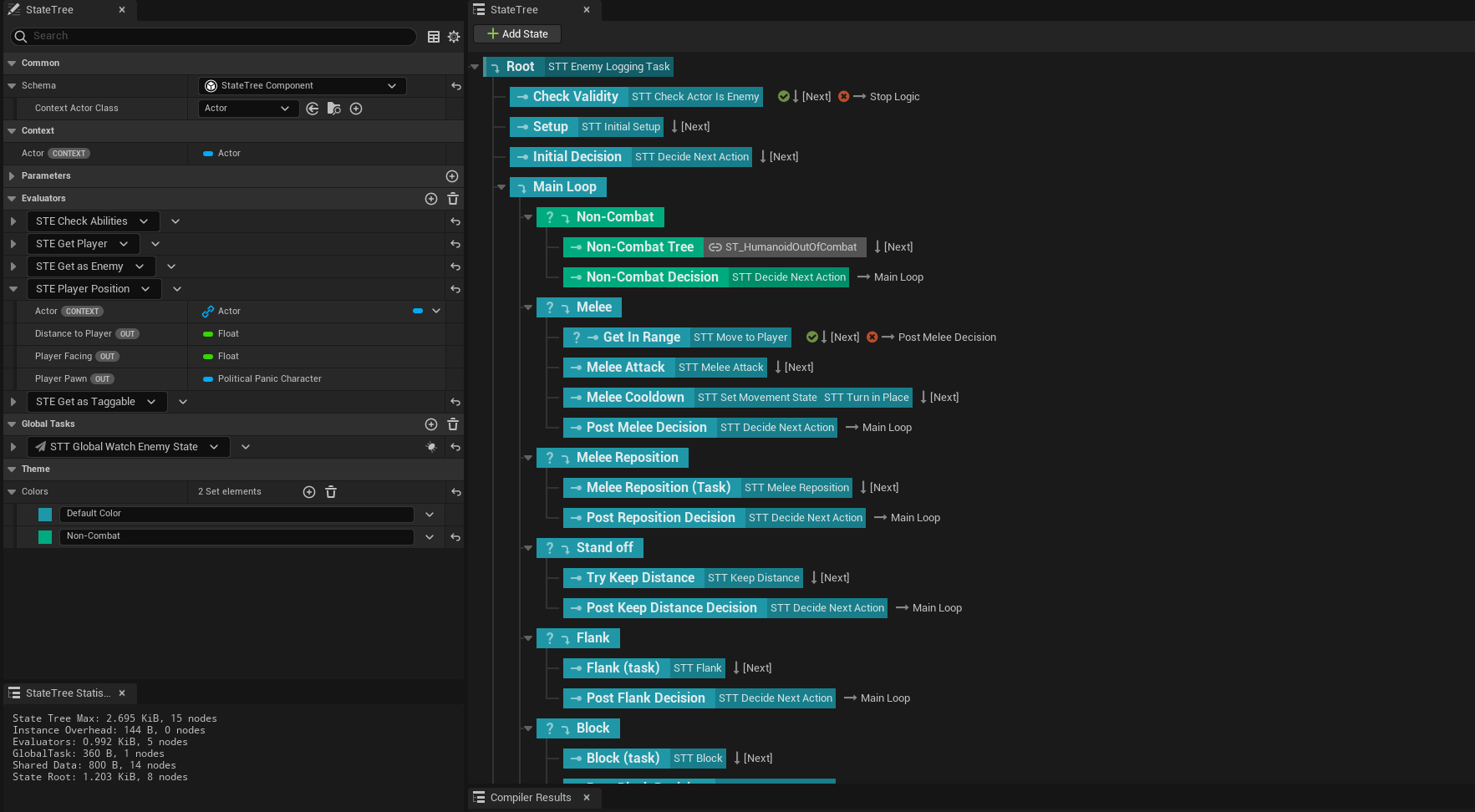
And this is what (more complicated) State Tree looks like:

A State Tree that I'm currently working on. It looks nicer in 5.5.

The latter is much nicer to reason about, and has most of the information you need available at a glance. I really like them.

What is in a State Tree?

You can skip this part if you just want to get to the headaches.

A State Tree has several top-level concepts:

  • Context: an object describing and storing what the State Tree is controlling- typically an actor or an AI Controller.
  • Parameters: global variables that you can set and read from, although as of 5.4 setting them at runtime is a bit awkward.
  • States: logical groupings of tasks to be executed, and transitions that can happen whilst that state is active. States can have child states (which is where the ‘tree’ bit comes in). States can also have enter conditions that need to be met before entry.
  • Tasks: things you actually want the AI to do. These can also provide information to other tasks, or claim resources, and can be run globally- that is, not tied to a particular state. Usually. We’ll get to that. Tasks can also (optionally) finish, reporting either success or failure, by calling their Finish Task function.
  • Transitions: these direct execution flow from one state to another. Like states, transitions can have conditions that need to be met before being activated. There’s three main flavours of transition- On Task Succeeded / Failed, which are triggered when tasks succeed and fail respectively; On Task Completed, which is triggered when a task succeeds OR when it fails; and On Event, which has to be triggered manually, either from inside a task or from outside the tree. Transitions can also have a priority, to resolve conflict if two or more are triggered at the same time.
  • Evaluators: these provide outside data to the tree. They are essentially pseudo-tasks with no inputs (beyond what is in the context), and that don’t have transitions attached. They can update the information they provide as execution progresses… usually. We’ll get to that in a bit.
  • Bindings: using bindings, tasks can expose input variables to be set when their containing state is activated. When you add a task to the tree, you can choose what to bind these exposed properties to from any variables that will be available when that task is executed. You can use the output of an evaluator, a parameter, the context, or another task. This means as the overall state of the game progresses, the behaviour of tasks can be dynamically modified to respond to new information. There is some hidden complexity here however, which we’ll get to later.

So, how do they work? Each tree has a ‘root’ state where execution starts. The State Tree will then try and find states to activate by running the following algorithm, running from top to bottom of the tree.

  1. Move consideration to the next child state of the last state checked (which is initially the root state).
  2. Check this state for enter conditions. If the conditions pass, or there are no conditions:
    1. This state is marked as active.
    2. If this state is a Leaf State- one that has no child states- stop searching and move to 5.
    3. Otherwise, set consideration to this node, and go back to 1.
  3. If the enter conditions fail, move consideration to the next child of the last state checked.
  4. If no states remain to be checked, and there are no active states, the tree exits.
  5. If the tree is still running, start any tasks on states that are active, stop any tasks on states that are not, and wait for a transition to be triggered.
  6. When a transition occurs, move consideration to wherever the transition points to, and go back to 2.

What can possibly go wrong?

Again, I like State Trees. But there are some things you should be aware of so you don’t spend as much time as I did wondering why they’re not fucking working properly.

Headache number 1: multiple active states and tasks

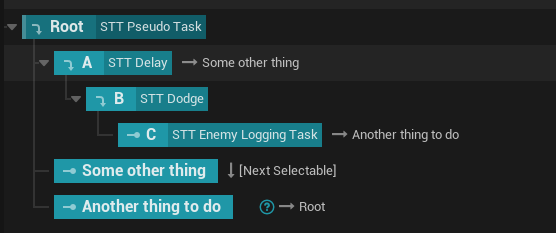
What do you think this is going to do exactly?

Multiple states can be active at the same time. Multiple tasks can be active at the same time. Each state can have its own transitions.

As mentioned, one of the most common transitions is “On State Completed”, which is fired whenever a task finishes execution by calling the Finish Task function. The problem is that all tasks in active states will receive the notification from all active tasks at or below their own level, meaning that a transition you thought only applied in a parent state may end up firing when something in a child state completes.

In the above example, states A, B, and C will all become active simultaneously- C is the leaf node, but the tasks on A and B will also be started. C completing will trigger the transitions on A, B and C, though because it’s furthest down C will be the one that takes precedence. Probably? Unfortunately, it’s not always obvious, particularly when there’s lots of different tasks and transitions.

This isn’t too much of an issue if you’re aware of it, but it’s not exactly highlighted in the docs, and it brings us to another problem:

Headache number 2: doing two things at once

Say you’ve got two or more tasks that you want to happen at once- for example, you want (A) your character to speak a line of dialogue and (B) walk to a position. Unfortunately you don’t know how long the voice line you’re playing is compared to how long the walk is, so whilst you want both to start at the same time, you want them to complete at different times, and then move execution elsewhere.

Two tasks in the same state- but as above, they could be in different states

You cannot use the On State Completed transition for this. This will fire if either A or B complete, which is almost guaranteed to be premature, causing the task that hasn’t finished to be stopped before completion.

If you’ve got another voice line to play when your character gets to where they’re going and it’s a really short walk, this could lead to the previous line getting cut off, or both playing at once. Likewise, if it’s a short voice line and a long walk, they could start playing their ‘interact’ animation (or whatever) in totally the wrong position.

Again this isn’t too bad if you’re aware of it, and there’s ways of mitigating both of the things in that example outside of the tree, but it’s still something to be worked around. In general there’s two options, depending on how essential that concurrency is.

Option 1: if you know (or don’t really care) that one is going to finish before the other, just make it so one of the tasks never calls the Finish Task function. If only one task is finishing, there’s only one transition trigger. A slightly more complete solution is to subclass the UStateTreeTaskBlueprintBase C++ class and add something like UPROPERTY(BlueprintReadOnly, EditAnywhere) bool ShouldCallFinishTask that lets you set whether it finishes or not in the State Tree overview.

This is what I’ve done in the ExecuteSubtask task I created. I consider ‘sub tasks’ - which is not an official term - to be simple tasks that do something cosmetic or incidental, such as play a sound. They never call the Finish Task function, so they don’t affect the flow of the tree- they just trigger an event on the controlled Pawn, and when execution moves on they simply do any clean up they need to, and then stop.

Option 2: do something more involved, and add a specific task that counts the number of times other tasks below it finish. If you do this you’ll also need to define a transition that isn’t On State Completed to actually break out of this bit of the tree. Event transitions will work for this.

Option 2, however, requires being aware of another possible headache…

Headache number 3: receiving multiple EnterState and ExitState events in tasks residing in parent states

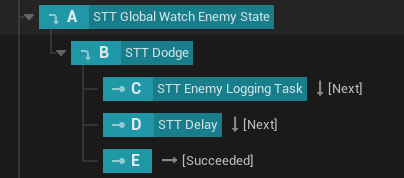
Let’s say you’ve grouped some behaviour together like this:

Grouping behaviours is great! Until it fucks up.

This is good! This is what State Tree is for! You’ve got a parent State grouping a set of behaviours, and you’ve got a clear sequence of things will happen in the order you’ve specified. If this state gets activated, the tree will immediately start any tasks in A, B and C; when C finishes, execution will go to D, and when D finishes execution will go to E, and then your Evil Space Knight character leaves this particular grouping to go and blow up the Innocent Space Children’s Hospital in the way you’ve defined elsewhere in the tree.

But there’s an issue:

Abandon all hope all ye who EnterState here

Tasks have three main events that get fired- Enter State, Exit State and Tick. Tick does what you expect, but Enter State and Exit State will be called on any task that is active when a transition happens. In the above example, A, B and C will all become active at the same time, and the associated tasks will get an Enter State at the same time. When C completes, tasks on all three will get an Exit State event.

But when D starts, tasks on A and B will get another Enter State event. When D completes, tasks on A and B will get an Exit State event again, and the same will happen when execution moves to E.

If you’re not doing anything significant in response to those events you’ll be fine, except obviously that’s when want to do a bunch of stuff- setting up and tearing down event listeners, and possibly firing other events off or getting your actor to do something.

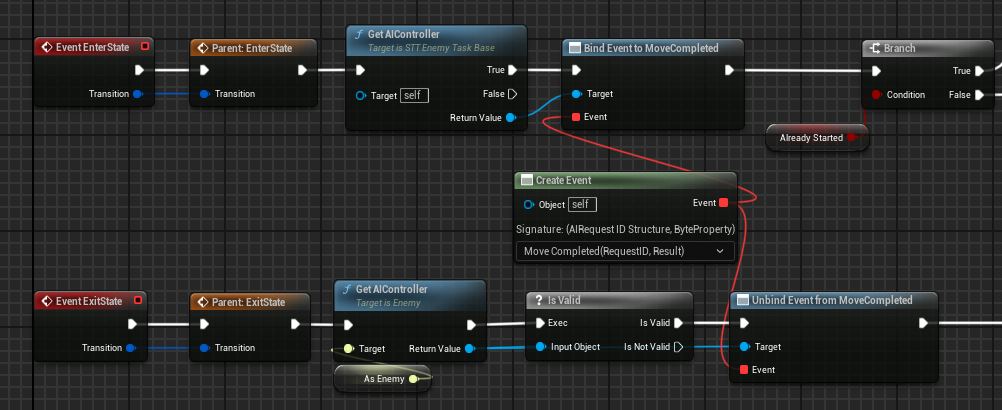
Luckily there is a setting for this! In the tasks used in A and B, go to the Class Defaults tab, and uncheck Should State Change on Reselect, which is on by default.

Toggle this off and you won't receive multiple Enter / Exit events if the task is already active

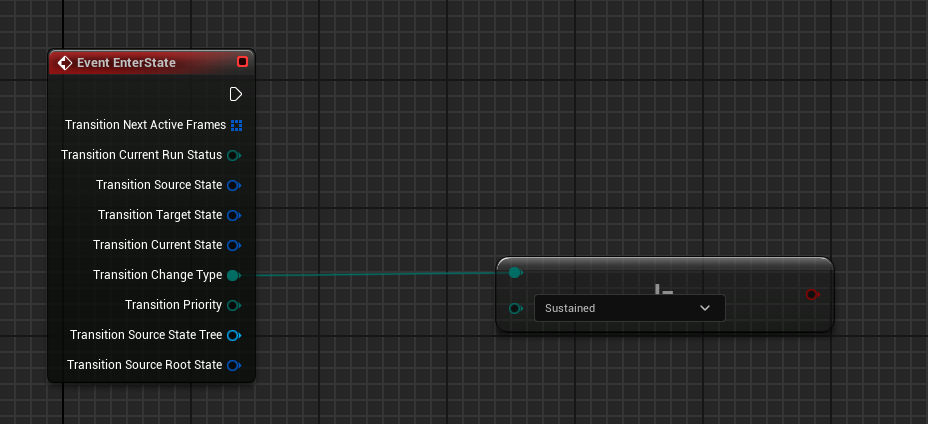
However: this has to be set on the task itself, rather than on the task when you add it to the Tree, so if you want to have tasks that sometimes care and sometimes don’t, you’ll need to extend StateTreeTaskBlueprintBase and add an appropriate flag. Alternatively you can check the TransitionType property on the transition and make sure it’s Changed rather than Sustained, but again this has to be done on the task itself.

Check the transition type. The other properties on this struct are (as of UE 5.4) only useful in C++ however

Even more infuriating: there’s a case where this just doesn’t work.

Headache number 4: Subtrees, AKA Linked Assets

The previous things on this list are things that are awkward, but mostly a result of the way State Trees work. The next couple are actual bugs.

This is a linked asset, also known as a SubTree

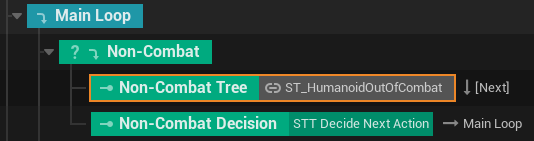
There’s a great feature in the UE implementation of State Trees that lets you to split off behaviour into sub-trees. To do this, you create a state, and then set its type to Linked Asset. This allows you to specify a different tree, so you can split your logic into more manageable chunks, as well as share groups of behaviours between different AI types.

Big problem: that Should State Change on Reselect property gets totally ignored if you’re running in a subtree, UNLESS you manually recompile the subtree before running it.

Sometimes. Intermittently. It’s annoyingly inconsistent.

So, you quit work for the day, start up the editor the next morning, and find that things aren’t working the way you left them the previous evening. You’ll inspect the tree, make a tweak, recompile… and it’ll work. It’s working again so obviously that was the correct fix. Quit at the end of the day, try again the next day, and… it’ll be broken again. But you’ve worked on something else so it was probably that, right? Right? So you muck around with that for a bit, trying to chase down the problem, until you accidentally recompile the sub tree and OH YEAH THAT FIXED IT.

Except that it didn’t, because it’s not actually anything you’ve done.

This is the worst kind of bug.

I’ve not been able to reproduce a minimal example, but when a tree gets sufficiently complex it seems to pop up. There’s a bug report open for this on the Unreal Engine Issue Tracker.

I figured out a work-around, but you’ll need to get into the C++ to apply it. Create a base class that extends StateTreeTaskBlueprintBase, override both EnterState and ExitState and put in the following implementation (plus anything else you fancy)

1
2
3
4
5
6
7
8
9
10
11
12
13
14
15
16
17
18
19
20
21
22
23
24
25
26
EStateTreeRunStatus USTT_EnemyTaskBase::EnterState(FStateTreeExecutionContext& Context,
const FStateTreeTransitionResult& Transition) {

if (!bShouldStateChangeOnReselect && Transition.ChangeType == EStateTreeStateChangeType::Sustained) {
// Unreal has fucked up if this happens, so just exit with what it was going to do anyway
return EStateTreeRunStatus::Running;
}

// Setup any events you want to have on all your tasks etc

return Super::EnterState(Context, Transition);

}

void USTT_EnemyTaskBase::ExitState(FStateTreeExecutionContext& Context, const FStateTreeTransitionResult& Transition) {

if (!bShouldStateChangeOnReselect && Transition.ChangeType == EStateTreeStateChangeType::Sustained) {
// Unreal has fucked up if this happens, so just exit without doing anything
return;

}

// Tear down any events etc

Super::ExitState(Context, Transition);
}

Hopefully there’ll be an actual fix for this soon. I’ve tried tracking it down in the source but I’ve not been able to find the root cause, and either way I’ve got a game to write.

Headache number 5: crashes

Another fun thing with Linked Assets: if you put global tasks in them, and that sub-tree has any parameters whatsoever… they crash! Hard! So don’t do that.

You can get around this by moving whatever your global task was to the root node of the subtree, but be aware you may well run into problem described above of getting Enter and Exit events for every single task in the tree. This crash was how I discovered Headache #4. I’ve submitted a bug report. Other crashes have been reported, but this is the one I found.

Headache number 6: Parameters, Bindings, and Tags

Being able to bind things to influence behaviour is great, but bindings may not work entirely how you expect them to. Whilst all bindings are passed as values rather than references, it’s better to think of them as two categories: Value Types - which are floats, structs, Gameplay Tags, and so on - and Pointer Types, which reference UObjects like Actors. Bindings seem to behave like UPROPERTYs, and have a few quirks.

One wrinkle of Unreal is that you cannot have a UPROPERTY that stores a pointer or a reference to a struct- you’ll get a compiler error if you try. Therefore, any structs you have exposed on objects will be passed by value, and copied. If they get updated, you need to make sure the new value makes its way into the State Tree somehow, and that requires a bit of extra engineering.

If you could bind to a function that would be great, but you can’t, so you can’t have something that along the lines of UFUNCTION(BlueprintCallable) float GetLatestValue() to ensure the latest value is available. Blueprint property getters are also ignored if you’ve defined them in C++; they will be bypassed, so existing code may give unexpected results. In general State Tree seems to sometimes behave as part of the Blueprint world and sometimes behave as part of the C++ world, and it can get very frustrating working out which part you’re dealing with at any one time.

You can bind to a property found on an object that a pointer references, but that pointer may wind up being null, and you’ll get a crash. As such you’ll need to make sure that pointer is valid, which leaves us with the original problem.

Evaluators (sometimes) seem to ignore updates driven by Events outside of the ones they come with in TreeStart and Tick. It’s possible some values are being cached, or that the execution context doesn’t always get updated correctly, or it could be a hidden race condition. I’ve not been able to find where in the source code this happens, and again, I’ve not been able to reproduce this reliably. It’s also possible I’ve just done something wrong, but if I have, it’s not remotely clear what.

Properties bound from global tasks always get set… but then you might run into the problems listed in Headaches #4 and #5.

Properties bound from parameters are fine, but as mentioned at the start of this article, updating a parameter isn’t very easy, and is currently impossible in Blueprint. It can be done in C++, but that’s no good for prototyping, and the chances are you’ll be chopping and changing a lot in your State Tree whilst you nail down the behaviour you want.

Of course, if you subscribe to the ‘Waterfall’ model of software development, this won’t be an issue for you, but then you’re also likely living in 1994 and Unreal version 1 won’t be released for another four years.

So, again, a ‘watcher’ task on the root of the tree is the best compromise, assuming you implement the code mentioned in Headache #4 so it doesn’t constantly setup and remove events you need to listen to or produce other unwanted behaviour.

All this is mostly an issue for transitions and state enter conditions- if you want to check against a value to see if you can enter a state or move to another, that value may be stale, and if it’s stale you’ll get the wrong behaviour.

So: Gameplay Tags.

Gameplay Tags are incredibly handy, particularly for replacing enums when choosing states and guarding transitions. However, they are structs, they’re typically passed around in Gameplay Tag Containers (FGameplayTagContainer in C++), which are also structs, and bound structs get passed by value, not by reference or pointer.

All together this means that if you’ve got an evaluator that outputs tags and you’re relying on it for directing the flow of execution, unless you copy them on tick you may wind up getting whatever was there when the tree started.

Not that copying on tick won’t work- it will- but it seems a bit excessive.

If you want to update the tags, you’ll need to do that on the actor you’re controlling- there’s no point updating a copy. Once they’re updated, you need to get them back into the tree and flush out whatever value was there before.

The best solution I’ve found for this is to create an Actor Component that is specifically for holding and updating tags you care about. Give it a GetTags() function and a SetTags(FGameplayTagContainer Tags) function, and an Event Dispatcher that is triggered with new contents whenever SetTags is called. Listen for that event in a global task (or watcher task on the root), use the value in the event to update an exposed variable, and then use that for your transition and enter conditions.

I’ve got a steadily growing library of functions to fill in the missing blanks of the Gameplay Tag implementation- at some point I’ll clean it up and put it on the Marketplace.

Headache number 7: watcher tasks on root

I said this was a solution, right? Well it is, just bear in mind you may need to add a delay task to make sure whatever value you’re driving transitions and enter conditions with is updated before the tree starts using it. This delay can last for 0 seconds, which is the equivalent of the Delay Until Next Tick node in regular Blueprints, but you may find things don’t work without it. Again, when a state is chosen for selection, all the tasks in the selected branch of the tree start at the same time.


So, would I recommend using State Trees?

Yes!

Probably.

None of this is intractable, but if you’re happy with Behaviour Trees maybe stick with them for another couple of releases. 5.5 is supposed to be fixing some of this, and they may even be properly reliable come 5.6 or 5.7.

Some quick tips so this doesn’t sound like I’m just bitching about someone else’s code

1. Subclass StateTreeBlueprintBase

There’s a fair bit of repetition when setting up tasks, and usually common things you want some or all of them to do, such as listening for events that let you know when an animation is finished. If you don’t want to constantly be doing that over and over again, and/or you want to be able to have a bit more control over transitions, and you’re not afraid of a bit of C++, subclass the UStateTreeBlueprintBase class. You can also do this in Blueprint, but there’s a lot more that is exposed in C++.

2. You can create an evaluator that returns an Interface.

Sick of casting to your interface? Create an evaluator that does the casting at the start of the tree’s execution and outputs the correct class.

3. You can modify the behaviour of a task by exposing public variables

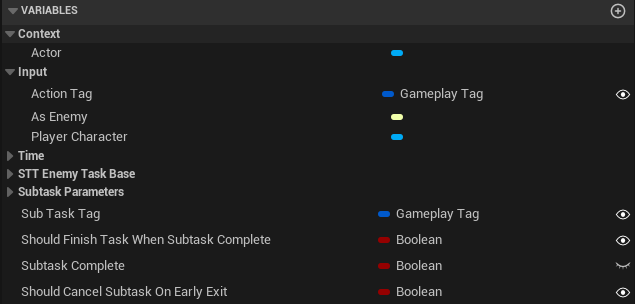
You don’t need to bind everything to existing variables in the tree. Tasks have three reserved variable categories- Input, Output and Context. Anything in ‘Context’ is bound automatically, assuming the Context is of the correct type. Anything in ‘Input’ needs to be bound, or the tree won’t compile. Anything in Output will be exposed to other tasks.

But, you can simply make a value public- if it’s not in Input or Context, you can then set those values directly by typing them in whilst in the tree overview. You can also still bind to these if you want to.

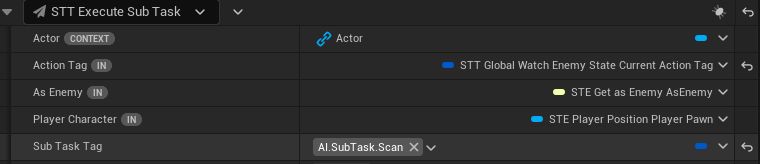
As an example, we have our Execute Subtask task here with the Subtask Tag set as public:

Input, Output and Context are special categories

When I want to use that in the tree, whilst I still need to bind everything under the Input category to an existing variable, I can just type the tag I want to use directly into the task on the tree. One task has now become (potentially) many different ones.

Bindings in the State Tree view

This pattern is great for Gameplay Abilities too… which is what this whole subtask thing should probably be anyway, but that’s for another blog post.

4. There’s a debugger

USE THE BLOODY DEBUGGER

There’s a debugger. Don’t spam Print Strings when it starts behaving wrong, you don’t need to. However, if you’re using Linked Assets / Subtrees, you’ll need to activate it in the parent Tree.

5. You can use this for stuff other than AI

Want to track a player’s progress through a puzzle? Well, State Trees can do that. I don’t know if you’d want to use this for a full quest system in an open world, but for tracking a particular set of interactions it’s ideal.

6. You can have a dedicated task for deciding what to do next

One place State Trees can start getting hairy is if you have lots of transitions with particular rules in different parts of the tree. You can see this as a strength- after all, being able to see what transitions can happen where just by looking is very useful- but it also makes changing that logic a bit tedious, as you have to remember what you’ve done in different places and make sure you don’t have any conflicting rules.

An alternative is to create a dedicated decision task so you can keep most or all of these decisions in one place.

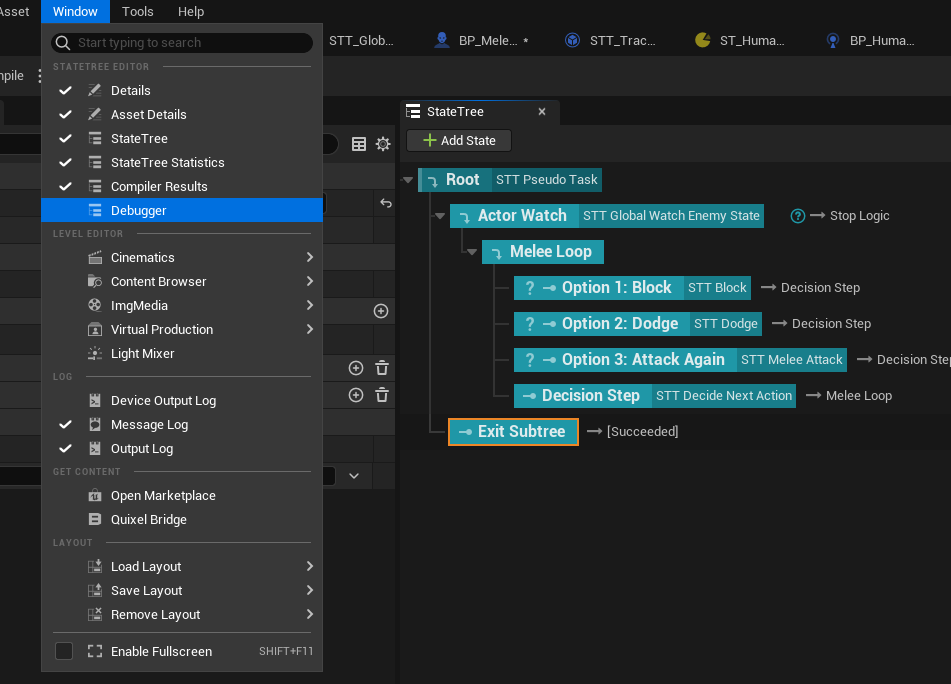
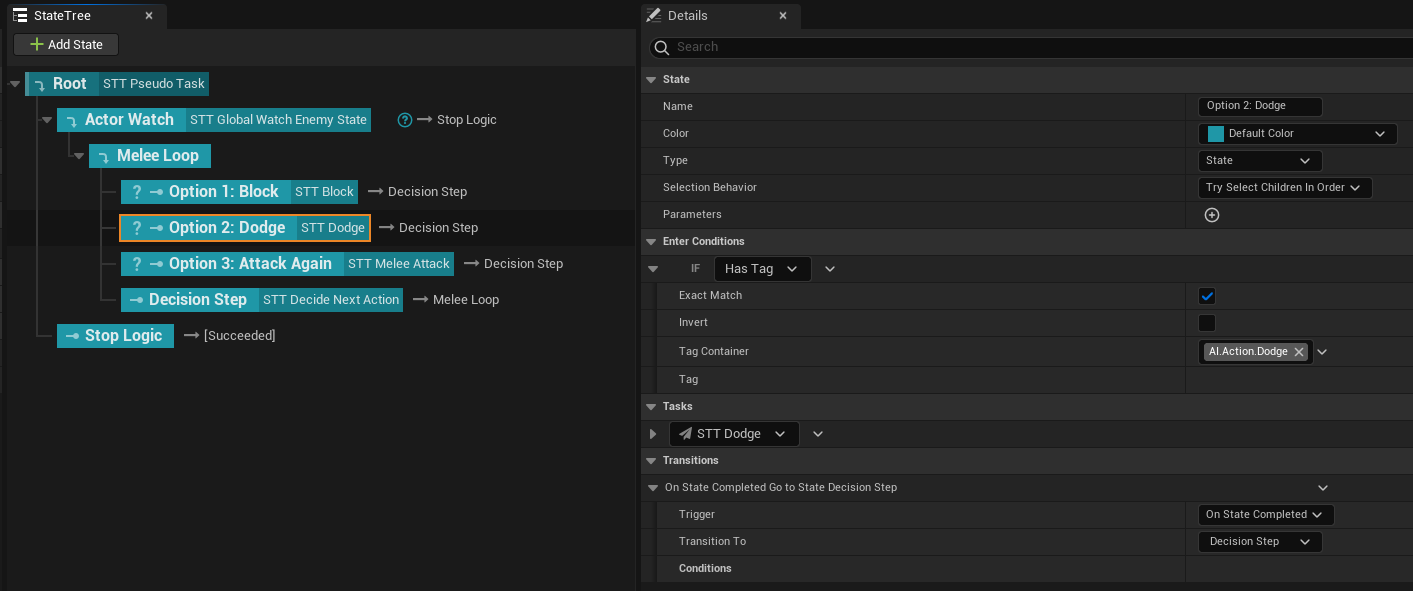
Example of using a decision task to consolidate some complexity into a single task

In this example, consider a watcher task in a parent state that is always running, hooked up so that whenever a Gameplay Tag is changed on the controlled actor’s Gameplay Tag Container it can provide it to the tree, where it can be used in the enter conditions for child states.

The loop then proceeds as follows: pick the State that matches that tag, thus executing the tasks within. When these tasks and their associated states complete, they all have the same transition: go to the decision task.

The decision task gets what the current tag is, checks the actor, player, and world state as required, and chooses a new tag. It then updates the Gameplay Tag Container on the controlled actor - giving the global watcher task a new tag to be used in the enter conditions - and calls Finish Task.

Execution then transitions up to the ‘Melee Loop’ state, and we repeat the process until this NPC manages to blow up the Innocent Space Children’s Hospital, ushering in a new age of Democracy on Cyber Basingstoke Prime.

This isn’t something you’d want to use everywhere, but it does mean you always know where to look when you want to change this particular piece of logic, and you don’t have to pick through the tree and re-bind a load of conditions and transitions.


I hope this all helps someone. If it helped you, why not buy my screensavers?. Also, if anyone has any corrections, feel free to get in touch.

The Jean-Paul Software Screen Explosion- A Brief Post-Mortem

So, this is done:

And you can buy it here!

And it’s had some wonderful reviews, from actual journalists! First, this piece on Eurogamer:

“I’ve been hypnotised by the Screen Explosion… it’s a joyous, mysterious, witty thing, a quick-change artist, one screensaver conjuring brutalist city layouts, another rendering streetcorners as buzzing pointillist swarms of lights, another taking you on a tour of the pylons of the world, seen from an endlessly cruising blacktop, colours changing, designs switching around as you travel without moving, the whole thing drawing me in until the pylons themselves start to look like mecha one minute and religious statues the next.

and also this piece on Rock Paper Shotgun:

“I enjoyed restarting screensavers to see them with new colours or new patterns. I really enjoyed that drive past international pylons. I enjoyed watching colours. I felt the childhood magic of screensavers again.”

Massive thanks to everyone who helped with testing, and to everyone who bought it. Pending any fatal bugs I’m now done with it, and moving onto a game, but before I do here’s some things I learned whilst dragging it from a nice little sketch to an actual product.

Writing your own engine is mostly a terrible idea but has some advantages

Perhaps it wasn’t necessary to write my own engine, but I wasn’t sure if I’d be able to write a screensaver any other way- Unity and Unreal are both a bit heavy, and you lose a lot of control over the low-level stuff like windowing and resolution. I didn’t entirely do it on my own- it’s all written on top of OpenFrameworks, which gets rid of a lot of the misery of the OpenGL API, but there’s large chunks of functionality I had to put together from scratch.

Fortunately the structure of the project meant that effort was just done as needed; the downside of that being that progress on producing things to actually look at was slower than I’d hoped, because I was having to muck about with the internals. Writing things that people won’t see gets demoralising, because despite any improvements you know you’ve made, none of it is evident to someone just looking at the screen.

One big advantage, however, is not having to find a way to express what you want to do within the confines of some larger structure. I was writing my own shaders directly; I could feed them the data I wanted. This makes some things a lot neater… but then again I’m nowhere near the fidelity of something like Unreal.

There’s a massive gap in expertise required to use C++ and JavaScript

I don’t think this is a surprise to anyone, but it really is a massive gap. Most of the work I’ve done for the last 10 or so years has been with JS and it’s various flavours, such as TypeScript. Before doing the Screen Explosion I’d not written any C++ since University, and picking it up again was essentially like learning a new language from scratch.

Now, there’s a lot of things that annoy me about open source JS projects- the stupid names, everything being “made with love”, even the most mundane shit having a logo- but they’re a hell of a lot easier to understand than the C++ ones. This is partly down to my familiarity, but also partly down to the language; aside from a few things like RXJS where the code is covered in decorators, nobody tries to overload operators or write macros or specify their own type of floating point number in JavaScript. But these turn up in C++ libraries pretty regularly, meaning you have to do a lot more reading to understand what’s going on, and even more if you get an error message.

An example of something I didn’t expect: Open GL redclares nearly every numeric data type with the prefix ‘GL’- GLint, GLfloat, GLdouble, and so on. Now, given that OpenGL is liasing with the hardware and different operating systems running on different types of processor there’s a good reason for this- the library needs assurances that it will function in the same way regardless of each environment- but there’s no explanation for this anywhere in the documentation, and in TypeScript all of these except GLboolean would just be number. And the Windows API terrifying if you go into it cold; I can see why the O’Reilly books sell so well now.

Getting perfectionist about something isn’t always bad, unless you do it too early

Most of the time I was happy to get things to ‘good enough’ and move on, but there are a few things that spending time on really helped with. First, the fish:

I knew I wanted to do a flocking simulation because it was a relatively easy win, but making an interesting flocking simulation is actually a bit of a challenge. If you just apply the basic rules, the different actors will go off endlessly into the distance, or bunch up, or ignore each other, or go in a straight line until they hit a wall. To make them actually look like a school of fish, I had to do a lot of experimentation.

Here’s a few additional things over and above the usual boids algorithm that I added in.

  1. Containment. Having the fish swim off endlessly meant they need to be contained, but abrupt changes in direction when they get to the edges looks crap. As such, they’re encased in a sphere, with each fish gaining a force reflecting their velocity back into the sphere that ramps up from an inner boundary to the outer boundary.
  2. Homing. Having the fish swim around the edges of the ‘tank’ also looks boring- they’ll line up and flock, but only around the edges. To counter this there’s a periodic homing force that gets applied, guiding them back to the center. This ramps up and fades away over time, giving the impression that the fish actually want to do something other than simply mooch about.
  3. Current. There’s a subtle 3D noise field that gets added into the simulation that evolves over time, which mostly works to divert the lead fish in a school away from a linear path. This makes any chains that form flow into a more interesting pattern.
  4. Variable stupidity. Each fish has a number which says how much it will follow each of the above forces, varying between 0.9 and 1. That adds a bit of chaos to the system, and makes things a little less robotic.

If I hadn’t got a bit precious about getting this right it would have been shit; as it is, I’m extremely happy with the result.

The counterpoint to this is: shadow maps. I burnt an absolutely stupid amount of time trying to get shadows right for the pylons, before taking them out and realising I didn’t really need them in the first place. The pylons have a non-realistic rendering scheme where the brightness calcuation is mapped onto a palette of colours, and if anything it looks better when it’s allowed to be weird and shadows aren’t present.

I don’t think there’s any non-obvious lesson here- I suppose this could fall under the category of premature optimisation- but when you’re doing something on your own it can be hard to prioritise.

If you want to write a game-like thing, you also need to get good at editing videos and copywriting and 3D modelling and whatever you’ll need next week

Guess what: everyone wants a trailer these days. Perhaps that’s obvious but I hadn’t really thought about it before, and so I found myself learning how to use DaVinci Resolve. On top of that, while there’s some great free 3D models out there, if you’ve got something specific in mind you’ll need to either pay for it or make it yourself. The budget I had for this project was “as close to nothing as possible”, so I had to learn Blender. And then there’s the press releases, patch notes, and so on. None of this stuff is hard as such, and I got better the more I did, but it’s time-consuming work that I didn’t expect, and work you don’t expect is always the hardest to do. Which leads us on to…

Keep going even when you think it’s all shit (despite the fact that sometimes something is shit and you need to get rid of it)

Again, no big non-obvious lesson here, but I had a hundred opportunities to give up, and it took a lot of effort to will myself to keep going.

I had a lot of self-doubt when I was looking at something and hating it, and then wanting to change it… and sometimes I was completely right to hate it, and sometimes I just needed a break.

Pushing through nigh-incomprehensible C++ error messages was hard; pushing through more semantic bugs with the rendering, where nothing was appearing on screen but everything looked like it was correct, was even harder.

Finding that my Windows 11 upgrade had made the multi-screen video player stop working, and then deciding to cut it rather than spend an unknown amount of time fixing it, was also very difficult, as were the failed experiements that seemed great in my head but not on the screen.

Particularly hellish was when I did an initial release into Early Access… and then hardly anyone bought it, and nobody responded to my emails except to say “sorry, I just want to cover games on site of moderately high-profile games journalist, I can’t imagine anyone would want to cover screensavers”.

But finishing it, and getting the press, and the positive user reviews, and now selling enough to at the very least get the app submission deposit back from Steam… that feels very good. Also knowing that I’ve learned a huge amount, and that I can do something like this, that’s a big thing to. Who knows if I’ll ever top it, but I’m going to try.

Writing a Game in Ten Years or Less - Part 2

So I’ve got a game concept and now we need to build it. How do you actually do that?

Well at this point I don’t know entirely, and that’s where all the fun is going to come from. It’s also where all of the headaches are going to come from. But let’s start with what I do know:

  1. Game engines exist. Game engines mean you don’t have to write all of the code, just the bits that make your game interesting.
  2. Some of them are free (or mostly free).
  3. Some of them have VR support.

Now I could write my own game engine but honestly fuck that, so let’s pick someone else’s. It’s basically a choice between Unreal, Godot and Unity. You can do VR in all of them; they’re all free (aside from profit share for Unreal and a license for Unity if you break $100k in sales). There’s also CryEngine, but I still remember them saying that a “frozen jungle” was a great idea for Crysis so that one’s out.

There’s a lot written about how to pick between them, and nearly all of the conclusions are along the lines of “they’re all great but you should consider which is right for your project”, which doesn’t fucking help anyone. What it really comes down to is this: how scared are you of C++

A friend of mine once described C++ as “the Latin of programming languages”, which is to say it’s got a weird set of rules and conventions that are hard to learn and that you’re unlikely to have encountered unless you went to the right kind of school, but ultimately C++ is what most other languages spring from (functional programming languages excluded).

If you’re scared of C++, pick Unity, because that’s in C#. If you’re not, pick Godot or Unreal.

C++ in it’s newest form isn’t nearly as hard work as it was 20 years ago, and I’ve just finished The Jean-Paul Software Screen Explosion which was written in C++ with OpenFrameworks, so right now I’m OK with C++. On top of that I’ve not done anything non-trivial in C#, and life’s too short to be learning new programming languages all the time.

Now it’s between Godot and Unreal, and I think I’m just going to pick Unreal. My reasoning is: I’m probably not going to make a lot of money out of this, but there’s a lot more jobs out there for Unreal devs than there are for Godot devs, so it sets me up for the future a bit better, and if I want to pick up collaborators it’ll be much easier to find one who’s interested.

Unreal also has excellent learning resources, it’s far more mature, and the VR starter project puts you in a room with a gun… which is basically the game I’ll be making, so I can immediately start thinking about the interesting bits.

Chekhov's Gun

Now that’s decided, what are the problems I need to solve?

  1. Work out how to make the gun shoot properly fast bullets, as discussed in the previous post. Right now it shoots out balls that move incredibly slowly; what I need is a raycast weapon, which is to say one which projects out a line the instant you press the trigger and destroys any targets it touches.
  2. Work out the mechanics of transitioning between lots of small levels in a seamless way.
  3. Work out how game mechanics actually work in Unreal.

After I’ve worked these out I can start prototyping some levels.

As it turns out, I was able to do number 1 in about five minutes:

Blueprints in action

Unreal’s Blueprint system is pretty amazing, and remarkably intuitive. I’ve not had to write a single line of code and already I’m a third of the way there. It’s not actually destroying any targets yet, but that’s not going to be a big ask- there’s a course that goes through doing exactly that, albeit not in VR.

Number 3 seems pretty trivial, but number 2 is going to be a bit harder, because it will require some experimentation. There’s two options that I can see:

  1. Use the new UE5 World Partition system and teleport the player around after each game, having the engine take care of all the asset streaming. Will this still be quick if there are 200 minigames? I don’t know.
  2. Construct a separate level for each minigame. Will the levels load fast enough like this? I don’t know.

So unfortunately I’m going to have to try both. The second option is simpler, but I don’t know what the loading overhead is going to be like. The first option is more complex, but will it be a big drag loading loads of stuff when you first start the game? That’s going to be the subject of the next post.

Writing a Game in Ten Years or Less - Part 1

There’s three main steps to writing a game:

  1. Decide you want to write a game
  2. Write the game
  3. Profit

So, with step one out of the way, let’s move onto step two, which has a few sub-tasks.

First, what game is it I want to make? I’ve had a few ideas over the years.

Einstein on the Rampage

Albert Einstein did not die in 1955; he simply became sick of public life. He moved to Winnepeg, Canada, and worked in his shed on a tachyon-powered anti-ageing chamber that could be used to extend his life. He tended his garden. He bred dogs. He started following the local folk and country circuit.

In the 1960s Albert became a big fan of a local musician by the name of Neil Young. Albert loved his work- Neil couldn’t really sing or play, but if you listened past the shoddy musicianship the ideas were always great.

Years pass.

In 1974 Neil Young releases ‘On The Beach’. Einstein loves it. Inspired, he starts learning guitar and harmonica. A plan starts to form: he will make a big comeback to the world, by releasing a cover album of ‘On The Beach’, and doing the talk show circuit to market both his anti-ageing research and new record. In 1975 EMI has the rights to ‘Einstein: On the Beach’, and the release date is set for July 30th 1975.

But then disaster strikes: five days before release, modernist composer Phillip Glass premiers his opera ‘Einstein on the Beach’.

It is a huge success. EMI pulls Albert’s album; Glass is all over the press, and there is no way for Albert’s release to get the publicity it requires.

And so, Albert buys a shotgun, grabs his dark matter glove, opens a wormhole, and goes back in time to 1937 in order to kill Phillip Glass’ parents.

Chop

Chop is a helicopter simulator, except the helicopter blades are operated manually by the player whirling a motion controller above their head, and they have to steer by putting their keyboard on the floor and using the buttons with their feet.

Haringay’s Ladder

A psychological horror / management simulator / puzzle game set in North London where a landlord is forced to come to terms with the misery he’s inflicting on his tenants, all while trying to increase his property empire.

The Haringey Ladder

Each turn has a ‘planning’ phase and a ‘haunting’ phase- the planning phase has you buy new properties, adjust rents and attempt to divide up existing ones into ever smaller flats (whilst maintaining “legal standards” for living spaces), the ‘haunting’ phase has you deal with the wretched bastard you have become.

ANYWAY

All of these have problems- unknown complexity, potentially massive scope, etc- but the main one is I thought of the name first and then attempted to work backwards to a game idea.

What I should be doing is coming up with a game idea first and then worrying about the name later. So here’s that idea: Point Blank VR

If you’re not familiar with Point Blank, it’s a 90s arcade shooting game, made up of lots of smaller minigames. Here’s some guy with a lot of spare space and income playing it:

This idea ticks a lot of boxes:

  • It’s in VR. I want to do something in VR, because I find it interesting.
  • It’s pretty simple. Shooting a gun in VR is just about the simplest thing you can program
  • It’s got a lot of room for trying out different ideas. Like with The Jean-Paul Software Screen Explosion if I decide I need to learn something new, I can write a minigame that includes some element of it.
  • It’s easy to work out whether it’s going to be fun or not. I don’t have to write a deep character progression system or a plot or special balancing rules or anything like that- you have a gun, that’s it. I can work up a prototype and test it relatively quickly, so I can fail things quickly if they’re not entertaining.
  • It’s easy to extend with other actions- maybe you get a bow and arrow this level, maybe it’s a two-handed rifle, maybe it’s two guns, maybe it’s a cricket bat, maybe you have to touch a particular bit of a horse… whatever. If I want to shake it up I can.
  • I don’t have to worry too much about having a coherent art style. In fact, it might be better if it’s all over the place.
  • It’s an easy experience to share with other people in the same room. Many of the best VR experiences are the ones you can take turns on- Beat Sabre, Ragnarock, Gorn.

But it’s also got some challenges

  • It’s in VR. I’ve not done anything in VR before.
  • Requires a lot more ideas. I need to come up with enough game ideas and modules to keep things interesting. Five isn’t enough, 20 might be, the latest WarioWare has 200 and that’s a big ask.
  • Potentially awkward technical structure. It needs to be responsive, and support rapid switching between games, and rules. It should be like WarioWare in that regard- you play something, one second later you’re playing something else. No long loading screens, but also a variety of scenery.

Here’s WarioWare if you’ve not played it- there’s a new game every ten seconds. I don’t think I need it that frantic, but every 60 seconds for 20 minutes is still 20 games.

  • More games = more art - I think I can get around this by adopting a collage-like style, but there’s potentially a lot of art that needs to be created, and that could get challenging.

Prior Art

So what’s out there that’s similar to this?

Hotdogs, Horseshoes and Hand Grenades

This one is basically gun porn with a few shooting range modes thrown in, but the dev has given a great deal of thought into how the guns work in VR. It’s more of a toybox than a game- you get to muck about with guns and grenades, without moving to the United States or the Ukraine. It’s also got this whole thing about meat, which I don’t quite understand. Is it some sort of GOP code signal? I think they’re just trying to have a Sense Of Humour, but it comes across as wacky, which is a death sentence for comedy in my book.

What it does really well: gun handling, large variety of actions.
What it does less well: sterile environments, creepy obsession with sausages

Space Pirate Trainer

It’s a wave-based FPS shooter- drones fly about, you shoot them with a selection of weapons.

My main problem with this game is that the guns all fire slow-moving projectiles, which makes actually hitting anything a real pain in the arse. There’s also not a lot of feedback when you do hit something, giving it that horrible swimming-through-treacle feeling that I really want to avoid. But, it’s focussed, it does one thing very well, and it’s very easy to understand what’s going on.

What it does really well: very easy to understand what you’re supposed to do: you shoot the things
What it does less well: plays like a game about swatting flies with a feather duster

The sound track is terrible though. This leads me on to:

Pistol Whip

“Beat Sabre with Guns” is the pitch here, but really it’s closer to Virtua Cop, the grandfather of arcade light gun games

It gets right pretty much everything Space Pirate Trainer gets wrong- shooting an enemy happens instantly, and most of the enemies you only have to hit once, so if you hit something you know it, and that always feels great.

My main issue with Pistol Whip is that a) it takes itself incredibly seriously and b) it’s full of fucking dubstep.

STOP PUTTING DUBSTEP AND GLITCHY BEATZZZ IN GAMES PLEASE. I get it, Beat Sabre casts a long shadow, and that’s packed with what the US media called EDM in 1998, but that doesn’t mean everyone has to do it. Pistol Whip, Synth Riders, Audica, Until You Fall, Against, a game I just saw called Hard Bullet… it’s not good, it’s not interesting, and it frequently goes with that psuedo-80s pink-and-blue colour scheme over an image of a car driving into an extra-thick wireframe sunset that wasn’t ever cool, particularly not in the 1980s. I was nine at the end of the 80s and even I know that.

Remember Outrun? The thing you’re trying to hark back to? You know what music that had? It a mad mix of disco and latin jazz. It was synthesised, sure, because that’s what the chip running the software could do. But in the composers’ heads it didn’t sound like sawtooth waves, it sounded like this:

So make your game sound like that! Look I can’t criticise too much because I haven’t written the game yet, but I can promise that the music isn’t going to sound like Pistol Whip’s.

What it does really well: good shooting, instant response, good feedback. It also has a degree of auto-aim applied- possibly something to consider.
What it does less well: fucking dubstep, takes itself too seriously, general stench of carb-watching tech-bro Displate-buying culturally-impoverished Redditcentric US suburbian crypto brony gun-buying dankmeme gamingchair paintball RGB mancave nerds trying to recapture their first memory of seeing Optimus Prime

Nuclear Throne

This isn’t a VR game but it is one of the best games about shooting things ever.

The main thing that I want to take from Nuclear Throne is the level of skill that it will respond to, as opposed to the raw difficulty. It’s a hard game- I’m not sure I want to make a hard game. But, I would like to make a game that has optional challenges, and responds well to those who manage to meet them. Nuclear Throne has a number of hidden bosses and areas, and getting to them all requires a lot of skill. But it’s a great feeling when you get through.

It’s also got wonderful feedback when you shoot something- there’s a noise and a flash, and it never feels like bullets have no impact.

What it does really well: amazing feedback visual and audio feedback, very tight gameplay
What it does less well: it’s not in VR; for many this will be a benefit

Pre-registering Game Design Goals

So with all that, I’d like to take a slightly rationalist approach and pre-register some goals that I can use to work out if I’ve made the game I want to make or if I’ve got lost on the way.

1. My Dad should be able to play it without me telling him what to do

Pick up and play, as far as is possible with VR. Any instruction should be obvious; very few instructions should be required

2. Getting it right should feel good

When you shoot something it should a) explode immediately, b) make a noise, and c) have some haptic feedback on the motion controller if availble

3. Getting it really right should feel even better

If you complete a level perfectly, you get a special prize. The special prize is possibly a harder challenge that makes you feel really smug for beating.

4. Getting it wrong shouldn’t matter too much

There’s prizes for getting things right, but you can still have fun if you can’t shoot for toffee.

5. Easy to pass the headset around

You should be able to get this out with your mates round and have a good time. I’ve also got some ideasa about a party mode, but I need to get the basics in place.

6. Good weird, not bad weird

Playing Boggle with guns at a simulated motorway service station: good weird. Sausages everywhere: bad weird.

7. No fucking dubstep

The kids aren’t into it. Nobody is into it. Anyone who likes Skrillex is in their 30s now, give it a rest.

Step 3: Profit

In the next post I’m going to go into my thinking about how I’m actually going to build this, and how I’m going to go about finding out how to do the things I don’t yet know to do.

Games (and Screensavers) of the Year 2021

These are my entries for The Gameological Society’s yearly games of the year awards. The Gameological Society was once a subsection of The Onion AV Club, and was one of the most interesting and progressive areas in games writing while it was around.

The ‘What are you playing this weekend?’ article format originated there; another favourite was their ‘taste test’ feature, where they would ‘taste test’ a game along with some user-submitted food item.

I sent them some Marmite; they tried eating it with a spoon.

Gameological evaporated after a few years of general brilliance, but the wonderful community has stuck around on Steam and Discord, and I occasionally stick my head in.

Anyway, these are the categories:

  1. Game of the Year
  2. Single-player GOTY
  3. Multiplayer GOTY
  4. “Hindsight is 20/21” (a game you thought you liked only to discover you don’t)
  5. Favorite Replay ( / ongoing)
  6. Backlog GOTY Award (games from a previous release year)
  7. Didn’t Click Award
  8. Most Forgettable Award
  9. Unexpected Joy
  10. Best Music
  11. Favorite Game Encounter
  12. Best DLC of the Year
  13. Most accessible game
  14. “Waiting for Game-dot” (‘I’ll get around to it eventually’ suggestion, for those games gathering dust)
  15. Game that made me think (from “slightly dubious essay” suggestion)
  16. Girlfriend Reviews Reward (your favorite game to watch playthroughs / streams of)
  17. “Glad I stuck with it” Award
  18. WILDCARD (could be art direction, plot, anything you want to recognize!)

And here are my picks

Game of the Year: The Jean-Paul Software Screen Explosion

I am picking this because despite it not strictly speaking a game, it’s the first non-web game-like thing I have written and released entirely by myself, and because writing it has been, almost literally, my game of the year. It’s not perfect, but I’ve done it, and even sold a few copies, so that, for me, is good enough. Not good enough to retire on, but we’ll sort that out with the next project.

There’s a whole bunch of shit nobody tells you about when writing your own thing, and I am really quite proud that I managed to muster the bloody-mindedness to work through things like creating trailers and installers and driver issues and the Windows API. I’d not touched C++ since University either, so that was a big step up.

Have I mentioned that you can buy it on Steam? Because you totally can.

Single Player GOTY: Deathloop

Multiplayer GOTY: Also Deathloop

Arkane do it again; it’s not quite as good as Prey, but it’s given me some of my favourite gaming moments of the year. The single-player aspects of it are good enough to carry it- a plot to unravel, a world to explore- but the multiplayer is what elevates it to something really special. Like Dark Souls (almost exactly like Dark Souls) other players can invade your game and try and kill you.

Given that you’re trying to perform a certain sequence of actions in a certain order and do it perfectly in order to beat the game, when someone invades it means you have to drop all the plans you had and focus on the attacker. And the attacker can do all the things that you can, so you have to be ready for pretty much anything. They can go invisible and snipe you from a distance. They can make themselves near-invulnerable and run up to you with a shotgun. They can tie your fate to one of the NPC goons and shoot said goon in the face. They can sneak up behind you and stab you in the back. And if they manage to win, you have to start the day again.

Show some respect rookie

And so my favouite gaming moment of the year: getting invaded on the final map whilst going for my first perfect loop. Fifteen minutes of very tense stealth and spotting each other on distant rooftops, firing off a shot, and trying to get a better position finally ended when I managed to sneak up behind them on the roof of a castle and kick them into the sea. Enemy defeated, I cleaned up the rest of the targets, and rolled through to the ending with a big grin on my face.

Hindsight is 2021: Dyson Sphere Program

Some games have such complicated mechanics that they become almost entirely like programming a computer; Dyson Sphere Program is one of these games. The problem is, I do that for a living, and so if I’m going to do that for fun I’d rather work on my own projects. It’s obviously brilliant, and I have absolutely no excuse to play it.

Favourite Replay / Ongoing: Outer Wilds Echoes of the Eye

Best DLC of the year: Outer Wilds Echoes of the Eye

The Outer Wilds is a masterpiece, and they’ve managed to add DLC that’s just as good, AND that takes place in the same 22 minute time span as the original. It’s been long enough since I completed the main game that going back contains enough mystery, but working out how to get to the DLC and then still being surprised by it has been a real treat. It’ll be a while yet before I finish it, but finish it I will.

Backlog Award: Apex Legends

The best game I absolutely suck at.

Didn’t Click Award: Loop Hero

Do you like waiting for things to happen? Do you like having minimal control over a chaotic system that gives minimal rewards and punishes you with the feeling of wasted time? Well Loop Hero is the game for you! Or at least, Loop Hero is not the game for me. It requires just enough attention that you can’t leave it open on a separate screen, but not so much that anything really happens while you’re looking at it.

Most Forgettable Award: Metroid Dread

I played it. I enjoyed it. I even got 100% of the items! And then it completely cleared itself from my mind.

Unexpected Joy: Inscryption

The joy here is somewhat short lived: after completing the first ‘act’, the game reveals an entirely new section of itself that is similar but totally different to the first. Trouble is, after the initial elation, it turns out to be a bit of a miserable grind. The first part is sublime, but it never quite gets back to that level.

A big part of the game is the surprises, and without acts two and three they wouldn’t be able to cram as many in; but it would have been the better game if it had been a third of the length.

Best Music: Death’s Door

Don’t take my word for it though, just listen to the damn thing:

Now go and play the game.

Favourite Game Encounter: Ragnarock and the leaderboard reset

Ragnarock is the only VR rhythm music game that isn’t backed by ‘synthwave’ and / or fucking dubstep, and so is an immediate win in my book. You’re on a Viking longboat, banging the drums to make your crew row at the right speed… to a selection of absurd metal songs. There’s a few too many with bagpipes in, but there’s also a collection by a band called Wind Rose who seem to be entirely about writing songs about dwarves who like mining things. Check this shit out:

Anyway there’s this fucker by the name of Captain CLAWWW who is at the top of every single leaderboard for this game. There’s also an achievement you can unlock for posting the number one score. My highest genuine score puts me in the top 50. As such: good luck getting it without being a much, much better drummer than I am- and I’ve got a Grade 8 drumkit certification.

Luckily when they came out of Early Access they reset the leaderboards, and I was READY: straight in, found a track nobody was going to be playing- a mid tier one half-way down the list with zero bragging rights attached- and went for it, and got it. And now I have this, and you never will:

This is almost impossible

Most Accessible Game: The Jean-Paul Software Screen Explosion

Have I mentioned that screensavers don’t have complicated control schemes

“Waiting for Game-dot”: Pathologic 2

I’ve had this staring at me in my Steam library for ages. I really want to play it. For some reason I haven’t. I loved the first game before I gave up on it; it’s probably the feeling that exactly the same will happen here. I’ve also got too many New Years’ resolution candidates already, so I’ll just need to play it before it seems hopelessly dated.

Game that Made Me Think: Halo Infinite

Halo Infinite has the absolute worst dialogue I’ve heard in some time. The baddies are all scenery-chewing pantomime villians; your AI companion seems to have been written by an AI, trained on a combination of rejected Joss Whedon scripts and casual conversation with a start-up social media manager. The other Named Character is voiced by the actor who does Octane in Apex Legends, and has the same accent, except they’ve made him a whiny fuck who just wants to get home to his family and probably has some redemption character arc that I will never see because I gave up after an hour and a half.

Anyway, your AI companion, in addition to sounding like she’s doing one of those adverts you get on Instagram that are shot on a mobile phone and have an attractive young person talk straight to camera about this Amazing Thing they’ve just discovered, and that they’ve looked all over for but never quite found until now, is called…

The Weapon.

THE WEAPON

EVERYTHING in Halo has a name of the for ‘The X’; The Covenant, The Flood, The Banished, The Forerunners. I stopped playing when I found out the next mission was going to be at a place called The Conservatory. It made me realise: this naming scheme is everywhere, and I think this is the game that made me think about how much I hate it. Off the top of my head: Back 4 Blood has you up against The Ridden. Fallout 4 has The Institute, The Commonwealth, The Minutemen. I know for a fact there’s a lot more examples than that.

It’s lazy, it’s cheap, and it’s infuriating- but it’s particularly bad in Halo, a game set on a structure that’s been ripped entirely from one of Iain M. Banks’ amazing books. Iain M. Banks’ work is constantly surprising; Halo never is.

The new one has a nice grappling hook though, so that’s something.

Girlfriend Reviews Reward (your favorite game to watch playthroughs / streams of): Slay the Spire

I don’t have the brain for Slay the Spire. I am amazed by watching people who do. Perhaps they only upload the streams where everything goes right?

“Glad I stuck with it” Award: The Jean-Paul Software Screen Explosion

If you get it in the Winter sale, it’s 25% off!

Wildcard award: Psychonauts 2

I genuinely loved this game, even if it didn’t quite hit the highs of Deathloop. It’s wholesome without being cloying; weird without being “wacky”; it’s actually funny, and the fighing system doesn’t entirely suck.

So that’s it. I haven’t enabled comments on this website yet so please just complain into the ether.